
Use the tag filter widget
The illustrations show an earlier version of the interface. Use the steps in this guide for the available features and options.
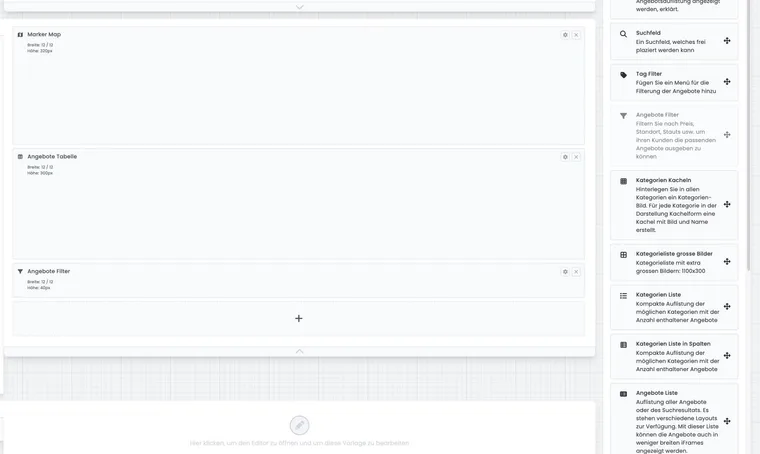
The tag filter widget in the Design Manager lets visitors filter offers by tags. It suits topics, target audiences, locations, difficulty levels or other properties previously assigned to offers.
Prerequisites
Offers must have tags before you use the widget. Plan a clear tag structure so visitors can understand the filter.
An activated tag filter shows choices but no offer list. On the same overview, add Offer list or Offer table, for example. Test an offer for each filter and an offer without the selected tag to ensure the selection matches the results.
Do not use a tag filter to verify a subscription. Restrict a price category reserved for subscribers in Price categories. Selecting a visible topic filter does not replace this entitlement check.
Insert the widget in the Design Manager
Open the Design Manager.
Select the Offer overview template.
Place the tag filter widget in the required position.
Open the widget settings and select the tags to display.
Save the design and check the preview.
Provide a reset filter
It is useful to configure the first filter without a specific tag, for example All. Visitors can then easily reset filtering and see all offers again.
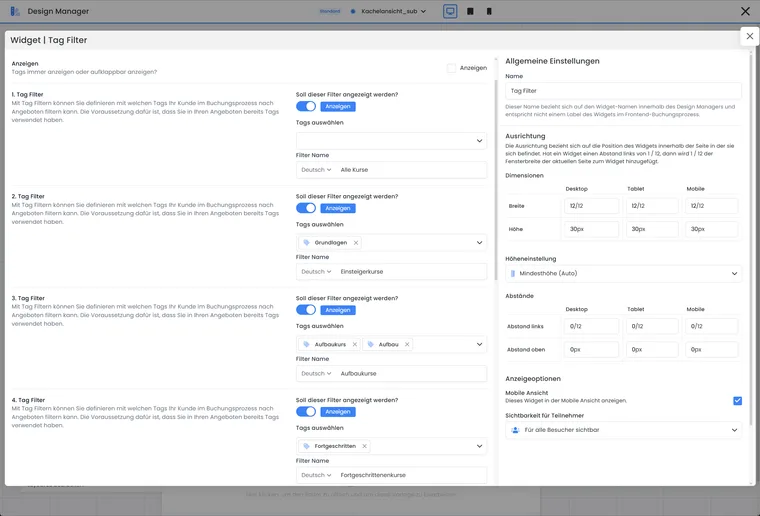
Example: the first filter contains no tag and returns to all courses. The other filters connect clear names with the appropriate offer tags.
Use tags in embeds
If you embed offers using iFrame or WordPress, also consider including tags in the embedding link. A website page can then start directly with filtered offers.
Configure up to ten clear filters
The widget provides up to ten filter positions. For each, choose separately whether it is displayed, which tags it includes and its name in each active language. A filter link can contain several tags and displays the matching offers. If you need a search form with multiple tag groups, translated individual values, icons and a configurable AND relationship between groups, use the other widget, Offer filters. The offer filter guide explains this option.
Also choose whether filters are always visible or expandable. Use short, clear labels such as All, Beginners, Online or Zurich and keep the order and spelling consistent across languages.
Distinguish filters, tag values and booking conditions
The tag filter widget changes the visible offer selection. It grants no access rights. Tags with values add properties such as language or level; positive and negative tag conditions control whether a person may book an offer. On complex pages, check visibility and booking eligibility separately.
Example: filter courses by level
A language school uses the tags A1, A2 and B1. During booking, visitors select their level in the tag filter and then see only suitable courses.
Example: multilingual filter with reset
A provider displays German and French courses. The first filter has no tag and is labelled Alle or Tous. Activated filters for Online and On site follow, with translated names. In both languages, check that resetting, expanding and selecting offers work clearly.