
Accordions or tabs in descriptions
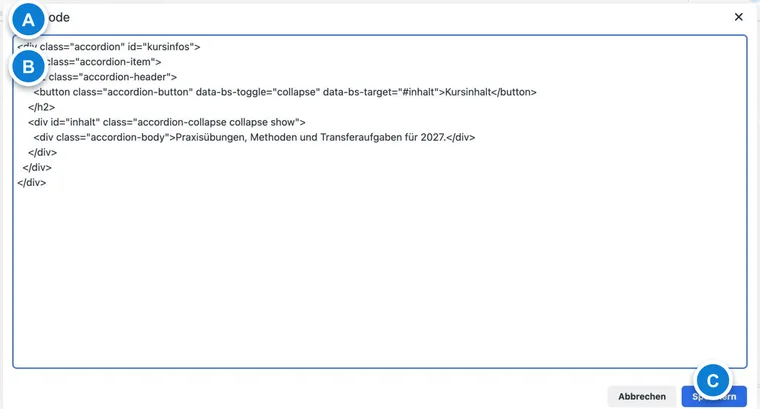
Use tabs or an accordion to structure longer descriptions in an offer. Participants can then open specific information such as the overview, programme, requirements or additional details without scrolling through one long text.
The elements are inserted in the description editor via the source code view. Always test the display in the preview afterwards, because design, website embedding, and screen size can influence how tabs or accordions appear.
When tabs or accordions are useful
Tabs work well for equally important sections shown side by side, such as the overview, programme, instructors and FAQ.
Accordions are suitable when many detailed pieces of information are listed one below the other, for example prerequisites, materials, travel, insurance, and payment information.
A normal text is better when the description is short or important information must remain immediately visible.
Use only as many areas per description as necessary. Too many tabs or accordion points can quickly make an offer page look cluttered.
Use case: Compact course description with FAQ
A language course has a long description covering the target audience, course content, placement, materials, and frequently asked questions. Create tabs for the most important content and place an accordion with FAQ questions below them. This keeps the core information visible while details can be opened as needed.
Edit description in source code
Open the desired offer and select Edit description. In the rich text editor, switch to the source code view using the </> symbol. There, insert the HTML code and then save the description.
Insert tabs for a Bootstrap 5.3 design
The following examples are for Bootstrap 5.3. Open the description via Texts → Description, switch to the source code view, and insert the block. The public design must load the appropriate Bootstrap styles and the tab functionality. A working editor alone does not confirm the later display.
<ul class="nav nav-tabs" id="kurs-tabs" role="tablist">
  <li class="nav-item" role="presentation"><button class="nav-link active" id="kurs-uebersicht-tab" data-bs-toggle="tab" data-bs-target="#kurs-uebersicht" type="button" role="tab" aria-controls="kurs-uebersicht" aria-selected="true">Overview</button></li>
  <li class="nav-item" role="presentation"><button class="nav-link" id="kurs-programm-tab" data-bs-toggle="tab" data-bs-target="#kurs-programm" type="button" role="tab" aria-controls="kurs-programm" aria-selected="false">Programme</button></li>
</ul>
<div class="tab-content">
  <div class="tab-pane fade show active" id="kurs-uebersicht" role="tabpanel" aria-labelledby="kurs-uebersicht-tab" tabindex="0"><p>Target audience and prerequisites.</p></div>
  <div class="tab-pane fade" id="kurs-programm" role="tabpanel" aria-labelledby="kurs-programm-tab" tabindex="0"><p>Content and schedule.</p></div>
</div>
Each pair of button and content area requires unique IDs. If you duplicate the block, replace kurs-uebersicht, kurs-programm, and the associated tab IDs throughout the second block. Write important prices, prerequisites, and deadlines in an area that is visible on load.
Insert an accordion for Bootstrap 5.3
An accordion is suitable for supplementary information such as materials, directions, or FAQs. The buttons refer to the respective content areas. data-bs-parent ensures in the example that the areas belong to the same group.
<div class="accordion" id="kurs-accordion">
  <div class="accordion-item">
    <h3 class="accordion-header" id="kurs-material-titel"><button class="accordion-button collapsed" type="button" data-bs-toggle="collapse" data-bs-target="#kurs-material" aria-expanded="false" aria-controls="kurs-material">What should I bring?</button></h3>
    <div id="kurs-material" class="accordion-collapse collapse" aria-labelledby="kurs-material-titel" data-bs-parent="#kurs-accordion"><div class="accordion-body">Please bring a charged laptop.</div></div>
  </div>
  <div class="accordion-item">
    <h3 class="accordion-header" id="kurs-anreise-titel"><button class="accordion-button collapsed" type="button" data-bs-toggle="collapse" data-bs-target="#kurs-anreise" aria-expanded="false" aria-controls="kurs-anreise">How do I find the classroom?</button></h3>
    <div id="kurs-anreise" class="accordion-collapse collapse" aria-labelledby="kurs-anreise-titel" data-bs-parent="#kurs-accordion"><div class="accordion-body">Please check in at reception on the ground floor.</div></div>
  </div>
</div>
Older designs may use Bootstrap 3 and require different attributes or classes. Do not mix data-toggle and old panel classes with the Bootstrap 5.3 example. First check the version of the associated design under Bootstrap 5.3 and then adjust the description accordingly.
Check and adjust the display
After saving, open the preview of the offer.
Check the desktop and mobile views. Long tab titles may wrap on small screens.
Ensure that all links point to the correct content area.
Adjust texts and colors only to the extent that the description remains easily readable.
Custom colors or spacing can be adjusted via CSS in the Design Manager. Document such adjustments internally so that later changes to the description text do not accidentally damage the structure.