
Legal texts, cancellation, and evidence: the entire workflow
First configure your published legal texts and cancellation groups, connect them to the offer and design, and then check a booking’s evidence. This guide takes you through the entire workflow and links to the detailed subpages.
Choose the correct starting point for each task
| Task | Starting point in edoobox | Guide |
|---|---|---|
| Maintain terms and conditions, privacy notices or participation conditions | Settings → Legal texts | Manage names, languages and versions |
| Replace an existing published text | Legal text → Language → New version | Publish a new version |
| Define deadlines, fees, withdrawal and refund route | Settings → Cancellation & Withdrawal → Rules | Configure cancellation groups |
| Display text and require confirmation | Design Manager → Summary → Legal texts | Integrate and document evidence |
| Decide a customer request or cancel directly | Booking details → Attached conditions, request and fees | Review requests and fees |
| Configure subscription purchases and cancellation | Abo-Manager and subscription checkout in the Design Manager | Subscription Legal Texts and Confirmations |
Use an admin login with the necessary settings, design and booking permissions. If an area is missing, have the user permissions checked. Subscription features additionally require approval and activation in the Plugin Manager.
1. Prepare legal texts and languages
- Create or open the required legal text under Settings → Legal texts.
- Check the name and required languages. Edit the draft and confirmation text for each language.
- Check the content and confirmation label together. Publication fixes the version; later changes require a new version.
- Publish the intended languages and check the public display for each booking language. In the normal course widget, the default language may appear if a translation is missing.
A new version of the same text is loaded through the existing widget link. A different newly created legal text, however, must be deliberately linked. Migrating older texts does not guarantee that old widgets have already been replaced by the new legal text widget. Check existing designs using the guide to version changes and existing content checks.
2. Create a cancellation conditions group and assign it to the offer
- Open Settings → Cancellation & Withdrawal and select Rules for the new group logic.
- Maintain a group with its name, activation, deadline rules, fees and intended action. For each rule, decide whether to cancel automatically or require admin confirmation.
- Assign the appropriate legal text and configure withdrawal and the refund route if your workflow provides for them.
- Save the group before switching to another. Then check the intended assignment in the offer.
- Check the deadline and fee at several points in time. Day boundaries use complete 24-hour blocks; a number alone does not describe a grace period.
The Default selection in an offer may permanently save the current group ID. A later change to the default group therefore does not automatically update such offers. Explicitly check affected offers. Deleting and deactivating a group have separate consequences; the effects table is under Manage cancellation conditions. Cancellation rules and fees explains the calculation with examples.
3. Connect display, confirmation and withdrawal in the design
- Open the design actually used and the Registration: Summary / Complete template.
- For each document, add the Legal texts widget, select the published text and define whether confirmation is required.
- For a linked cancellation group, check the additionally appended table. The public summary shows the deadline and fee; check the handling action in the rules.
- Check any required withdrawal confirmation when the offer starts at short notice. The cancellation group, linked text and booking process must align for this.
- If required, provide access to the withdrawal form through the navigation menu or the Exercise withdrawal button.
Follow the subpages Integrate legal texts, Summary and Payment and Configure and process withdrawal. The withdrawal link leads to its own verification process; a visible button does not yet confirm successful withdrawal.
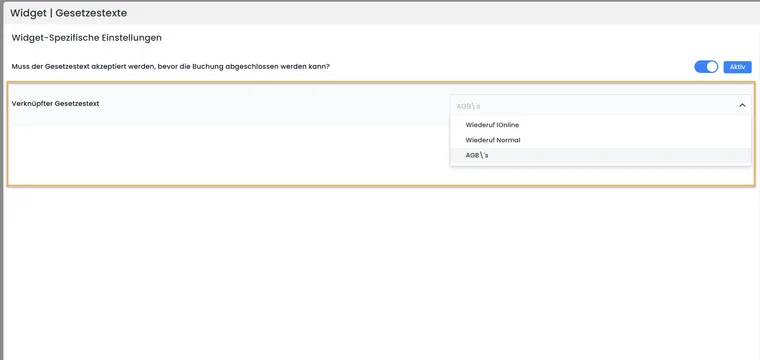
In the widget, select the legal text and specify whether booking requires its confirmation.
4. Check a booking and its separate evidence records
| Checkpoint | What should you check? | Limit |
|---|---|---|
| Legal text version | Open the language, version number and associated text saved in the booking details. | The displayed version date is the text’s publication date; it is not a separately stated consent timestamp. |
| Cancellation conditions | Check the conditions copy attached to the booking, including rules and withdrawal. | The group copy and legal text version are separate evidence records. The dynamic cancellation table is not part of the fixed text content. |
| Decision and fee | Check the request, cancellation action actually chosen and fee line. | A pending request does not yet cancel anything; completing a linked task can, however, trigger cancellation. |
| Payment processing | Recheck the refund, balance, invoice or cancellation invoice and outbox. | A success message or changed booking status alone does not confirm a completed refund. |
Open the booking details for this. The text view is explained under Integration and evidence. Retain required documents according to your internal retention process before automatic deletion.
5. Complete requests, cancellations, rebookings and money movements
- Identify the affected booking and, for collective bookings, the intended scope.
- Open the saved conditions and check the appointment, rule, withdrawal, fee preview and invoice state.
- Decide using Review cancellation requests and fees. Only complete a linked task when you intend the action that it triggers.
- After the action, check the actual booking status, fees, transactions and remaining balance. Address notices about manual financial review or failed refunds.
- Check the invoice or cancellation invoice and sending in the outbox before closing the case internally.
A rebooking can also trigger the previous booking’s cancellation rules. After an appointment reschedule, the public decision may be based on a saved start while the fee preview uses the current start. In such cases, compare the participant view, attached conditions and admin preview before deciding. Further steps: Process a collective booking, Check refunds and Process invoice documents.
6. Check subscriptions with their own checkout
A subscription purchase, a course booking using an existing subscription and cancelling renewal are different processes. Configure the plan first and then the subscription checkout in the Design Manager.
- Individual public subscription purchase: intended confirmations are checked against current text and version identifiers and saved as a separate text record. If you publish a new version during an open purchase, the person must reload checkout and confirm again.
- Shared basket: visible checkboxes do not currently prove an equivalent separate subscription text snapshot. Check the central completion step and the evidence actually present.
- Manual assignment and renewal: these do not create a renewed public purchase confirmation. Document the route used; an existing registration does not replace confirmation.
The exact template selection and evidential limits are under Subscription legal texts and confirmations. Cancellation of subscription renewal must be handled separately from cancellation of individual course bookings.
What changes for existing processes?
| Change | What to check afterwards |
|---|---|
| Publish a new version of the same legal text | New public display for each language; open previously saved booking evidence separately. |
| Create a new legal text instead of a new version | Deliberately set the widget and cancellation group link to the correct text. |
| Change a deadline or fee in a group | Compare a new booking with the new rule against an existing booking with its saved copy. |
| Change the conditions group on a booking afterwards | Check the new conditions copy and recalculated withdrawal deadline. |
| Change the default group or delete a group | Check explicit offer assignments and fallback to the default; existing booking copies remain separate. |
| Reschedule an offer | Compare the saved start, current preview and public cancellation decision. |
Verification before publication and after changes
Work with a test offer and traceable test data. Check every language and design actually used. If there is an error, first check publication and language, then widget selection, offer group and finally the saved booking copy.
- Attempt a booking without the required confirmation, then complete it with confirmation; check the text, label and version display.
- Compare an existing and a new booking after a text or rule change.
- Run through automatic cancellation and a request requiring an admin decision separately.
- Check withdrawal within and outside the technical deadline and an offer starting at short notice.
- Trace fees, online refunds or the chosen alternative route, documents and email.
- For subscription sales, check individual purchase, basket, manual assignment and renewal with their differing evidence records.
- For embedded views, also check the cookie banner and tracking consent handover. Contact verification is a separate form step.
The contract between your organisation and edoobox, participant legal texts and your organisation’s data protection tasks each have their own configuration and verification routes. Link these to the responsible people in your operational workflow.
Examples of typical changes
New terms and conditions for the next course programme
Administration opens the existing terms and conditions text, drafts the next version for each language, checks the content and label, and publishes it. It opens the same widget link in the public preview and makes a new booking. It then compares the version saved with that booking against an older booking. Cancellation rules are additionally changed in their group if needed.
A cancellation request with a fee and refund
The booking remains active after the request. The responsible person checks the saved rule, appointment, fee preview and invoice, decides the request and then checks the status, fee line and refund. An outstanding financial notice remains to be processed even if cancellation is already visible.
A subscription and course in the same basket
A provider sells a pass and course together. It checks both the subscription checkout template and the shared completion step. Visible subscription checkboxes are not automatically treated as saved independent version evidence. The provider checks the booking and subscription documents actually available using the subscription evidence guide.