
Participant account and login types
The illustrations show an earlier version of the interface. Use the steps in this guide for the available features and options.
Login configuration in edoobox consists of several independent decisions: Which page appears after booking? Is a participant account with a password used? Which login providers may appear? And may existing accounts be recognised across edoobox accounts?
Email code validation and Magic Login are not part of these global selection lists. They are configured on the participant form’s email field in Design Manager. This separation matters so that you do not accidentally configure a booking process different from the one intended.
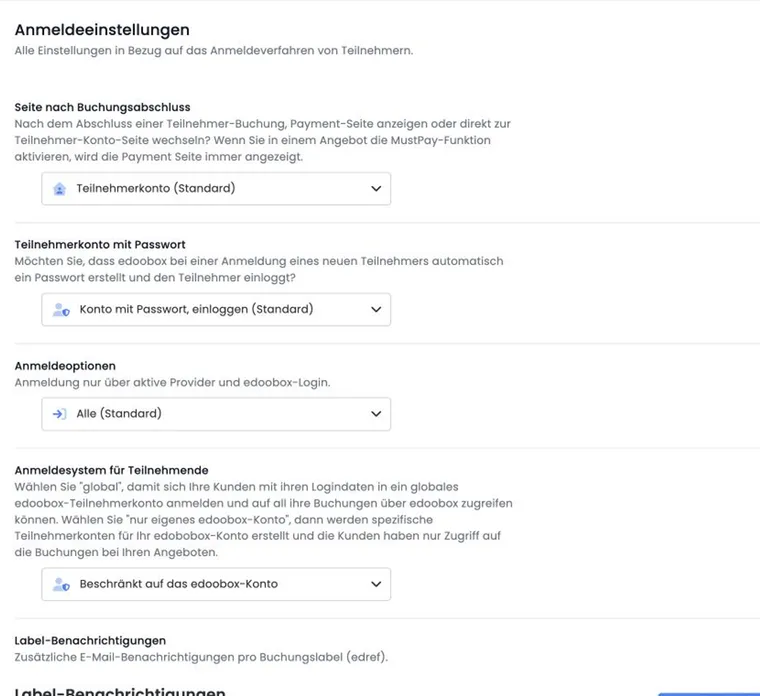
Set the destination page after booking
Under Page after booking completion, two destinations are available:
Payment page: The payment page is displayed after completing the participant booking.
Participant account (default): The participant account opens after completion.
This setting determines only the destination after booking completion. It does not determine whether a password is required or which login providers are visible.
Participant account with or without a password
Under Participant account with password, choose one of the three variants available in edoobox:
| Option | Behavior | Suitable for |
|---|---|---|
| Account with password, log in (default) | The account has a password and the person is logged in. | Returning participants who use bookings and profile data in their account. |
| Account with password, do not log in | A password-protected account is used without logging the person in during booking. | Processes in which an account should exist but immediate account access is not part of completion. |
| Account without password, do not log in | Booking takes place without a password and without subsequent login. | Public individual bookings with the lowest possible entry barrier. |
Always test a change in a private browser window. A test account already logged in can otherwise conceal what the process actually looks like for new people.
Determine permitted login providers
The Login options selection list controls which routes are offered during booking:
All (default): all login types available for the process.
Active providers and edoobox login only: configured external providers and the edoobox login.
Providers only: exclusively active external login providers.
Select Providers only only after at least one provider has been fully configured and checked with a test account. Otherwise the intended login route may be missing.
Recognise accounts globally or only within your own edoobox account
For the Global edoobox participant login system, choose between Global and Own edoobox account only. ‘Global’ is intended for cross-account recognition within the edoobox login system. The restricted variant limits this to your own edoobox account.
For organisations with clearly separate brands or datasets, ‘Own edoobox account only’ is usually easier to explain. If you operate several related edoobox accounts, the global variant can simplify access for returning people.
Configure email codes and Magic Login in the form
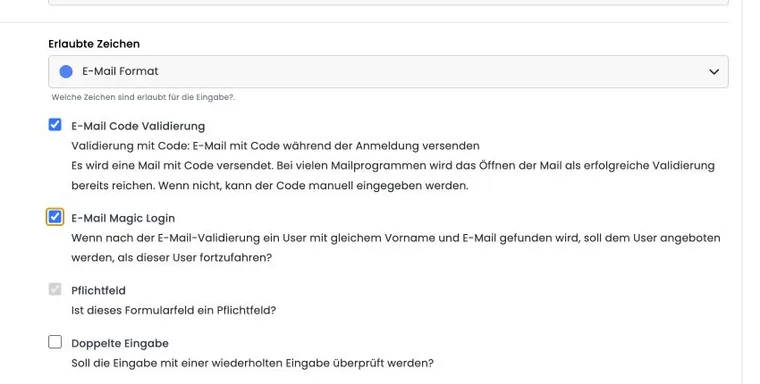
In Design Manager, open the Registration: Participant form template and edit the email field. The two features appear when email format is selected for the field:
Enable Email code validation so the entered address is confirmed using a code sent to it.
Then optionally enable Email Magic Login so an existing profile can be used for booking after successful validation.
Magic Login depends on code validation. Disabling email code validation also disables Magic Login in edoobox. A detailed explanation is provided under Automatic profile recognition with Magic Login.
Narrow down a login problem: Which access route is meant?
| Area opened | What is checked | Appropriate next step |
|---|---|---|
| edoobox account administration | Admin access using a password, two-factor method or enabled SSO. | Use the admin login guide. A participant code does not repair this access. |
| Participant account or login before booking | Password or provider login enabled in the design and global settings. | Choose the correct provider and account access. For password login, use the recovery offered there; for an external provider, check its access. |
| Email code in the participant form | Reachability of the email address just entered. | Check spelling and inbox including spam folder, enter the current code in the appropriate form and check code validation. |
| ‘Continue as …’ after a successful code | Deliberately adopting an appropriate existing profile. | Check the displayed name and confirm the action. The Magic Login guide explains other people and group bookings. |
| Personal link for place registration | Assignment of exactly one already booked open group place. | Use the current, still valid place link. It is not a general login and cannot serve a second person after successful assignment. |
For a query, record which of these pages stops the process and which message appears. Do not have a confirmation code, password or personal access link shared as an error description. For your own sending problems, also check the outbox; a successful email connection alone does not prove delivery of the specific message.
Check the complete configuration
Book once with a new email address.
Then book with an email address already known.
Check code entry, profile adoption, destination page after completion and later account access.
For provider login, also check a successful and an aborted login.
Example: Public one-off event
A town festival wants as few barriers as possible. It uses ‘Account without password, do not log in’, permits all login options and leads to the payment page after completion. The organisation checks with a new address that booking can be completed without subsequent account login.
Example: Academy with returning participants
An academy uses ‘Account with password, log in’ and the participant account as the destination page. It additionally enables code validation and Magic Login on the email field. Returning people can therefore use confirmed profile data and enter their account directly after booking.
Example: Company portal with a central login provider
A company permits only its already tested login provider. It sets login options to ‘Providers only’ and restricts recognition to its own edoobox account. Before publication, the team tests the process with an authorised and an unauthorised company account.
Require login and provide subscriptions in the account
In Design Manager, the Login – Sign in widget additionally has a Require login option. It applies to the designed registration route and supplements global login options. Enable it only if a new or existing person can gain access through the login routes actually enabled.
Magic Login on the email field uses the confirmed address and first name to offer an existing person for profile adoption. The general account page also provides the login routes configured there. A normal booking confirmation, a Magic Login process and an external provider login must each be checked in their intended process.
For subscriptions, add the My subscriptions or My memberships widget in the customer area. It shows the logged-in person’s subscriptions with status, period, remaining uses and enabled invoice, payment or cancellation actions. Setup: Design subscriptions and the customer area.
Unnamed group places are reserved participation and receive their participant only through place registration or assignment. They are not a general guest login.
Set up SAML for participants
A SAML provider may be enabled for Users only or Users & Admins. For participant login, people start in the public booking process through the provider offered there. A separate admin SSO URL is not a participant login.
Setup and the effect of participant data and tags are described under SAML: Participant login, tags and offer access. Field mapping and administrative permissions are explained under SAML data field mapping and admin permissions. Additional protection for administrative access is described under Set up two-factor authentication and passkeys for admins.
Check required login specifically
In Design Manager, open the assigned custom design, Participant form in the body, and the Login – Sign in widget.
Enable Require login, maintain the title for each language and check the globally permitted login providers. The optional Facebook button switch does not replace a configured provider connection.
Open the intended offer link without logging in. edoobox redirects to login before displaying the participant form. Check the return route after successful login.
Repeat access with an existing login and a new account. For SAML, check Users only or Users & Admins permission and the specific public provider.
Magic Login and email codes in the form take effect only once the form is reached. Required login may replace this initial form access. The administration’s new two-factor and passkey settings are a separate area; they do not activate a general second-factor check for these participant fields.
Login and legal text confirmations during purchase
A password login, successful Magic Login or SAML login identifies a person for the respective process. Legal text confirmations configured in the purchase design are additionally recorded during purchase. A returning person should therefore deliberately confirm the mandatory texts displayed for a new individual subscription purchase too.
Check login and text confirmation in sequence: first login and correct person assignment, then visible text version, language and mandatory checkboxes. Check that visibility rules do not inadvertently show required texts only to new or only to logged-in people. Setup and the differences between individual subscription purchases, shared carts and administrative assignments are described under Subscription legal texts and confirmations. For ordinary course bookings, use Legal texts in the booking process and evidence.