
Request lists
Use request lists to manage request processes for offers. Participants can request a booking, an intermediary can approve or reject it, or you can invite specific people to an offer.
Depending on the settings, edoobox reserves places during the request period, sends reminders, attaches a request Booking.pdf and moves people to the confirmed participant list after acceptance. For each list, configure the public label, reminder, validity, sending of Booking.pdf and reservations.
Video tutorials
These videos complement this guide. The spoken language is indicated for each video.
Preview images are loaded directly from this website. Playing a video connects to YouTube, only for the video you select.
Request for quotation with authorisation
This English video shows how interested participants request a quotation before their booking is confirmed following approval. It covers the request list, PDF email, acceptance or rejection, and reminders.
English alternative to the German example. For mandatory approvals, check all booking entry points as described in this guide. An additional standard registration button remains a separate booking route.
Examples of request lists
Reservation for approval: An employee makes a provisional booking and forwards the request confirmation to their supervisor. The booking becomes confirmed only after approval.
Expression of interest: Interested parties submit an inquiry, and spots can be reserved until a decision is made.
Invitation for a specific group of people: A department or VIP group receives an invitation and can accept or decline with a few clicks.
Pre-registration with a limited response deadline: You send invitations, set a validity period, and release spots after the deadline expires.
Inquiry lists are therefore an intermediate step before the definitive booking. They are suitable not only for classic waiting situations, but also for internal approvals, seminars with admission requirements, sponsor invitations, or offers where a spot should only be confirmed after manual review. If individuals are to initiate an inquiry themselves, you need the inquiry button in the booking process. If you actively invite individuals, this public button can be omitted.
1. Create a request list
Open Request lists in the app menu and create a new list. Enter a public label that may appear in the administration, emails and, depending on the process, the booking process. Maintain it in every active language.
| Setting | Effect |
|---|---|
| Default | The list is automatically added to new offers. |
| Send booking PDF | The request’s Booking.pdf is attached to the request list email. |
| Create reservations | Seats are reserved for open inquiries; this option requires the booking PDF. |
| Reminder | Specifies when reminders are sent for outstanding requests. |
| Validity | Defines until when an inquiry can be answered. |
The reminder should be set before the validity expires. The reminder and validity can be calculated from the offer start or from the time of the inquiry, depending on the process. If you enable reservations, booked seats and reserved inquiries are counted together to prevent participants from overbooking in the frontend. Admins can still manually overbook, depending on their permissions. If the Booking.pdf is not sent along, the reservation logic may be restricted depending on the configuration; therefore, check PDF sending and reservations together.
Maintain the public label and all messages in every active language. If a translation is missing, the request list may appear incomplete or in the wrong language during booking.
Form, language, and second email address
Approval processes often require a second email address, for example, the address of a supervisor. Create a suitable participant data field for this purpose and control its visibility so that the field only appears in the inquiry list process when it is needed there.
In email templates, use ##OfferlistSecondMailExists## to check whether a second email address is available. This lets you display additional information only when the request is actually sent to another person. The exact condition logic is described in IF and EACH in email templates.
Custom validity rules
With custom rules, you determine the response deadline based on the distance to the offer start. Days until start ≥ is a lower limit: if multiple rules apply, the highest matching lower limit takes effect. Days of validity is calculated from the inquiry and must not be greater than the entered lower limit in the interface.
| Days until start ≥ | Days of validity | Example |
|---|---|---|
| 30 | 14 | With a 40-day lead time, the new inquiry remains valid for 14 days. |
| 7 | 3 | With a 10-day lead time, it remains valid for 3 days. |
| 1 | 1 | With a 2-day lead time, it remains valid for 1 day. |
No matching range: With less than one day of lead time, no row fits in this example. This can result in an inquiry without a calculated expiration date. This rule tier is also not a reliable automatic deadline on or after the start. Check the actual validity value of a short-notice test inquiry. If every inquiry should receive a fixed deadline, use a suitable simple validity from entry or before the offer start instead.
Check the reminder and validity period together: send a reminder in time before the request actually expires. Decide as a team whether to create a new request after the deadline or contact the person first.
2. Add inquiry list to the offer
Open the relevant offer and go through More to Request lists. View the available lists and add the relevant one using the plus icon. Default lists appear automatically for newly created offers; check existing offers and add lists manually where needed.
Multiple lists per offer are possible if you want to separate different processes, for example, internal approval and VIP invitation.
3. Integrate the Request Button into the booking process
To let participants start a request on the website, add the Request button widget to the Offer details template in the Design Manager. Link the relevant request list and adjust the starting and completion labels and button colour.
If multiple request lists are used, create a separate Request Button for each list. Afterwards, check the public view with a test booking.
4. Adjust the decision process
Design the decision page, where requests are accepted or rejected, in the Design Manager in the template Requests: Accept or Reject. Test the page with an actual demo request in a second browser tab so that saved changes are immediately visible.
On the completion page, thank-you texts, decision buttons, and PDF attachment names can be adjusted depending on the widget. This is important when the same templates are used for approvals and invitations.
5. Email templates and IF conditions
Request lists have dedicated templates: Request list email, Request list reminder email, Request list rejection email and Booking.pdf (request list). These apply to every request list in the account, so keep their wording general enough for all lists.
The placeholder ##OfferlistSecondMailExists## can be used in IF conditions if a second email address is present. The prerequisite is a matching participant data field in the global email settings.
{IF?OfferlistSecondMailExists = true}This request is also sent to the stored second email address.{ENDIF}If the second email address should only appear for inquiry lists, set the visibility of the field in the participant form to the booking type Only inquiry list allowed . In-depth: IF and EACH in email templates .
6. View inquiry list bookings
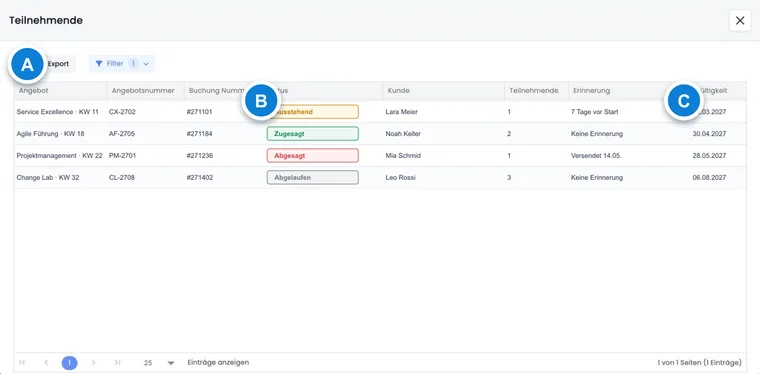
In the offer, open Request lists via Participants. Select the list to see requests with the status pending, accepted, declined or expired. Pay particular attention to open requests, as a decision is still pending. On acceptance, the booking is completed and the person is added to the confirmed participant list.
The list can be checked by status and exported. Open inquiries are particularly important because they reserve places depending on the setting. Accepted inquiries should subsequently be checked in booking, invoice, payment, and email history. Rejected inquiries remain visible for traceability but cannot be automatically converted into definitive bookings.
7. Invite, remind, and export participants
For active invitations, open Offer → Participants → Request Lists, select the list, and add people. Send requests and Send reminders process the unanswered entries in this list for the selected offer. A table filter does not limit this mass mailing to the currently visible rows.
The complete guide Invitations, reminders and CSV export explains the mailing scope, the export limit of 5,000 entries, personal decision links and QR codes.
Two typical workflow variants
Workflow | What is configured? | Important |
|---|---|---|
Reservation for approval | Create the inquiry list, add it to the offer, embed the inquiry button in Design Manager, and test the decision page and email templates. | The reservation, validity, reminder, and second email address are consistent. |
Send invitations | Create the inquiry list, add it to the offer, import or select persons, and send the invitation. | A public inquiry button is not strictly necessary if only actively invited persons are supposed to respond. |
When reservations are active, booked seats and open reservations are calculated together. This prevents overbooking in the public booking process via edoobox. Admins can still manually overbook depending on their permissions; such cases should be deliberately documented.
Check for approval with each subsequent registration
Logging in confirms identity; it does not automatically turn a later standard registration into a request requiring approval. The request button starts the process associated with its specific list. A standard registration button or a direct booking link already distributed may open a different route.
- Assign the request list to the offer and check the request button, including list selection and the second email field, in the design used.
- Remove regular registration actions offered in parallel for the intended public approval path from the relevant designs. Also check the offer overview, detail page, and existing website links.
- Start a request with a logged-out test user. Check the open list status, the responsible recipient, the personal decision page, and the state before approval.
- Then remain logged in and start another registration for the next approval-required offer. The request path with its own review must be triggered again.
- Additionally, check a known regular direct link. If a definitive booking without approval is created through it, the desired process is not yet fully secured. Clarify this path before release.
Hiding a button is not a general server-side block of all old or alternative booking links. There is no promised account-wide setting that retroactively converts any arbitrary regular booking path into a request. Document the intended entry points and check exceptions with support.
In a group registration, the decision remains collective; a separate supervisor approval per person is not created by this. If each person requires their own decision, plan separate requests and check their recipients.
Dry run before deployment
Always test a request list with a demo request before inviting real people. Check the public offer page, request button, confirmation page, request list email, Booking.pdf, reminder email and status change in the administration.
- Is the public label maintained in all active languages?
- Is the inquiry button linked to the correct list?
- Are the validity period and reminder appropriate for the use case?
- Have reservations and Booking.pdf been checked together?
- Are the email templates worded generally enough for all inquiry lists?
- Has the decision page for acceptance and rejection been tested?
- Export and QR code link tested with demo data?
For approval processes, it should be clear who receives the request, who is authorized to make the decision, and what happens after acceptance or rejection. For invitation processes, it should be clear whether non-responsive participants will be reminded, re-invited, or contacted manually.
Use case: Test request with supervisor approval
A test user initiates a provisional booking via the request button. The administration checks whether the email with Booking.pdf arrives correctly, whether the decision page is clear, and whether the user appears on the definitive participant list after acceptance. A second request is then rejected to verify this status as well.
Important to know: Limitations
| Feature | Limitation with request lists |
|---|---|
| MustPay | May be enabled, but has no mandatory payment effect upon acceptance; the booking can be created with the status Payment pending. |
| Group registration | For group bookings, only the contact person is displayed in the list; acceptance or rejection applies to all participants jointly. |
| Countdown | Not displayed in the inquiry list. |
| Multi-offer | Cannot be combined. |
| Free date selection | Cannot be combined. |
Activate the email on registration in the email settings if your team should be informed promptly about new inquiries. The registration info email can be extended with appropriate placeholders.
Note also that inquiry lists with special offer formats must be deliberately checked. Multi-offers, free date selection, and countdown processes are not standard combinations for inquiry lists. If MustPay is active, a forced payment step like in a normal immediate booking is still not automatically created upon acceptance.
Reminder and response deadline are separate settings
Even without a fixed expiration date, an inquiry can have a reminder date. The automatic reminder checks for a due stored reminder time and an open entry that has not yet been marked as reminded. Therefore, enabling a reminder does not simultaneously create a response deadline.
Deliberately choose before deployment whether an inquiry should remain time-unlimited or expire after a fixed duration. Check the actually stored validity and reminder date in the demo entry. If your process requires a deadline, do not rely solely on the reminder switch. After a later change, use the check path for existing entries.
Check deadlines
For request lists, reminders and validity periods are closely linked. Send the reminder before the request expires so the recipient still has time to respond. Test the complete process, including the invitation, reminder, acceptance, rejection and expired request.
Handle expired and withdrawn inquiries
The table now explicitly distinguishes pending, accepted, declined and expired. Pending and expired are not freely selectable manual decision values. For an expired request, first check its validity and current capacity before inviting again.
Cancelling a request booking that is still outstanding does not generate cancellation fees or an automatic refund under the new cancellation terms. A booking confirmed after acceptance is instead handled through the normal cancellation process. Check the booking, invoice and email history after each decision.