
PayPal Checkout
PayPal is the current PayPal integration in edoobox V2. It connects your PayPal business account through PayPal Connect, creates a PayPal order for a booking and records payment only after successful approval and capture by PayPal.
The old email-based integration is documented under PayPal Legacy solely as an outdated route for existing installations.
Prerequisites
A PayPal business account approved for payments.
Access to Settings → Payment systems in edoobox.
Internal agreement to the currently displayed PayPal and edoobox terms.
An internal test offer for checking the return flow, payment, booking and email.
Complete PayPal Connect
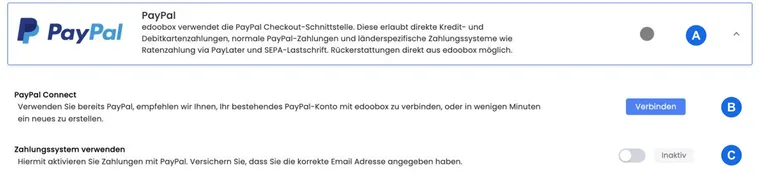
Open Settings → Payment systems → PayPal.
Under PayPal Connect, click connect.
You are redirected to PayPal. Sign in with the intended business account and grant the requested permissions.
On your return, edoobox displays a success or error message.
If connected but onboarding is not yet complete, click Check onboarding status.
Only enable Use payment system when PayPal fully confirms the status.
When you activate it, edoobox opens a payment fee confirmation. Read and confirm this deliberately. V2 does not allow the payment system to be activated without an existing PayPal Connect connection.
What happens during a payment
edoobox creates a PayPal order containing the booking reference, amount and currency, then redirects the payer to PayPal for approval. The technical integration uses the PayPal order type CAPTURE and requires immediate payment confirmation.
If PayPal reports PAYER_ACTION_REQUIRED, the person is redirected to PayPal approval again. Only an order that is successfully captured or already recognised as COMPLETED counts as a completed payment.
Returning does not mean payment: assess success using the transaction and booking status in edoobox and the PayPal order. Closing the PayPal page or simply being redirected back does not prove payment.
Displayed PayPal payment methods
Which funding options PayPal offers the payer is decided by PayPal based on the business account, country, currency and transaction. edoobox does not configure individual PayPal sub-methods in this V2 view.
Therefore, only promise options that actually appear in your own tests. Check different target markets and currencies if your offers receive international bookings.
Full or partial refund
The current transaction API supports refunds for PayPal V2. Open the original PayPal transaction, enter the amount and a brief reason, then submit the refund. The amount must not exceed the remaining refundable balance of the original payment.
Following a successful provider response, edoobox creates a negative account entry and a refund record linked to the original transaction. Then check PayPal, the transaction, invoice or cancellation invoice, and communication with the participant.
Disconnect safely
In current V2, disconnect PayPal directly using the red disconnect button. After confirmation, edoobox deauthorises the PayPal connection and disables the payment system.
Only disconnect once no published offer still depends on it. Existing transactions remain relevant for evidence and queries; document outstanding refunds before switching.
Test matrix before going live
Connect succeeds, onboarding is complete and activation includes fee confirmation.
Successful payment with the correct amount, currency, booking and confirmation email.
Cancellation at PayPal: no booking incorrectly treated as paid.
Further approval when Payer Action is required, followed by a correct return.
Partial refund and a second refund limited to the remaining balance.
Example: Fully activate a new PayPal account
Administration connects the business account, checks onboarding status and only then confirms the fees and activation. An internal test booking checks the PayPal order, edoobox transaction, booking status and confirmation email before PayPal appears in public offers.
Example: PayPal requires further approval
During capture, PayPal reports that further action is required. The person is redirected for approval and then returns. The team checks that the order is COMPLETED and does not rely solely on the return page.
Example: Two partial refunds
A payment of CHF 300 is refunded by CHF 100 first and CHF 50 later. Before each action, edoobox displays the remaining refundable amount. After both provider responses, check PayPal, the negative account entries and the remaining amount.
Check the current connection and payment purpose
If a return is unsuccessful, first check the Onboarding status and then the specific payment. An existing connection and a fully approved merchant account are separate requirements. After disconnection, new payments cannot use that connection; old outstanding processes must still be traced through their original transaction.