
Offer details
The offer detail is the central working view of a single offer. You open it from the offer list, the offer tree, or from linked areas such as bookings, invoices, and participants.
In this view, you switch between overview, bookings, dates, texts, documents, inquiry lists, additional questions, additional services, and settings. Which areas and actions are visible depends on permissions, subscription, offer status, and offer type.
Note: If permissions are missing, edoobox displays a notice instead of opening a disallowed setting. If areas are missing, first check admin rights, subscription, and offer status.
Overview and quick actions
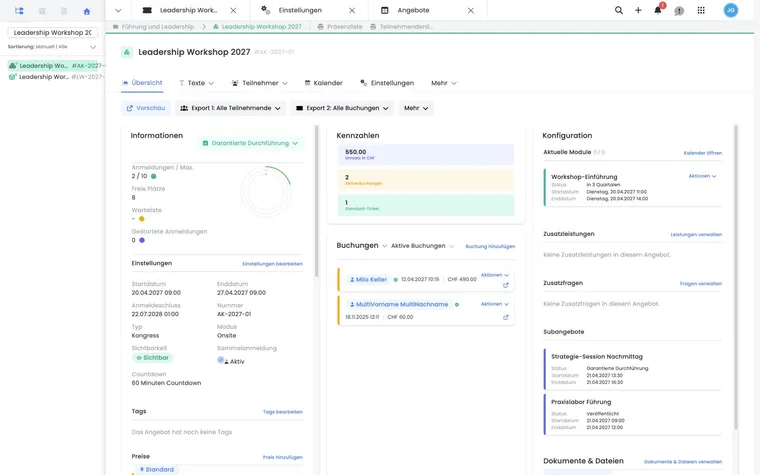
The overview summarizes the most important information about an offer. Depending on the status, you see information areas, statistics, booking data, configuration, and a checklist for new offers. If the offer is in the trash, a corresponding notice is displayed. Which areas are visible additionally depends on permission, subscription, offer status, and offer type.
Typical quick actions are open preview, export participants, export bookings, print attendance list or participant list, rename offer, copy, create task, start automatic translation, archive, move to trash, or permanently delete. Exports for participants and bookings can be created as CSV, Excel, or ODS depending on the table.
The available actions follow the state of the offer. A draft or archived offer may offer different actions than a published active offer. Sub-offers of a multi-offer have partially restricted actions. Offer-related promotions are filtered by the validity scope and the offer view; therefore, check Promotion campaigns and vouchers additionally for discount actions.
Use case: Plan an offer and check it before publication
Check the offer before publication
First open the offer overview and check the status, statistics, and configuration. Use the preview to control the booking process from the participant's perspective. Export a participant list or booking list if needed before you copy, archive, or delete an existing offer.
Separate visibility and bookability
If an offer should be visible early but bookings may only start later, set the registration deadline first. Then set Visible from sufficiently before this time and use Registration start from for the actual booking start. Check the status and preview afterwards.
Bookings, invoices, and participants
In the bookings area, you switch between several offer-related tables. The booking table is focused on the current offer. Cancelled bookings, MustPay cases, and waitlist entries should be filtered deliberately if needed.
The invoice table shows invoices for the offer. The participant table shows persons for the offer. For attendances, switch to the attendance view; for waitlists, use the offer-related waitlist view.
Find the basics in Manage bookings, Create and edit invoices and cancellation invoices, Waiting list and Access control with tickets.
Dates and calendar
The calendar area uses the date management of the current offer. You can switch between calendar and table view; the chosen view remains traceable when navigating.
For offers with free date selection, it is additionally relevant whether the option is active in the offer settings and whether existing bookings block a change. Always check date logic together with price categories, additional questions, additional services, and communication.
Dates, modules, and lessons are described in Calendar and dates.
Additional questions and add-on services
In the offer detail, you assign groups of additional questions and additional services to the offer. The selection interface allows adding, removing, expanding, and sorting. The order determines how the groups appear in the booking process.
For additional questions, edoobox warns if a group contains no input fields. An empty group can block the completion of the booking because participants do not see an answerable question. Therefore, create complete groups first and then assign them to the offer.
Additional service groups have their own columns, status, and default logic. Details are in Additional questions and additional services, Additional services: Additional service group columns, and Price categories.
Use case: Safely activate additional questions
First create a question group with all required questions. Then open the offer detail, switch to additional questions, and add the group. Expand the group and check whether sub-elements are present. Sort the groups as they should appear in the booking process.
Documents and files
The documents and files area separates internal and external offer files. Internal files are confidential and intended for admins in the backend. External files are documents that participants can receive or download via email templates or in the My Account area.
For sub-offers, the external file list is not always displayed. If collective PDFs or certificates are still being processed as a task, edoobox displays a notice with update or task manager.
Details are in Internal and external documents and files and Secure File Manager. How external files appear in the booking process additionally depends on the Design Manager.
Request lists
In the inquiry lists area, you assign one or more inquiry lists to the offer. When removing, edoobox checks whether participants from this inquiry list already exist in the offer. If so, a security prompt appears with the number of affected persons.
The setup of approval processes, invitations, reservations, and inquiry emails is described in Inquiry lists.
Texts, media, and public display
In the texts area, you edit the offer description and additional texts. The description is used in the booking process and in the offer display. The view loads design and iFrame information so that the preview is as close as possible to the later appearance.
Use Description texts in offer and category, AI assistants, Embed videos in description texts, and Accordion or tabs in description texts when structuring or extending content.
Settings, status, and rules
The settings in the offer detail control the basic data and booking rules of the offer. These include name, number, offer type, mode, registration deadline, visibility, registration start, maximum and minimum number of participants, currency, VAT, cancellation terms, countdown, free date selection, waitlist, MustPay, collective registration, ticket PDF, offer image, tags, and internal code.
Rules apply to some fields: Visible from must be sufficiently before the registration deadline, registration start and visibility may depend on the subscription, the maximum number of participants may be limited, and free date selection cannot be arbitrarily switched when existing bookings are present. For parent offers of a multi-offer or for sub-offers, individual options are hidden.
Details are in Offer settings, Offer status, MustPay and countdown, Tag an offer, Use tags with values, and Use tags as conditions.
Sidebars and pop-up windows
Several actions in the offer detail open sidebars or dialogs, for example edit image, show invoice, manage file, create task, or compact offer selection. The current offer page remains in the background so that the context is not lost.
If a dialog does not respond or a second level is open, work from top to bottom: first close the top window, then save changes in the underlying levels. More on this is in Dialogs and side editing windows.
Copy and automatic translation
When copying, you can specify the target category, new start date, multilingual names, new offer number, and the transfer of all dates. For sub-offers, the category selection may be restricted.
If multiple languages are active, an automated translation may be offered in the offer detail. Before starting, edoobox shows the source language, target languages, and the notice that existing translations may be replaced. After completion, check the offer name, description, price categories, and additional texts.
Use case: Copy an offer for a follow-up course
Open the existing offer, select Copy, and set the target category and new start date. Adjust the name and offer number and let all dates be transferred if the date plan should be copied relative to the new start date. Then check price categories, dates, and tags.
The complete process for manual and automatic archiving, multi-offers, and restoring to an active category is explained in Archiving and restoring offers. Archiving does not replace cancellation or refund.
Notes, tasks, and collaboration
In the offer detail, internal notes and TODOs can be attached directly to the offer. They serve to hold notes for other admins in the context of the offer without changing the public description text or the booking process.
Tasks can be started from the offer context and take over the offer or participants depending on the selection. Details are in Notes and TODOs and Tasks, pending items, and recurring tasks.
Control cancellation terms and subscription prices
In the offer settings, select Cancellation terms when rule mode is active. The group defines fee deadlines, confirmation, optional withdrawal and refunds. New bookings save a copy of the selected terms. Review them later in the booking details; Manage cancellation terms explains the setup.
You configure subscription-linked prices in the Price categories. With an active plugin, you can decide in the copy dialog with Copy membership terms whether these terms are copied. Then check the copied price rules before publication. Participant subscriptions guides you through the required basic configuration.
Own additional questions for sub-offers
Sub-offers of a multi-offer have their own view Additional questions. There, for example, you can assign a workshop-specific question group. Additional services are not offered in this view for sub-offers. Check required questions with a booking in which different persons choose different sub-offers; further information is under Multi-offer / Congress module.