
Website integration and Preview Share
Embedding makes your edoobox offers publicly accessible. Depending on your website and goal, use a link, an iFrame, the WordPress plugin or a custom API integration. Configure the appearance of embedded pages in the Design Manager using the templates and widgets of your selected design.
The base URL and the destination website for iFrame navigation depend on the general offer settings. Check this setting before distributing embed codes on a production website.
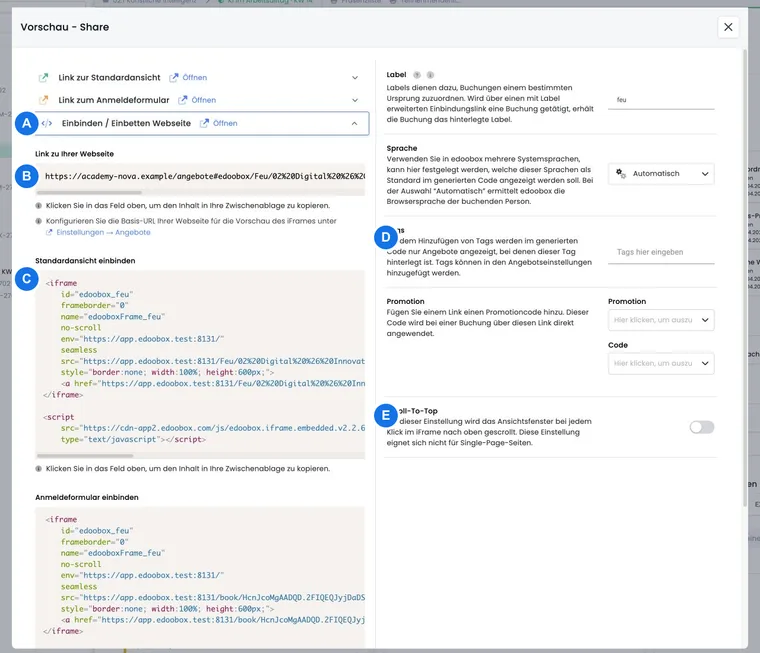
Choose integration methods
Link: the simplest way for email, button, QR code, or social media post. The booking opens in the edoobox standard view or in a new tab.
iFrame: embeds the booking process directly into your website. This method is platform-independent and suitable for most websites.
WordPress plugin: uses shortcodes, SEO features, and WordPress integration. Details are found under Integration with the WordPress plugin.
API: for custom integrations with your own frontend, reporting, or special logic. Start under edoobox API first steps.
If you do not have special requirements, start with account or category integration via iFrame or link. Individual offer links are practical for newsletters but must be replaced more frequently after the offer expires.
Choose the right level in the offer tree
Integration codes are created at three levels in the offer tree: account abbreviation, category, or offer.
Account abbreviation: shows all published categories and offers. This level is robust because new content appears automatically.
Category: shows a specific category and its published offers. This level is usually the best choice for website subpages or topic areas.
Offer: leads directly to a single offer or its registration. Suitable for campaigns, newsletters, or QR codes, but not as a permanent program overview.
For individual offers, Preview-Share additionally offers links directly to the registration and, depending on the view, a QR code. Copy such links exclusively from Preview-Share and not from the browser address bar.
Create integration codes
Open the offer tree.
Right-click on the account abbreviation, category, or offer.
Select Preview - Share.
Set the language, label, tag, promotion, and other settings.
Select the desired code type: standard link, iFrame code, or plugin shortcode.
Copy the code and insert it in your website, CMS, or email.
For individual offers, you will also find links directly to the registration. Always copy such links from Preview-Share and not from the browser address bar, so that language, tracking, and integration parameters remain correct.
For individual offers, Preview-Share can additionally display a QR code for the standard view or directly to the registration form, depending on the view. Use such QR codes mainly for flyers, posters, or newsletter campaigns and check them again after date changes or offer expiration.
Preview-Share and code types
Link to standard view opens the currently selected level in its own browser window or tab. This link is suitable for buttons, QR codes, email signatures, and social media.
Embed/Integrate website generates the iFrame code. The iFrame shows the standard view of the selected level within your website. Include the accompanying edoobox JavaScript only once if multiple iFrames are on the same page.
<iframe src="https://app.edoobox.com/..." style="border:none; width:100%; height:600px;">
  <a href="https://app.edoobox.com/...">View overview</a>
</iframe>
<script src="https://cdn-app2.edoobox.com/js/edoobox.iframe.embedded.v2.2.7.min.js"></script>
Embed/Integrate plugin generates a WordPress shortcode, for example [edbs_panel language="de" url="konto/kategorie" label="website" tag="" ]. Use this code only if the edoobox WordPress plugin is installed and connected.
The generated code may contain compatibility attributes such as seamless. Copy the current code in full from Preview-Share. When updating an older embedding, replace it with newly generated code rather than combining parts from different versions. Use data-mobile="Ihr Text" to display a button on smartphones instead of the iFrame, linking to the standard view; for example, data-mobile="Angebot öffnen" >. Add this attribute inside the opening iFrame tag and retain all other generated attributes.
The currently generated embedding code additionally contains a direct link to the booking portal. Keep this entry point when inserting: It helps if a browser or the website cannot display the embedded portal. Regenerate the code via Preview-Share after major changes to the integration or target page.
Do not mix code types
Always use the code for the appropriate environment. An iFrame code belongs in HTML or CMS areas that allow HTML. A WordPress shortcode only works with an installed and connected edoobox plugin. A standard link, on the other hand, is usable anywhere links are allowed.
Do not copy partial pieces from different code types together. This can cause language, label, tag, promotion code, target page, or tracking to be lost. If you need other parameters, create the code anew in Preview-Share and only adjust the clearly known value.
Save used integration codes in your website documentation. Note the level, label, language, tag, target page, and date of the last check. This helps later with relaunches or when replacing expired offer links.
Share on Facebook and Twitter/X
Preview-Share can prepare links for Facebook and Twitter/X. These links open the respective service in the share dialog and take over the currently selected level, for example category or offer.
Additionally, small social elements can be embedded via iFrame or shortcode. Before sharing, check the title, description, and preview image of your offer page. For social media previews, OpenGraph and SEO meta tags are relevant.
Label, language, tags, and promotion
A label helps to assign bookings to a source, for example website, newsletter, Facebook, or partner page. Use short, consistent labels in lowercase. Labels can additionally be used for automatic email notifications if appropriate templates are set up.
With the language, you define the standard language of the integration code. If no language is set, the browser language of the booking person may apply, provided the language is active in edoobox. Activate a language selection in the header in the Design Manager if needed, so that participants can switch themselves.
Tags filter offers within the selected level. This is helpful if a category internally contains many offers but only a subset should appear on a website page. The basics are found under Tag an offer.
With a promotion, you can integrate a promotion code directly into the link. Combine promotions only with appropriate validity rules so that the discount applies to the right target group. Details are found under Promotion campaigns and vouchers.
Application example: Website subpage with tag and label
A language school creates a page for online courses on its website. It opens Preview-Share at the account level, sets the label website-online, selects the language German, and adds the tag online. Then the iFrame code is inserted on the subpage and checked with a test booking.
Example: Connect website, booking portal, and CRM
An organization maintains its information pages in its own CMS, handles bookings in edoobox, and wants to assign confirmed bookings to its CRM. First, determine which task each system performs.
- Create a category or offer link or the desired embedding in Preview-Share. Use a consistent label such as
websitefor this entry point. - Check the base URL of the website for the iFrame preview. From the actual website, check offer details, registration, payment, completion, and the intended way back to your information pages.
- Maintain the required legal and information links where they are actually displayed: on your website and in the used edoobox design. For joint consent management, refer to Tracking, iFrame, and consent.
- Set up the CRM handover separately via an actually available integration or automation. An embedded portal or a booking label alone does not transfer data to any arbitrary CRM.
- Use booking and person identifiers for assignment and define the handling of changes and cancellations. The use case Synchronize bookings via API explains the periodic reconciliation and resumption after a failure.
After a controlled test booking, compare the saved booking in edoobox and the associated CRM record. Check a re-import of the same booking and a later cancellation. A successful booking completion confirms the CRM handover only if the target system also shows the expected status.
Scroll-To-Top and mobile display
In the iFrame, edoobox can automatically scroll to the top edge of the iFrame on clicks. On long one-page websites, this can be annoying because visitors have to scroll back to the integration after each step. Deactivate Scroll-To-Top if your website already has its own scroll behavior.
Test the integration on smartphone and tablet. If the iFrame is too small or difficult to operate on mobile pages, use the mobile button via data-mobile or link to the standard view.
RSS feeds and offer scroller
In addition to link, iFrame, plugin, and API, there are older public outputs: RSS offer feed and offer scroller. Both read from published offers and are intended for simple website outputs. For new custom integrations, the edoobox API is usually more robust.
The RSS feed contains public offers in activated languages. It is suitable if external systems only need title, provider, publication time, and link.
The offer scroller displays a limited number of upcoming public offers as a narrow website element. It supports settings for height, width, colors, speed, pause duration and link targets. Status colors follow the offer status; available places are calculated from capacity and bookings.
Multiple iFrames and special cases
If multiple iFrames are on the same website page, give each iFrame its own label and include the edoobox JavaScript only once, preferably after the last iFrame. Too many iFrames on a page can degrade load time, focus behavior, and mobile usability.
Create the code anew for each website subpage instead of manually copying labels or tags. This keeps language, label, tag, promotion, and target path together and makes later evaluations more understandable.
If links within an iFrame open in a higher frame, the person lands in the standard view. This may be desired if offer details require more space, but it should be tested on the website.
If you use a subpage for offer details, pay attention to correct target or root settings. This is especially important for WordPress shortcodes and homepages where only a subset of the program is visible.
Common sources of errors
Wrong level: A single offer was embedded, although a category overview was intended.
Expired offer: An offer link no longer leads to the desired new date.
Missing JavaScript: The edoobox iFrame script was removed or embedded multiple times inappropriately.
Website cache: The code was changed, but the website is still serving the old version.
Wrong language: The language in the code does not match the activated languages or the website.
Tag with no matches: The set tag is not assigned to any published offer at this level.
Promotion conditions not met: The link contains a promotion code, but the offer, person or period does not meet its conditions.
Troubleshoot security checks that fail only in mobile iFrames
If a security check cannot be completed on a smartphone or within your website, compare the same booking process in separate contexts. The symptom alone does not identify a particular browser, cookie or security service as the cause.
- Create the current public standard link for the affected offer or category from Preview-Share. Use the same language and level as in the website embedding.
- Open this link directly in a separate browser tab on the same mobile device. Record whether the security check appears there and can be completed normally.
- Then open the actual website with the embedded portal and compare the same step. Check whether the website serves the current complete embedding code and the accompanying script is included only once.
- If needed, compare another up-to-date browser or a desktop computer, and another normal network connection. Record which combinations are affected. A difference is a diagnostic clue, not proof of the cause.
- If the direct public call works, offer the regular direct link or the intended mobile button as an alternative path. The normal security check of the target portal remains in place.
- If the problem persists, send the reproducible steps to support.
The report should include the time with time zone, operating system and browser version, public website address, affected offer level, result direct/embedded, and a displayed error or challenge reference. Add an anonymized screenshot and the comparison from another browser or network, if available. Passwords, one-time codes, API keys, and personal session links should not be included in the report.
The Diagnostic guide helps to report the observed differences in a comprehensible way.
Test embedding
Insert code on a non-public test page.
Check account, category, and offer level.
Check language, label, tag, and promotion with a test booking.
Test on desktop, tablet, and smartphone.
Check links, details, registration, payment, completion page, and email confirmation.
After changes to Design Manager, reload the website and consider the cache.
Application example: Embed category on website
An organization has a website subpage for “Further Training.” In the offer tree, the category “Further Training” is opened, Preview-Share is started, language German and label website are set. The iFrame code is inserted into the subpage and then checked with a test booking.
Test again after changes
After changes to category, design, language, tags, or embedding code, the website should be tested again. Check desktop, smartphone, scroll behavior, booking completion, and whether detail pages open at the expected location.