
Manage promotional campaigns safely
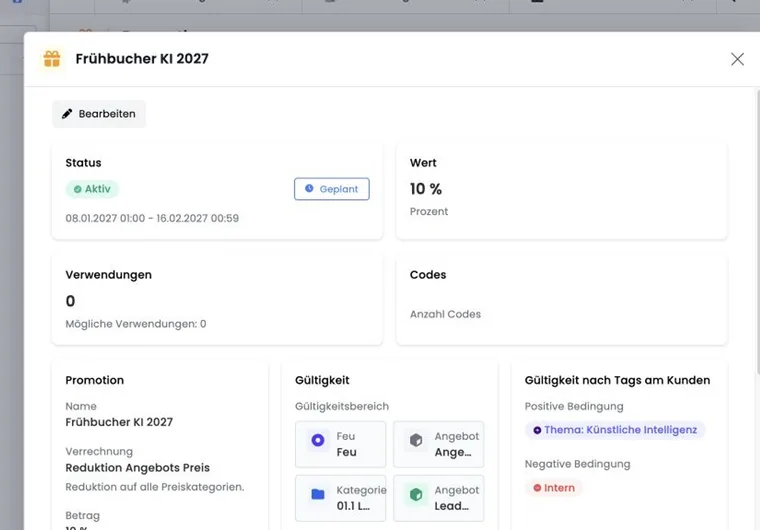
The promotions overview is your checkpoint for ongoing, scheduled and expired discount campaigns. Always open a campaign in detail: its name alone says nothing about currency, charging, target offers, minimum value, booking type, domains, tags or individual code states.
Changes to live campaigns affect later redemptions. Previously issued invoices and completed bookings are not automatically reassessed substantively.
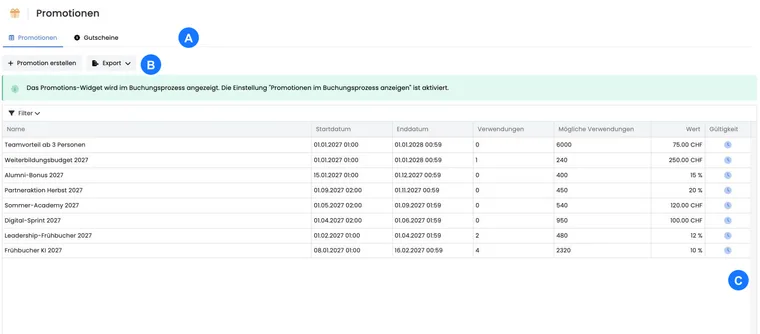
Use the table, filters and export
The table shows name, start, end, uses, possible uses, value and validity period. The filter distinguishes Ongoing, Expired and Scheduled. Without this selection, campaigns from all periods are loaded.
CSV, Excel and PDF exports use the currently loaded table rows. Before exporting, select the appropriate filter and page size, and check the count. Codes have a separate export in campaign details.
Read campaign details completely
Area | Check question |
|---|---|
Period | Does the intended booking fall between the start and end times? |
Value and application | Does the promotion reduce the offer price or the appropriate booking total? |
Uses | Do previous and possible redemptions match the number of codes and per-code limit? |
Validity scope | Are the account, category and offers beneath it, or individual offers, correct? |
Target group | Do booking type, main participant email, domain and customer tags match? |
Codes | Is the specific code active, not unexpectedly reserved and not used too often? |
Understand editing and filing correctly
Field changes in the four-part editing dialogue are saved immediately. Currency is locked; a different currency requires a new campaign. A changed code prefix applies only to codes generated afterwards.
Promotions cannot be deleted. Their time status is derived from start and end. Set an appropriate end date to end them. Additionally disable individual codes if they have become public or may no longer be used.
Check tags and domains in support cases
For tag conditions, the booking person must be logged in. All positive conditions must match; a single negative match blocks access. Effective tags include direct profile tags, tags from bookings outside the waiting list and SAML tags. The tag value is checked too if the condition has a value.
A domain rule instead checks the main participant’s email in the booking. For group bookings, this may differ from individual people’s addresses. Use complete email addresses for individual entitlements and plain domains for company campaigns.
Find, disable and trace codes
The code table shows active status, code and number of linked bookings. Open a row to view bookings, copy the code or change its status. Search and filters support part of the code text.
Codes cannot be renamed or deleted. For a typing error, disable the incorrect code and create or import a new one. Keep external code lists protected and compare them with the code table after import.
Displayed uses are booking uses, not the number of distinct people. For a reusable code, therefore also check whether the same person used it repeatedly. The overall limit does not prevent this. The alternative using different single-use codes is explained under Distinguish the overall limit from once per person.
Assign a code to a booking afterwards
Open the booking and Edit promotion.
Check campaign, code, value, currency and minimum booking value.
Additionally check period, offer scope, booking type, main participant domain, tags, code activity and previous uses manually.
Save, then check booking total, outstanding balance and invoice.
Administrative assignment does not repeat the complete public redemption check. An invoice already issued must, where necessary, be adjusted through the correct cancellation and replacement document process.
Use cases
Example: Block a compromised code
A partner code appears publicly. The administration opens that exact code, checks linked bookings and disables it. The campaign remains available for other partner codes; a replacement code is created separately.
Example: A former member unexpectedly receives a discount
The profile is logged in and still has the positive member tag from an earlier booking outside the waiting list. As historical offer tags may continue to count, the code is accepted. The organisation cleans up its tag strategy and then tests a current and a former member.
Example: Add a discount after invoicing
An admin first confirms that the forgotten code matched the period and target group at the time. After assignment, they check balance and invoice. Since a document already exists, they correct it traceably instead of leaving only the booking amount changed.
Check remaining value for a query
Open the campaign and, for a fixed amount applied to the booking total, check Remaining value of a promo code. This determines whether the excess expires, is credited to the participant account or is sent as a new code.
For an already completed redemption, compare the original booking, code used, participant balance and, where applicable, the new remaining-value code and outbox. A single use of the old code alone does not establish whether any remaining value exists. Examples are provided under Remaining values and credit balances.
Check the conditions of a remaining value separately
Participant credit and a new code for the remaining value inherit the original code’s restrictions differently. Credit becomes a separate balance without the original offer restriction or expiry. A new code receives its own promotion with a minimum booking value of 0; customer tag conditions are not copied automatically. For restricted campaigns, check the restrictions actually created. For the complete process, see Vouchers: remaining values and credit.