
Template: Completion page and voucher sales
The illustrations show an earlier version of the interface. Use the steps in this guide for the available features and options.
The Completion page and Voucher sales templates are among additional pages in Design Manager. The completion page appears after a booking, waiting list entry or enquiry. Depending on payment method, it appears directly after the summary or after the payment page.
The voucher sales page opens when customers access voucher sales during booking. Place an entry point, for example through a widget on the offer overview or detail page.
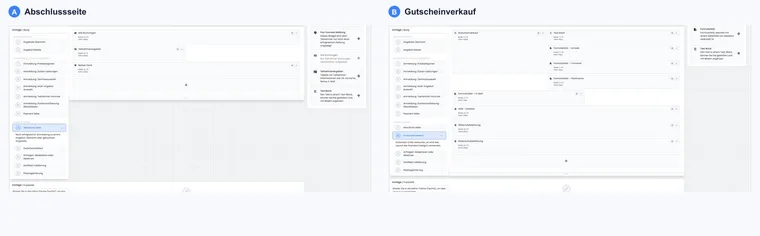
What the completion page is used for
The completion page confirms completion of an action and gives participants guidance: What was booked, which documents are ready, what happens next and where can bookings be checked later?
The completion page also serves as the participant account overview. Logged-in participants see previous bookings, invoices, tickets, booking PDFs, certificates, external course materials and date ICS files there if corresponding widgets are active.
For participants, this page is often the later entry point for downloading materials again or checking booking status. Therefore treat the completion page as an ongoing service page after booking, as well as a thank-you page.
The page appears after normal bookings, waiting list entries and enquiry lists. It also serves as the account overview when participants later retrieve bookings, invoices, tickets, Booking.pdf or date ICS files.
Completion page widgets
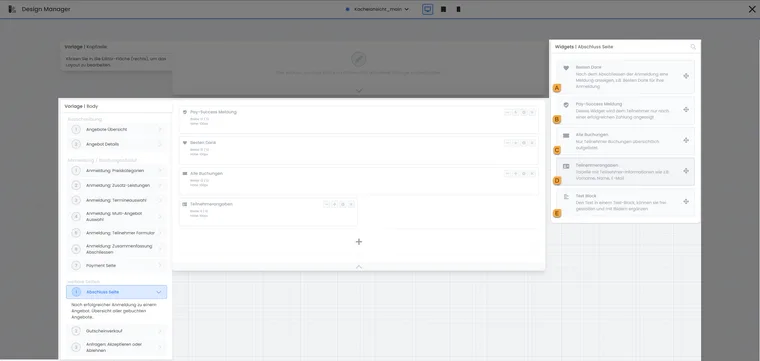
The completion page combines feedback, booking overview and profile data. Additional account and subscription functions supplement the core components shown here as needed.
- A
- Output booking feedback
- B
- Confirm successful direct payment
- C
- List previous bookings
- D
- Show selected profile details
- E
- Add free-form notices
Thank you: Shows a thank-you message. You can use different texts for regular booking, waiting list and enquiry.
Payment success message: Appears after successful direct payment through a payment system. It is not shown for unpaid bookings or bookings payable later. System text can be adjusted only to a limited extent; add custom notices using a Text block instead.
All bookings: Shows the person’s booking history. Widget settings control which information and documents are visible, such as Rechnung.pdf, Ticket.pdf, Booking.pdf, certificate, date ICS file or external files.
Participant details: Shows recorded details and helps participants review their data afterwards. You can specify which participant data fields are visible and whether existing participants may set a new password.
Text block: Adds fixed notices such as contact, next steps, payment information or support guidance. Maintain text blocks in every active system language and check whether they should appear always or only in the iframe view.
Thank-you and payment success messages
The Thank you widget can output different texts for regular booking, waiting list and enquiry list. Use this distinction so participants immediately know whether they are definitively booked or another step follows.
The payment success message appears only if a payment was successfully processed directly through a payment system. Its text is not intended as a general thank-you message; additionally use the Thank you widget or a text block for general notices.
Participant account and documents
If the completion page is used as an account overview, documents should be easy to find. Check whether invoice, ticket, booking PDF, certificate, external file and date ICS file appear where customers expect them.
Depending on settings, external course materials can additionally be provided with PDF Sign protection. Further information on files, visibility and protection is provided under Internal and external documents and files and Custom PDF attachments and templates.
For group registrations, you can control whether Assign place is visible and whether participants are listed individually. Use this display only if registered people should be traceable for the customer.
If using enquiry lists, the widget can show a notice for list entries, such as Accept or reject quotation. The person can then see why they should make a decision on this page.
Test at least one paid booking, bank transfer invoice, waiting list booking, group registration and enquiry. Text, documents and next action differ by status.
Voucher sales page widgets
The voucher sales page guides customers through buying a voucher. Purchase makes sense when suitable payment methods are active and the voucher should be delivered by email after successful payment. Define available voucher values in the voucher sales button on the entry page.
Typical widgets include:
Voucher sales: Central widget for voucher amount, voucher type and purchase completion.
Form field: Records required buyer or recipient details. Like other form fields, use it deliberately and only for data needed for purchase, invoice or delivery.
Provider terms and conditions (older widget): Shows applicable business terms and may require confirmation.
Withdrawal information (older widget): Shows legal withdrawal information and may also require confirmation.
Privacy policy (older widget): Links to or shows privacy information. Texts are maintained through Legal texts or Settings: Legal texts; substantive freedom of design in the widget is limited.
Text block: Adds notices about sending, redemption, validity or contact.
Voucher sales: Form and legal texts
The voucher sales page opens through the voucher sales button. In addition to actual voucher sales, form fields, terms and conditions, withdrawal information, privacy policy and text blocks can be included.
Test that mandatory fields, legal texts, payment method, voucher amount, email sending and voucher PDF interact correctly. Voucher sales are a separate sales process and should be tested completely like a booking.
Test voucher sales
Check voucher sales with a small test amount. Check form, payment method, confirmation, email, voucher PDF, code and redemption. If promoting vouchers on an offer page, test the route from button to completion.
Further details on sold vouchers are provided under Sold vouchers / Gift vouchers.
Example: Booking completion with an invoice
A participant books a course by bank transfer. After the summary, she sees the thank-you message, booking, Rechnung.pdf and next steps on the completion page. Later she opens the same overview in the participant account and downloads the invoice again.
Example: Completion page with document access
After a successful demo booking, the person sees the thank-you message, booking overview and intended documents. The test is additionally performed with outstanding payment so the page does not falsely imply a paid state.
Example: Voucher sales in two languages
An organiser sells value vouchers in German and French. Form, legal text, payment method and completion message are checked in both languages. An aborted payment route must not display a valid voucher as successfully sold.
Extend the account with balance, subscriptions and place assignment
The Balance widget shows the current participant account balance. For several currencies, amounts appear separately; positive and negative amounts must be distinguished. This is the logged-in person’s account, rather than your administration account or remaining subscription usage allocation.
For the customer account, edit the completion template of the account’s default design. With the subscription plugin active, My subscriptions or My memberships supplements the account overview there. If needed, show status, period, remaining uses, automatic renewal and permitted payment, invoice or cancellation actions. The subscription design guide describes all options and the current limitation on executing customer cancellation.
In All bookings, you can enable Assign place for group places not yet assigned. The subsequent invitation route uses the dedicated Place registration template. Also check timed release of external offer files: immediately, 14, 7 or 3 days before start, on the first day or after attendance in the first module.
For new voucher sales pages, use the current Legal texts widget. Older separate terms and conditions, withdrawal and privacy widgets may occur in existing templates; they are not offered in current insertion selection.
Adopt voucher values from the button or page
On the voucher sales page, open the Voucher sales widget. Under Source of voucher values, select Adopt from voucher sales button or Custom voucher values for this page. For custom values, configure offered amounts, their order and initially selected amount here. Currency, application type and mapping to offer price categories are offered in the voucher sales button; these options are not also available in the page settings dialogue.
Enter positive amounts, sort them clearly and select a default value included in the list. Check both entry through a voucher sales button and a direct purchase link. General setup is described under Sell and redeem vouchers; treatment of remaining value is explained under Voucher remaining values and credit balances.
Check Wallet and missing account actions
In the account default design under Completion page → All bookings, enable Mobile Wallet only together with the intended account ticket feature. Wallet buttons are output for appropriate named participation with available ticket data. They may be absent for unassigned places, invitations, list bookings or still-open MustPay cases. If the button is missing, therefore check ticket availability, booking status and named person before changing layout.
Always hide cancellation button can hide the relevant booking action. The withdrawal action remains separate. Further information: Editing options. Check payment success against the actual payment process and then booking and payment status; thank-you page design alone is not payment evidence.