
Offers
An offer is in edoobox the bookable unit for courses, seminars, events, consultations, modules, or other services. In an offer, you bundle all information that participants need for the booking: description, dates, prices, availability, status, booking rules, additional questions, additional services, documents, and emails.
This page gives you an overview and links to the most important detailed instructions. If you are currently preparing a new offer, start with Creating a new offer in 7 steps.
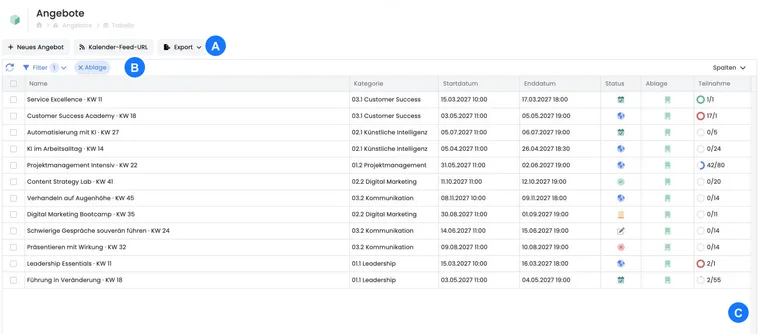
What you manage with offers
With offers, you control what is bookable on your website and how the booking process works. This includes public information such as title, description, image, and dates, but also internal rules such as minimum and maximum number of participants, status, visibility, waitlist, or MustPay.
Global offer rules such as sorting, archiving, internal offers, promotion display, or payment confirmation are maintained in Offers: General Settings. Settings that affect only a single offer are edited directly in the offer.
Create and organize offers
New offers are assigned to a category. Categories help you structure your course or event program in a clear way. The instruction Creating new categories and offers explains how to create categories and offers in the offer tree.
For existing offers, open the offer detail. There you will find the overview, edit central fields, and jump to other areas such as texts, calendar, participants, prices, or settings.
The complete process for manual and automatic archiving, multi-offers, and restoring to an active category is explained in Archiving and restoring offers. Archiving does not replace cancellation or refund.
Tree view and complete structure
edoobox loads the active offer and category structure if the tree view is not yet fully available. This ensures that categories, subcategories, and offers remain visible in the correct order, even if you switch directly to a detail view or a filtered view.
Archived or deleted items do not belong to the normal active structure. If an offer or category is missing, first check the status, archive, trash, filters, and the selected category. Then check in the offer detail whether visibility, period, and booking rules are set correctly.
Filter and export the offer list
The offer list is the working view for multiple offers. You can filter by status, category, period, storage, location, waitlist, or tags, and adjust the visible columns. Table operation, columns, and export work as in other lists in edoobox; details are in Table tools and Table filters.
For evaluations, mark the desired offers and export the selection as CSV, Excel, or PDF. If no offer is marked, first select the required rows.
Compare and export revenue of multiple offers
For a quick comparison, the offer list has the optional column Revenue. It is hidden by default and shows the current booking value per offer.
- Open Offers as a list and narrow down the required offers by category, status, period, and storage. Include the archive if necessary for a historical evaluation.
- Open Columns, activate Revenue, and confirm with Okay. Let the data reload. Also display the offer number and ID for assignment.
- Compare a value with Offer → Overview → Key figures. Use the associated bookings for verification in case of uncertainty.
- Mark the desired offers and select CSV or Excel. The visible revenue column is output with the selection. For multiple table pages, note the Export scope and the selection per page.
- For a ranking or amount range, sort or filter the numerical values in your spreadsheet. The revenue column cannot be sorted or filtered by amount in edoobox.
How to read the value: edoobox sums the saved total amounts of active bookings. Already included promotions or other effective price discounts are considered in the booking total; do not deduct them again for this evaluation. The value therefore does not automatically correspond to “standard price × number of participants.” Additional services and different price categories can also influence the total amount.
Cancelled bookings, waitlist bookings, and still open MustPay processes are excluded. The value does not show payment receipt or provider payout. A period filter of the offer list selects offers; it does not limit their revenue to bookings created or paid within that period. For an evaluation by booking, invoice, or payment date, select the corresponding accounting table.
Check the currency before summing values. The key figure does not include currency conversion. If bookings of an offer contain amounts in multiple currencies, use the individual bookings or invoices with stated currency for a currency evaluation.
Application example: Comparing two seminars despite different discounts
The administration team displays revenue, offer number and participation in the offer list. One seminar has bookings at regular prices; the other used promotions. The team compares the saved booking values and exports both rows for analysis. It then checks outstanding invoices separately and does not deduct the discounts from the reported revenue again.
Design content and booking process
You capture the visible texts in Description texts in offer and category. You can structure descriptions with images, videos, links, accordions, or tabs. For multilingual offers, AI assistants and the language settings are helpful.
The public layout is controlled in the Design Manager. There you determine which offer information, filters, buttons, and booking steps appear on your website.
Control prices, dates, and participation
You set prices via price categories. You manage dates, modules, lessons, and venues in Calendar and dates. Status and bookability are controlled via offer status and the offer rules.
If an offer is fully booked or persons should be checked first, use the waitlist or inquiry lists depending on the process. For binding payment processes, MustPay and Countdown are available.
Additional data, documents, and integrations
With additional questions and additional services, you capture additional information or bookable extras. Tags, Tags with values, and Tags as conditions help with filtering, visibility, and booking logic.
You manage documents in Internal and external documents and files. For online offers, you can store access links to Zoom, Teams, and other platforms.
Application example: Publishing a new seminar
You create a category “Seminars,” add a new offer within it, and capture the description, image, dates, and price categories. Then you set the status to published, test the display in the Design Manager, and check a test booking. If the seminar may become fully booked, you additionally activate the waitlist or prepare an inquiry list.
Prepare admission and participation
For tickets, admission devices, attendance and attendance confirmations, the Ticketing, admission scanning, DINACO and attendance tracking overview links to the appropriate guides.
Use subscriptions and cancellation rules in the offer
For a member price or a limited number of course visits, you set the subscription condition on the appropriate price category. To do this, start in the Plugin Manager and set up participant subscriptions. A subscription product, the capacity of the offer, and the price limit serve different purposes.
You manage cancellation terms centrally under Settings → Cancellation & Withdrawal. In the Rules mode, you select a group in the offer; without your own selection, the default group applies. The instruction Manage cancellation terms guides you through deadlines, fees, withdrawal, and refund.