
Offer dashboard
The offer dashboard provides an overview of a single offer. It is separate from the main dashboard. Open an offer in the offer tree and select Overview to check its status, capacity, key figures, bookings and configuration in one place.
The view is designed for day-to-day operations: you can see whether the offer is ready for publication, how many places are actually available, and which bookings or dates require attention. For extensive changes, switch to the respective linked detail view.
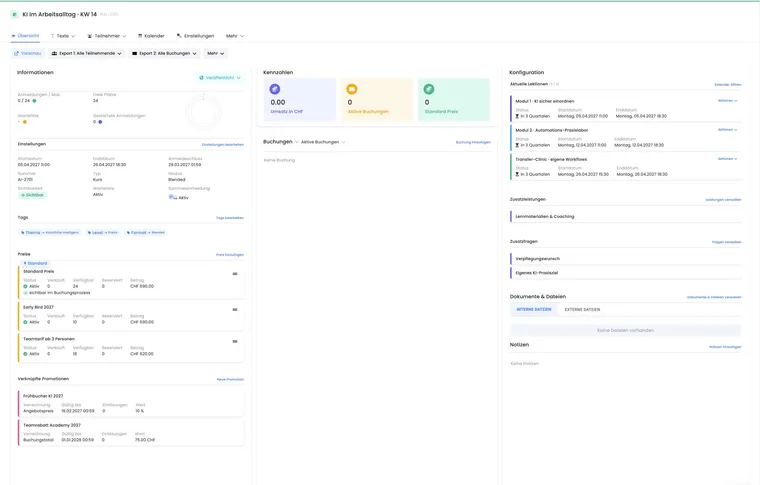
Open and correctly contextualize the offer dashboard
Open the desired offer in the offer tree.
Select Overview. The other areas Texts, Participants, Calendar, and Settings remain responsible for detailed editing.
First check status, occupancy, and registration deadline. Only then is it meaningful to interpret revenue or booking lists.
For a draft, edoobox displays a checklist instead of the operational booking view. For a publishable status, the offer requires at least one date, a registration deadline, and a maximum number of participants.
Action bar for preview, export and attendance
The action bar bundles frequent commands. Depending on status, subscription, and permission, the following paths are available, among others:
Preview: Check public display and booking path.
Participant export: Output participant data as CSV, Excel, or ODS.
Booking export: Export complete booking data if bookings rather than individual persons are needed for the evaluation.
Attendance list: Select an existing PDF template and generate the list.
Further actions: For example, rename, copy, translate automatically, archive, or move to the trash.
A participant export and a booking export answer different questions. A group booking can contain multiple participants but appears in the booking export as a related process.
Read information, status, and free places
The information column combines master data and occupancy. Typical values are status, registrations in relation to the maximum, free places, waitlist, started bookings, registration deadline, visibility, type, mode, tags, and prices.
Free places are an operational value: edoobox considers active participations and existing reservations. With free date selection, the possible capacity is calculated across the dates. Therefore, do not compare this value unchecked with the number of bookings.
You can change the status directly in the overview. Released and Cancelled also open an email task that you can create or deliberately skip. The effects of each status are explained in Offer status.
Use key figures without false conclusions
The key figures show the booking value of the offer, active bookings, and the most frequently used price category. The displayed revenue is based on the sums of active bookings; cancelled bookings, waitlist, and incomplete MustPay processes are not counted as regular revenue.
Revenue is not payment receipt: The key figure does not state whether invoices have been paid or amounts have already been paid out. Check invoices, transactions, and open balance in the accounting for this.
The decisive factor is the saved booking total after applied price discounts. Already effective promotions or subscription price advantages are therefore not deducted again from the key figure. Different price categories, additional services, and group bookings can also explain why “standard price × number of persons” results in a different value. Open an affected booking and check its price positions and applied discount.
For comparing multiple offers, display the revenue column in the offer list. The same active booking scope is evaluated there. A period filter of the offer list limits the selected offers, not the creation or payment period of the included bookings.
Filter bookings and participants specifically
The booking area can be switched between Bookings and Participants. The selection is saved for the admin. Filters separate:
all bookings;
active bookings;
cancelled bookings;
inquiry list bookings;
waitlist bookings.
The overview shows the newest matching entries and offers a path to all bookings. Open a card to check the entire booking process with participants, invoices, fees, and emails. Via Add booking, admins can capture a new booking directly in the offer context.
Check dates and configuration
The configuration column shows the next current dates in relation to the total number. Via Open calendar, you switch to the complete date management. Depending on the offer type, additional services, additional questions, sub-offers, promotions, or other linked elements follow.
If an entry is missing in the dashboard, do not just check the status. For dates, it may have already passed; for bookings, the active filter may hide the entry; for additional questions or services, the function may be globally disabled.
Recommended daily check
Check status, registration deadline, and visibility.
Assess occupancy, reservations, waitlist, and MustPay together.
Check new active, cancelled, and open waitlist/inquiry list bookings.
Review upcoming dates and the additional services or questions required for them.
For financial questions, open the affected booking or invoice instead of using only the revenue tile.
Use case: Nearly fully booked in-person course
A course shows 18 active participations out of a maximum of 20 spots, plus two reservations and three waitlist bookings. The administration does not rely on the pure booking count but checks the value Free spots, reservations, and waitlist. Only after a reservation expires is a waitlist person confirmed.
Use case: Distinguishing between the revenue tile and open invoices
The dashboard shows CHF 4,800 in revenue, yet several invoices are still open. The course manager uses the tile for the operational booking total and opens the associated bookings and invoices for the payment status. This prevents a booked amount from being confused with money received.
Use case: Controlling free date selection
An offer contains twelve individually bookable lessons. In the configuration, only the next current dates are displayed. The administration opens the calendar for the overall view and additionally filters bookings by participants to correctly assess multiple participations across several lessons.
Distinguish between contact person, participations, and open spots
A group booking can contain a contact person who does not attend, plus several named or unnamed participants. The number of active bookings is therefore not the participant count. Open the booking and compare its active entries with occupancy. Places without names already use capacity. Three group modes are available, including first person as contact person for Bootstrap 5.3; see named group registration.
Manage dates directly in the overview
The date cards show the current position in relation to the total number. With many dates, the list loads more entries when scrolling. A date that is not currently visible is therefore not necessarily deleted. You can access the complete calendar view via Open calendar.
Each date card offers Actions → Attendance list and Edit; with appropriate permissions, Custom exports is also available. This allows you to open the attendance or an export specifically for this date, instead of accidentally evaluating the entire offer.
If a registration start is set, a notice such as bookable from or Bookable since appears. It describes the start date. Status, capacity, registration deadline, and price conditions must additionally allow a booking.