
Outbox: search and filtering
This guide covers searching and filtering in the outbox. There you check whether edoobox created an email, which address it should have been sent to, its subject and whether sending encountered an error.
For offers, categories, participants, booking numbers and settings, use global search in edoobox. Search invoice numbers in the invoice overview. Outbox search is deliberately narrower and focuses on email logs.
When outbox search helps
A person reports not receiving a booking confirmation, invoice, payment reminder or overdue notice.
You want to check whether an automatic task or manual email was actually created.
You search for failed messages by recipient, subject and error status and compare the displayed sending date.
You compare the generated email content with the template used.
Suitable search terms
Search as specifically as possible. Useful search terms include email address, recipient name, part of the subject, offer name, invoice number, booking number or a distinctive term from the message.
When an outbox is opened in a user profile, context is already restricted. In the global outbox view, combine search term and filter to keep the result list manageable.
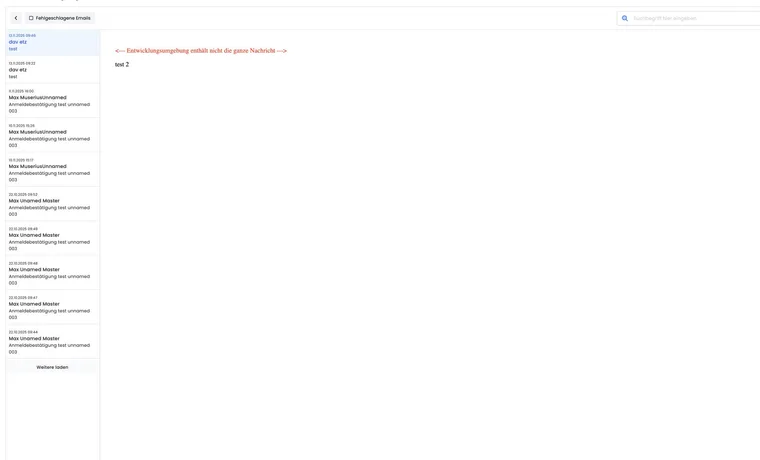
Filter failed emails
Use Failed emails to restrict the list to messages with errors. This outbox view offers no separate period or sending status filter. For empty lists, first check search term, error selection and the person or account context open.
Combining an email address with the error filter is particularly helpful for troubleshooting. Then open the entry and check error message, recipient address, subject and preview.
Analyse failed emails
A failed email does not automatically mean the template is incorrect. Common causes include an invalid recipient address, rejected domain, temporary mail server error, missing sending configuration or a problem with the connected sending account.
If several emails fail at once, first check the sending route such as SMTP, Mailjet or Microsoft 365. If only one address is affected, check spelling, bounce notice and whether the person has an alternative address.
Distinction from global search
Global search answers: Where is the record or settings section? Outbox search answers: What happened to this email?
A typical process is first to find the person or booking number using global search, open the invoice from there, then search the outbox by email address or an appropriate part of the subject. An invoice number is found there only if it occurs in the message content searched.
Use cases
Booking confirmation was not received
A participant reports that no confirmation arrived. The administration searches the outbox by email address, narrows to failed emails if needed and opens the entry matching the time. If the email was successfully created, the recipient address is checked. If it failed, the error message is documented and the sending route checked.
Check an invoice email afterwards
A company asks about an invoice. The administration searches for the person globally by name or email address, or finds the invoice number in the invoice overview. It opens booking and invoice, then searches the outbox for the same email address. This shows whether an invoice email with PDF attachment was created or only the invoice exists in the system.
Switch between customer and email address in the profile
In a user profile’s outbox, you can switch between Filter by customer and Filter by email address, provided an email address is stored. The customer filter shows messages linked to this person. The address filter shows messages to the currently stored address; for shared addresses, this may include messages from other profiles.
Search covers subject, recipient address, recipient name and message content. Use Load more if older entries are not yet displayed, and open the specific match to check content and error notice.