
Manually record and check participant transactions
Participant transactions show financial movements for a person, booking or invoice. They are separate from account billing by edoobox: the account journal concerns your edoobox account, while participant transactions affect individual participants’ balances.
Manual transactions can form the basis for invoices, cancellation invoices, credits or refunds. Carefully check amount, currency, date, participant and VAT before approving a transaction.
Where transactions appear
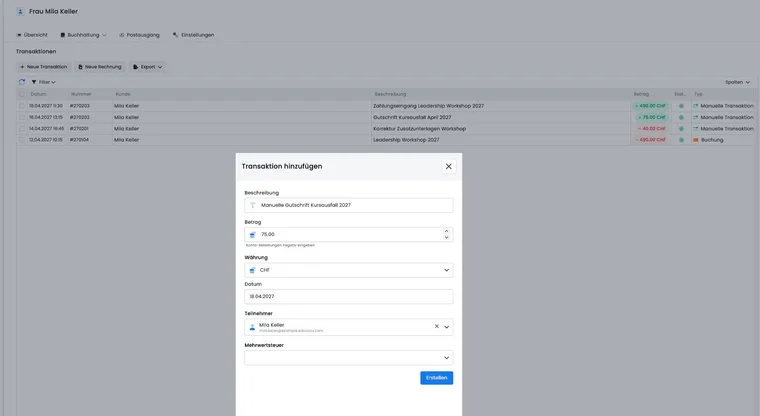
Transactions appear in the user profile, payment details, invoice processes and global transaction tables. Open a person and switch to Transactions to check existing entries and balance.
From specialist tables, an individual transaction can be opened in a details sidebar. Depending on available data, it shows date, number, amount, currency, linked booking, offer, customer, status, type, description and VAT.
Record a manual transaction
Use Add transaction to open the form. Enter description, amount, currency, date, participant and VAT. If the sidebar is opened from a user profile, the person is already prefilled or remains selectable.
edoobox checks mandatory information such as currency, date and participant. If information is incomplete, a form message appears. If complete, edoobox shows a confirmation dialogue with person and amount. Only afterwards is the transaction created.
Currency, VAT and posting date
Currency, VAT and date determine how the transaction is later analysed and billed. Use the same currency as the affected booking or invoice unless there is a deliberate special case.
VAT should match the substantive reason for the transaction. A manual materials charge, course fee, credit or simple correction may require different tax treatment. If uncertain, check the global VAT settings.
The date should correspond to the posting or service date you want to trace later in invoices, exports or accounting. Incorrect dates make month-end closing and filtering harder.
After creation
After saving, edoobox loads the new transaction and the person’s current balance. The originating view is refreshed so the user profile, table or invoice shows the new state.
If the transaction should be invoiced later, check the guide Create/edit invoices and cancellation invoices. It explains how outstanding transactions are included in invoices and incoming payments or refunds are documented.
Check transaction details
The detail view helps trace the origin of a movement. Linked resources are clickable: a booking opens the booking view, an offer opens offer settings, and a customer opens the user profile.
In particular, check number, amount, status, type and description. Automatic payments may have a technical payment reference. Clear descriptions are important for manual entries so the reason for the movement remains apparent later.
Refunds from payment details
If a transaction is linked to a payment, edoobox can load additional payment data. For supported payment providers such as Stripe, Saferpay or PayPal Checkout, a refund button may appear if the payment is technically refundable.
The refund dialogue sends amount and description through the payment method and then reloads transactions and payment data. Check refundable amount, payment method and reference data before submitting. Direct refunds may be possible for PayPal Checkout, Stripe and Saferpay; older PayPal or Sofort payments tend instead towards an external refund route depending on the case.
Not every historical or external payment can be directly refunded technically. In these cases, document repayment manually and check the provider separately. If a provider rejects a refund, check amount, minimum amount, description, payment status and whether the payment has already been partially or fully refunded.
General processes are provided under Check refunds and transaction fees and Create/edit invoices and cancellation invoices.
Global transaction table, filters and columns
The global transaction table shows date, number, customer, description, amount, status and type. Depending on the view, additional columns such as customer ID or internal ID can be displayed.
Filters follow visible columns. Typical filters are customer, status, transaction type, number, amount, and start and end dates. You can search numbers with or without a leading #. Active filters appear as chips so it remains clear why a table shows only certain rows.
For recurring monthly checks, you can document the filtered view internally or reopen the URL with its filter parameters. Nevertheless, before each export, check that period, status and visible columns are still correct.
Further basics are provided under Table filters, Save table views and Tables and export options.
Status, type and traceability
Status and type help explain whether a transaction was manual, automatic, paid, outstanding, refunded or otherwise processed. Provider payments may display additional references, payment details or refund information. Before creating a correction, first check whether a corresponding payment, credit or refund already exists.
Avoid duplicate manual corrections. If a transaction is unclear, open the linked booking, invoice and user profile. Record the substantive reason in the description, for example ‘Additional charge for course materials’, ‘Goodwill cancellation credit’ or ‘Manual bank repayment’.
Clean up test bookings and fictitious payments
A booking labelled ‘Test’ is a real record in a normal account. A manually recorded incoming payment changes payment status and balance even if no money was transferred. Therefore do not record expected or fictitious receipts as payments.
- Open the test booking, associated invoice, participant profile and payment transaction. Note the desired final state: end participation, correct the receivable and, if applicable, repay an amount actually received.
- Compare the recorded payment with the bank or provider receipt. Distinguish a real online payment, a real bank payment, a fictitiously recorded invoice payment and a standalone manual transaction.
- For a test booking still unpaid, use the intended cancellation process. Read the fee preview and then check invoice and cancellation receipt. Simply archiving the offer does not correct a payment.
- For a real payment, coordinate participation and document corrections with the actual refund. Before a manual payout, check whether cancellation already triggered a refund.
- For a fictitious incoming payment, stop before repayment or automatic cancellation leading to repayment. Document the incorrect entry and clarify the correct correction route with accounting and, if necessary, edoobox support using the affected booking and invoice.
- After correction, check booking status, valid invoice, payment and balance per currency. Compare metrics using the same date, offer and status filters as before.
No general deletion or reversal function: Ordinary participant transactions cannot be freely edited or deleted afterwards. An additional standalone counter-entry also does not reverse an incoming payment recorded against an invoice. Do not record an invented bank repayment or trigger an online refund if no money ever changed hands.
Example: Test invoice accidentally recorded as paid
A demo invoice for CHF 100 was settled using ‘Record incoming payment’ even though no transfer arrived. An additional CHF 100 charge could change the profile balance but would not reverse the original payment entry on the invoice. The team records the error, has the appropriate document and payment correction route clarified, and then checks all linked views. It transfers no money to the demo person.
For subsequent analysis, Read metrics correctly and Clean up test offers help. Cancellation or archiving does not guarantee that a transaction disappears from every historical analysis.
Export, invoice and follow-up
Depending on the view, CSV, Excel and PDF exports include only selected rows. Without a selection, edoobox displays a message. A delimiter selection dialogue may appear for CSV export so the file can be imported more easily into Excel or accounting systems.
Depending on the view, table actions can start new transactions, new invoices or exports. Before invoicing, check that amount, currency and VAT are correct and that the transaction belongs to the correct person.
Billable transactions must be deliberately selected for an invoice. If no row is selected or the selection contains several currencies, no invoice should be created; first clean up the selection and create separate invoices per currency.
Questions before approval
Is the correct person selected?
Is the amount’s sign correct?
Does the currency match the booking or invoice?
Is VAT substantively correct?
Will the description be understandable later without additional knowledge?
Is there already an automatic payment, refund or cancellation invoice?
Is a technical refund possible through the payment provider, or must repayment be documented manually?
Does an invoice still need to be created or adjusted after the transaction?
If several people in a group registration are affected, check particularly carefully whether the transaction belongs to the correct person or the main booking person.
Typical cases
Additional charge: An additional fee is recorded as a negative transaction, the balance is checked, and the movement is later included in an invoice.
Credit: A goodwill credit or correction increases the person’s balance.
Technical refund: An online-paid transaction is refunded through the payment provider.
Manual repayment: A repayment outside edoobox is documented as a transaction.
Cancellation check: After cancellation, the cancellation invoice, payment and balance are checked.
Example: Prepare an additional charge
A participant needs materials afterwards. A negative transaction with the description ‘Materials package’ is created in the user profile. The team then checks the balance and includes the outstanding movement in an invoice.
Trace subscription periods and voucher balances
A participant subscription payment may belong to a subscription billing period. For a query, therefore also check the subscription in the participant profile alongside transaction and invoice. Do not record an additional standalone charge if the period has already been correctly invoiced.
For a value code, the campaign may provide for crediting the full voucher value to the participant account and using it for the current booking. Check the remaining positive balance in the same currency. With the ‘new promo code’ variant, a new code is created instead. The remaining value process explains the three options.