
Template: Offers overview
The illustrations show an earlier version of the interface. Use the steps in this guide for the available features and options.
The Offer overview template determines how categories and offers appear in public booking. It can contain a simple list, tabular course overview, calendar, tiles, filters or a combination.
Edit this template in the Design Manager editor. Always combine filter widgets with a widget that actually displays the filtered offers, such as an offer list, offer table, calendar or tiles.
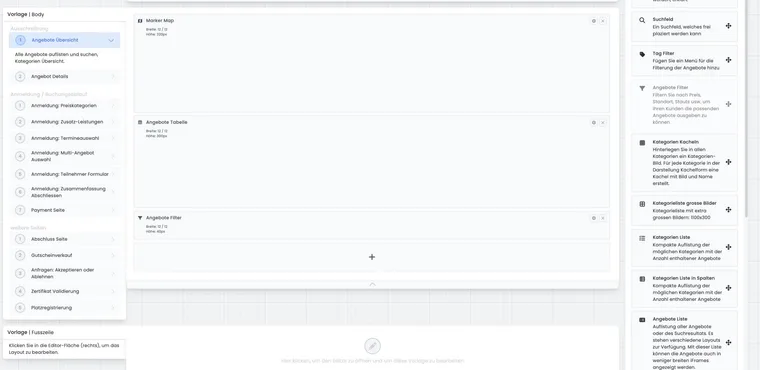
Available widgets in the offer overview
Typical widgets in this template include status legend, search, tag filter, offer filter, category tiles, category lists, offer list, offer table, calendar, offer tiles, description, text block, voucher sales button and map view.
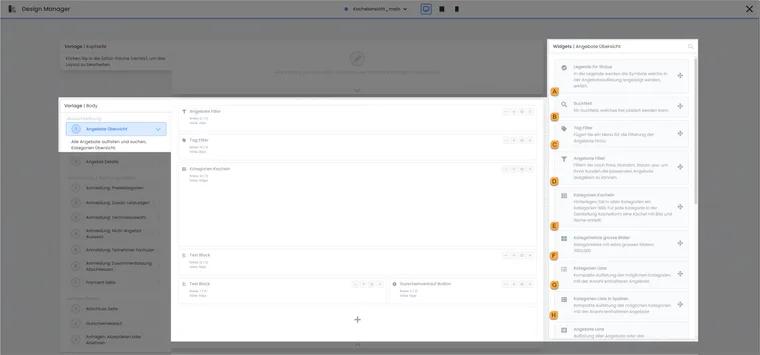
The left column selects the template, the centre contains layout, and the right shows corresponding widgets. Labels A–H identify search and category views.
- A
- Explanation of status symbols
- B
- Search for offers
- C
- Prepared tag filters
- D
- Search form with several offer filters
- E
- Category tiles with images
- F
- Category images across the width
- G
- Categories as a list
- H
- Categories in several columns
Status legend: explains offer colours or states, such as available, nearly full or waiting list.
Search: enables free text search across visible offers.
Tag filter: filters offers by prepared tags.
Offer filter: combines several filter types in one widget.
Categories and offers: show structure and specific bookable content.
Text and additional widgets: add notices, descriptions, voucher sales or a map.
Status legend and offer status
The status legend explains to visitors what coloured banners or status displays mean. This is particularly helpful when using waiting lists, fully booked offers, enquiry lists or courses starting soon.
Align the legend with actual offer statuses. If status banners appear in lists or tables, text and colour should suit your target group’s language. Avoid internal terms participants do not know.
In preview, a status normally appears only if at least one visible offer actually uses it. Therefore test fully booked offers, waiting lists, enquiry lists and internal offers as well as available offers if these states occur in your programme.
The search field searches offer names and is particularly helpful for large offer lists. It does not replace a clear category structure but can be useful as a quick direct search above lists, tables or tiles.
Search, tag filter and offer filter
Search suits broad programmes with many courses. Visitors can search terms from offer titles, descriptions or visible information. Place search above the offer list or table.
The tag filter shows predefined tags as selectable filters. All tags to filter by must first be maintained in edoobox and added in widget settings. Further information is provided under Assign tags to an offer and Use the tag filter widget.
The offer filter is the flexible variant. Depending on configuration, price, date, instructor, venue, category, tag, status or search field can be offered. Use only filters your target group understands. Too many filters make a small course overview unnecessarily difficult.
Depending on the widget, price, instructor, venue, status, category and tag filters can be configured so only values from the currently filtered result set remain selectable. This prevents empty result lists, but must be deliberately enabled per filter and tested with realistic offers.
For the tag filter, add every tag that should appear as a filter in the widget. If a tag filter contains several tags, the view filters by its included tags. For tags with values, check whether values work better as a dedicated table column or filter.
Plan filter options
For simple prepared topic links, select Tag filter. For a search form with price, date, instructor, venue, status, search, category and up to ten tag groups, use Offer filters. The widget offers a sortable selection of active filters, automatic or manual values, multilingual group and value labels, icons and Combine filter groups with AND.
The complete steps and examples are provided under Configure offer filters. Add at least one offer display on the same page. Filtering changes the visible set, not booking eligibility or capacity.
Show categories
Categories help divide programmes into topics. Several displays are available in the offer overview:
Category tiles: show categories visually. Empty categories can be hidden. The display button can remain visible or be removed for a simpler appearance.
Category list with large images: uses wide category images as banners and suits visual landing pages.
Category list: shows categories vertically and, depending on settings, can remain open or appear as a dropdown.
Category list in columns: distributes categories across several columns. Title, columns, rows and background can be adjusted.
When visitors click a category, the next level should also have an offer widget. Therefore check not just the initial view, but also the view after clicking a subcategory.
Show offers as a list or table
The offer list is responsive and suits courses requiring explanation. Depending on settings, image, date, venue, available places, instructor, lessons, price, status banner, details button and registration button can be displayed.
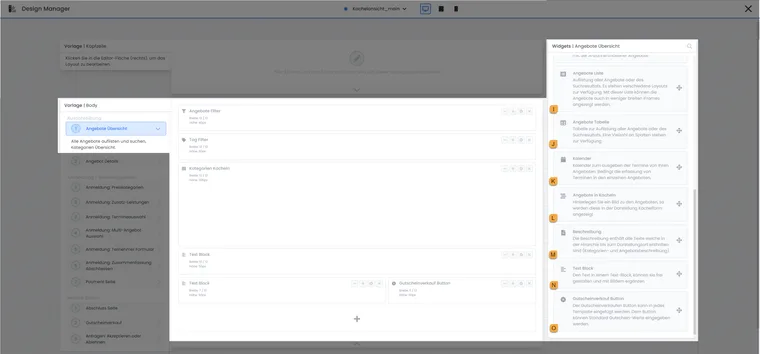
Different offer displays are available for the same template. I–L show the variants; M–O add descriptions, notices and access to voucher sales.
- I
- List offers vertically
- J
- Output offers as a table
- K
- Show offers in the calendar
- L
- Show offers as tiles
- M
- Output the stored description
- N
- Add free-form text and images
- O
- Open voucher sales
Depending on configuration, the list can show registered participants instead of an offer image. Use this display only if substantively desired and compatible with data protection, target group and public effect.
If several prices exist, a price range or standard price can be shown. The registration button can be renamed; a separate text can appear for waiting lists. The details button leads to the offer details template.
The offer table suits compact comparisons. Columns such as offer name, status, date, price, venue or available places can be selected. Tags with values can appear as additional columns. The description can remain visible in shortened form, typically up to about 250 characters, or open on click.
Tables can output months as subheadings, link offer names, and show or hide buttons. Check responsive display below 800 pixels wide so the table remains usable on smartphones.
Show offers chronologically across categories
Offer sorting and category navigation are separate. For one date sequence, you need a shared offer list or table at the level covering all desired categories. Several separately embedded categories or lists do not produce a common sort order.
- Under Offers: General settings, select sorting by start date.
- In the design actually used, open Body → Offer overview and place an Offer table or Offer list.
- Create the entry using Preview/Share at account level or on the common parent category. Entry into an individual subcategory still shows only that scope.
- If needed, remove category tiles or the category list from this template. This reduces navigation; it is not an additional sorting switch.
- Show start date in the table. Choose month subheadings only if they suit the desired appearance.
- Compare at least three offers from different categories with interleaved start dates. Check the same order after a tag or offer filter and on the embedded website.
Example: A seminar from category A starts before a workshop from B, followed by another course from A. The shared table should show A, B, A by date. If the entire A section is shown first instead, check global sorting and whether the website combines several separate category views.
The table column for the next date can sort the table by that date. For ordering by offer start, use the appropriate start date and check ongoing offers separately. A search term can influence search order; also cross-check without search text.
Hide prices without changing the offer price
Widget visibility changes neither price categories nor payable amounts. In the Offer table, remove unwanted price columns from column selection. This affects every row in that table. In the Offer list widget, ‘Replace price range with standard price’ simply changes price display; it does not automatically hide a zero price.
These widget settings provide no general ‘hide only free prices’ switch. For a dedicated section without price information, you can use a separate category view with a table lacking a price column and the notice ‘Free participation’. Also check detail page price rows. In a shared table containing free and paid offers, selected columns apply to all offers.
Buttons, links and frame behaviour
In lists and tables, buttons such as Register now, Details or Book now can be shown or hidden and sometimes renamed. If an offer uses a waiting list, separate button text may be useful.
You can also control whether clicks first lead to offer details or directly to registration. For courses needing explanation, the route through details is often better; for simple dates, direct registration may be quicker.
With iframe embeds, links can open in a higher frame. The person then sees the standard edoobox view instead of continuing within the current iframe. Test this behaviour on your website before production use.
For long tables, grouping by delivery month can help. Offer names can be linked so users reach the detail page directly through the name.
Redirect individual offers to external registration
If registration for an offer should take place on another website, assign a tag with a value to that offer: tag name redirect, value for example https://example.org/anmeldung/workshop. Name and value are separate entries. Use a complete valid URL and assign the tag only to offers with external registration.
Redirection takes effect when starting a new registration. A details link first opens the edoobox detail page. The table option ‘All links lead to offer details’ changes this first step; it is not an input field for an external destination address. The detail page registration button then uses the same registration start.
- Open an available, published demo offer whose registration start has been reached, and assign the redirect tag.
- Click the registration action in the list, table or tile actually embedded.
- Additionally open the detail page and its registration button.
- Repeat both routes in a tag-filtered overview. A tag filter selects offers; it does not change the stored redirect value.
- On your own website and mobile devices, check whether the external destination opens in the intended browser/frame context. Also check a normal course without redirection.
Registration on the destination website is not created as a completed edoobox booking by this. Clarify further data transfer in your integration. Remove the redirect assignment when this offer should use the normal edoobox registration route again.
Calendar and offer tiles
The calendar shows offers or dates in a time-based view. Weekend days can be hidden, available places displayed, and the visible time range limited. If dates always start at the same time, a start time for automatic scrolling can be set.
The time grid can be fine or coarse. According to need, make month, week, day or list views available and define a default view. Details of date logic are provided under Calendar and dates.
Offer tiles are ideal for modern overviews with images and short texts. Tile width can be defined separately for normal and tablet views. A description excerpt can optionally be shown, and participants can be taken directly from a tile to registration.
Description and text block
The Description widget shows the description of the current category or offer. It helps when several offers need the same introduction: maintain the description in the category and show it in the overview or detail page.
The Text block is intended for fixed content, such as target group, registration deadline, contact, accessibility or delivery notices. Maintain text blocks in every active language. You can also control whether a text block is always visible or only in the iframe view.
Voucher sales and map view
The voucher sales button leads to the voucher sales page. Button text and colour can be adjusted. You define the available voucher values; currency normally follows account currency but can be adjusted depending on settings.
For application, choose whether the voucher reduces the offer price or applies to the entire booking total. This matters if vouchers should not apply to additional services. Define selectable voucher values beforehand; this widget does not allow the booker to freely enter a desired amount. Also determine which voucher value is preselected by default after opening the voucher sales page. Further details are provided under Sold vouchers / Gift vouchers.
The map view or marker map is suitable when location matters for offer selection. Check venues, addresses and whether offers without a location should be displayed meaningfully or deliberately hidden.
For the marker map, your account needs its own Google Maps API key. If a custom map design is desired, a Maps ID from Google Cloud can additionally be stored. Check zoom level, map type, marker behaviour and Read more button text in preview before embedding the map on your website.
A map view can help for location-based offers. It requires venues maintained with valid address and position data. Before publication, check that markers, list view and detail page work together consistently.
When using Google Maps or comparable mapping features, consider data protection, cookie/consent rules and possible external service providers. For purely internal or tightly focused offers, a simple list is often faster and clearer.
Recommended structures
Small course programme: description, search, offer list.
Large themed programme: category tiles, offer filter, offer table.
Date-oriented events: search, calendar, supplementary offer list.
Visual academy page: category tiles, offer tiles, text block with contact.
Gift vouchers: text block, voucher sales button, list of the most popular courses.
Example: Course programme overview
A school offers language courses in several categories. A text block with a short notice appears at the top, followed by category tiles. Within a category, offer filters, tag filters and an offer table appear. The table shows date, venue, available places and price, while the details button leads to the full course description.
Interaction with prices, waiting lists and additional services
The offer overview often gives the first impression of price, available places and bookability. If an offer has several price categories, widget settings decide whether a price range or standard price is visible.
For waiting lists or enquiry lists, button text, status banner and description should align. Otherwise an offer appears bookable even though an enquiry or waiting list entry is created first.
If additional services or questions are important, mention them not only in the form but, if needed, already in the description, text block or offer details. Participants then understand early which information or additional costs will follow.
Test the template
Check initial view, subcategory and individual offer.
Test search, tag filter and offer filter with realistic data.
Check empty categories, fully booked offers and waiting list.
Check desktop, tablet and smartphone.
Test iframe or WordPress shortcode embedding separately.
Test the offer overview with several offer statuses, fully booked offers, waiting lists, tags and categories. Only then will you see whether search, filters, status legend, map view, offer list and buttons support the correct decisions for participants.
Example: Filter location and level together
A language school uses tags for location and level. In the Offer filters widget, it creates two separate tag groups and enables “Combine filter groups with AND”. With “Zürich” and “B2” selected, the offer list placed alongside it should show only courses meeting both criteria. The check also covers an empty result set and mobile use without horizontal overflow. Setup is explained in Configure offer filters.
Offer subscriptions through a dedicated entry point
With the subscription plugin active, the subscription catalogue can appear directly on the offer overview. The dedicated subscription template additionally offers overview and list display variants. The catalogue shows published purchasable plans; normal offer widgets continue to handle courses, seminars and events.
Place the catalogue after a brief explanation if the subscription benefit suits many offers. With a large range of offers, a dedicated subscription entry through navigation may be clearer. Configuration and purchase route are described under Design subscriptions and the customer area.
The offer filter provides several filter groups and display options. Use only required groups and check search, tag filter and offer filter alongside the specific offer list. A displayed filter or subscription catalogue alone is not yet a course booking.