
UI states, filters, and saved views
This page explains how filters, the sidebar, popups, loading indicators, and saved interface states work together in edoobox from a user’s perspective. For direct access through the central search field, see Global search in edoobox.
If a view looks different than expected, an active filter, saved table state, ongoing loading process, responsive sidebar, or unloaded record is often involved.
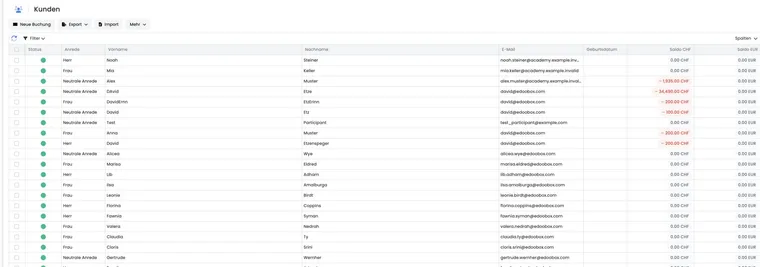
When these features help
If a table remains filtered after switching views or a view is still loading data, the following guidance on interface states can help. Interface, search, and tables provides an introduction to search, table tools, and reports.
Use global search
Search fields, supported data types, search history, and permissions are described in Global search in edoobox. For invoices, transactions, or sent messages, use the relevant dedicated view and its table filters.
Understand filters and page states
Many tables keep active filters in the current view or URL. Visible columns, their order and width, and page size may also be saved as personal settings in your admin profile. Check these separately: a saved column configuration does not include filter views with custom names.
This is useful but can be confusing if a list appears empty. Check active filter chips, the search field, date range, status, and saved table view. For the basics, see Table filters, Table tools, and Save table views.
Global UI states
Open dialogs, loading indicators, notifications, and the width of the side navigation affect how much of the workspace you can see. A loading indicator may therefore remain visible during processing while the surrounding context is still visible.
For imports, exports, uploads, invoice processes, or payments, wait for the completion message or error notice. Do not start the same action repeatedly while a process is still running.
If a color, icon, or progress message differs from what you expect, the cause is often a global state or account format rather than a data issue. First check the language, format, active design, current action, and displayed message.
Sidebar and responsive display
On large screens, the side navigation stays open so the offer tree remains accessible. On smaller screens, the same navigation can be shown or hidden to save space.
If the interface looks different on a laptop or tablet than on a large monitor, first check window width, sidebar state, and whether a dialog overlays the main view. A sidebar opened on desktop may intentionally behave differently in smaller views.
For more on the basic structure, see An overview of the user interface.
Direct links and missing records
When you open a direct link to an offer, booking, invoice, or participant profile, the current view may not yet have the record loaded. edoobox then loads it, displays an empty state, or redirects appropriately.
A detail page may therefore briefly show a loading state before the data appears. After loading, check the record’s title and links before making changes.
Wait briefly before reporting a missing record. Then check permissions, the archive/recycle bin, deleted objects, and whether the link belongs to the correct account.
Formats, language, and icons
Date, time, number, and currency formats come from the global settings. Tables, detail pages, exports, and search results therefore use the same account formats.
When interpreting icons and coloured notices, also read their labels. If a view is still loading, wait for it to finish before checking for missing information.
If a language or icon value seems unfamiliar, check Language settings and Language, notifications, uploads, and duplicates.
Everyday tips
For empty tables, first reset filter chips, the search field, date range, and saved view.
For missing search results, check permissions, archive, recycle bin, account, and spelling.
While an action is running, wait for the loading indicator instead of clicking repeatedly.
When opening direct links, wait briefly for edoobox to load the record.
For support requests, include the URL, filter state, affected record, screen size, and, if possible, an error feedback report.
Use case: Open a setting through global search
An admin wants to check VAT. They search globally for “VAT”, open the settings section shown and check the values. They then return to the previously opened view.
Use case: A direct link to a booking
A support team member opens a direct booking link from an email. The view first loads the area and then the specific booking. If the booking does not appear, they check the account, permissions, archive/recycle bin status, and whether the link actually comes from the same edoobox account.
Check your personal window display
The Settings → System → Open resources setting determines whether supported resources initially open as tabs or popovers. It applies to your admin user. In an already opened sequence of windows, further resources remain in the popover context.
If a record appears over another page, check this setting and use the window actions to go back or close it. For instructions, see Open resources as tabs or popovers. Personal column configurations, URL filters, and resource windows are different interface states.