
Offer status
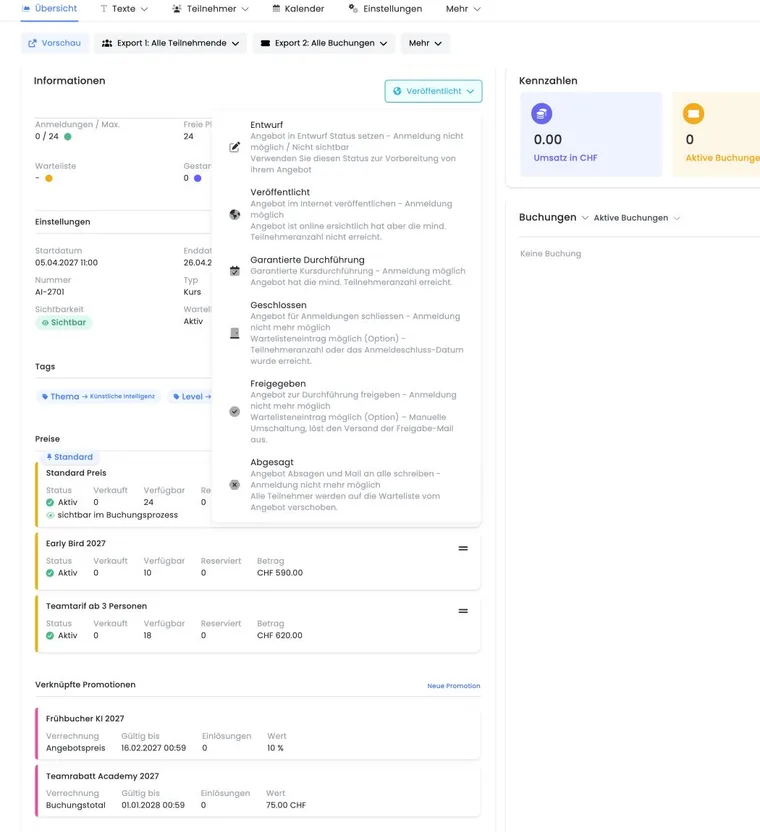
The offer status describes the professional lifecycle of an offer. Together with visibility and registration times, it determines whether participants can see the offer, book it, or only use the waiting list.
Change the status in the offer dashboard or in the offer settings. The menu shows all six states but only allows changes that fit the current phase and the completeness of the offer.
Prerequisites for an active status
Before Published, Guaranteed to take place or a later status, edoobox checks at least:
at least one date;
a registration deadline;
a maximum number of participants.
When changing to Published or Guaranteed to take place, the registration deadline must be in the future. The subscription may also limit the number of simultaneously active offers.
Status and visibility are not the same: Even a published offer can still be invisible or not bookable due to Visible from, Registration start from, Visible until, an internal code, or embedding.
The six statuses at a glance
| Status | Effect | Typical use case |
|---|---|---|
| Draft | Not publicly visible and no online registration. | Prepare content, dates, prices, and rules. |
| Published | Publicly visible and generally bookable, provided the time slots and design are appropriate. | Registration is open, but the event is not yet guaranteed to take place. |
| Guaranteed to take place | Still bookable; indicates that the event is confirmed to take place. | Minimum number of participants reached or the event is confirmed to take place regardless. |
| Closed | No more regular online bookings; the waitlist may still be available depending on the configuration. | Registration deadline or maximum capacity reached, the final decision is pending. |
| Released | Event confirmed, regular registration remains closed. | Inform participants and prepare the organizational wrap-up. |
| Cancelled | The offer will not take place and will be removed from the public listing. | Cancellation including the booking, inquiry, financial, and communication processes. |
Status sequence and allowed transitions
The normal flow is as follows:
Draft → Published or Guaranteed to take place → Closed → Released or Cancelled.
edoobox restricts direct jumps. Released and Cancelled are normally selected from Closed. To reopen a closed offer, set it to Published; Guaranteed to take place cannot be selected directly from Closed.
Published can also be used to reactivate a released or cancelled offer if the checklist is fulfilled. However, the status does not reverse participations, invoices, or sent emails.
Automatic status changes from global settings
Two automations can be active under the global offer settings:
Automatically guaranteed to take place: Once the minimum number of participants is reached, a published offer changes to Guaranteed to take place.
Next status after guaranteed delivery: When the maximum or registration deadline is reached, a guaranteed offer changes to Closed or Released according to the global setting.
Check this setting before interpreting a manual status change as an error. Automatic archiving is a separate lifecycle and can be triggered later by the visibility end or start date.
Release and inform participants
When manually changing to Released, edoobox opens an email task for the release email. You can configure it or deliberately skip it. The status change and the message are two separate actions.
Before releasing, check participants, open MustPay/waitlist cases, dates, rooms, lead, and open payments. Afterwards, check the outbox.
What actually happens when cancelled
The change to Cancelled is far-reaching:
existing confirmed bookings are moved to the waitlist; this is not a complete booking cancellation;
open or already inquired entries in the inquiry list are rejected;
edoobox opens an email task for the cancellation email, which can be created or skipped.
The status does not automatically handle accounting: Check invoices, payments, fees, refunds, and cancellation invoices separately. A cancellation email also does not replace a successful delivery check.
Reopen a closed or cancelled offer
Move the registration deadline to the future.
Check the maximum number of participants and reservations.
Check visible from, registration start, and visible until.
Set the status to Published.
Run a preview and test booking.
After a cancellation, previous participants are not automatically reactivated. Decide on a case-by-case basis whether they are rebooked, confirmed from the waitlist, or informed about a substitute offer.
The complete process for manual and automatic archiving, multi-offers, and restoring to an active category is explained in Archiving and restoring offers. Archiving does not replace cancellation or refund.
Decision checklist before every status change
Which bookings, waitlist, MustPay, and inquiry list cases are affected?
Has it been decided whether the offer will run, both organisationally and financially?
Which email should be sent to whom and when?
Are a refund, invoice, or cancellation invoice required?
How long should the offer remain publicly visible?
Use case: Minimum number reached automatically
A seminar has a minimum of ten people and global automation is active. The tenth confirmed participant changes the offer to Guaranteed to take place. The administration checks the status but waits until the registration deadline to send the release email so that further bookings remain possible.
Use case: Briefly reopen a fully booked offer
An offer was closed at the maximum. After a cancellation, a spot becomes available. The administration does not blindly increase the maximum or just change the status: It checks reservations and the waitlist, confirms a waitlist person first if necessary, and sets the offer to Published only if a public booking is still desired.
Use case: Cancellation with open invoices
A course is cancelled for organizational reasons. Before the status change, the administration exports the affected processes and plans the communication. Afterwards, it checks the bookings moved to the waitlist and the rejected inquiries. It decides on a substitute offer or complete cancellation for each process and handles necessary cancellation invoices and refunds separately. Before sending the message to those affected, it checks the actual booking and payment status as well as the outbox.