
Dialogs and side editing windows
edoobox uses dialogs for brief decisions and a right sidebar for many editing tasks. The current page remains visible so you can continue in the same place after saving.
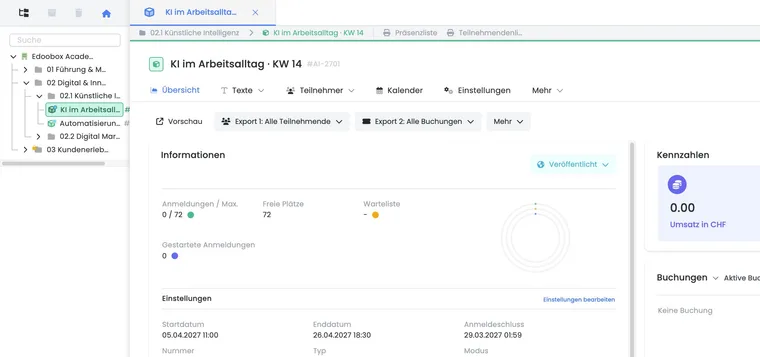
Recognise a dialog or sidebar
| Element | Typical use case | Operation |
|---|---|---|
| Dialog | Confirmation, a brief selection, an invoice, email or security-critical action. | Complete the action or deliberately cancel it. |
| Right sidebar | Edit tags, files, additional questions, services, transactions, permissions or previews. | Save and then close; the main page remains open. |
| Larger overlay view | Extensive editing such as rebooking, previewing or file management. | Complete the inner process first, then return to the initial view. |
Use side editing panels efficiently
Many actions open the corresponding form on the right, for example offer images, tags, files, additional questions, services, booking appointments, transactions or legal texts. The open record remains visible in the background; after closing the panel, check active filters and the updated data.
A right-hand form for an individual editing action can be replaced by another sidebar action. Separately, edoobox supports resource popovers: several linked records can remain open as a sequence of windows. Therefore, check which kind of window you are currently using.
Protect unsaved changes
Some editing panels prevent closing until a change has been saved or discarded. If closing does not respond immediately, check required fields, error messages and any visible Save or Cancel actions.
Do not close while saving is in progress.
Check whether a selection window is open above the sidebar.
Only confirm critical actions when the resource and consequences are correct.
Take confirmation prompts seriously
Cancellations, deletions, refunds and other irreversible actions display an additional confirmation. The title names the affected action; the highlighted button performs it. Select Cancel if anything still needs checking.
Example: Add tags to an offer
An admin opens tag editing in the offer details. The right sidebar appears while the offer remains visible. After selecting tags, they save, close the panel and check the updated tags directly in the offer details.
Example: Deliberately abandon a cancellation
When cancelling, the dialog shows that the action is irreversible. Since the invoice has not yet been checked, administration selects Cancel and clarifies the financial status first.
If a window does not respond
Wait until loading finishes.
Check required fields and error messages.
First close any selection window above it.
Only reload the page once you no longer need any unsaved input.
Open records as tabs or popovers
Under Settings → System → Open resources, choose your personal preference of Tabs or Popover. Supported resources can then open from tables, links and search in the selected view. Subscriptions and plugins use their own resource windows.
A window sequence provides actions to close the current window, go back and close all windows. For suitable resources, the current record can be opened as a full page. Open resources as tabs or popovers explains the exact controls and the limit of 15 windows.