
Import edoobox transactions into an accounting system
There is no single universal export for external accounting systems. First determine whether your accounts department needs invoice documents, individual edoobox transactions, bank payments or payment provider payouts and fees.
Define one data source as authoritative and agree numbers, period, currency, tax logic and offsetting accounts with accounting. Importing invoices and the same payment transactions again as revenue without checks creates duplicate accounting entries.
Choose the appropriate data source
| Data source | Contains | Suitable for |
|---|---|---|
| Invoices and receipts | Invoice number, recipient, line items, taxes, amount and PDF or electronic invoice file | Accounts receivable and statutory document archiving. |
| edoobox transactions | Date, number, customer, description, amount, status and type | Checking individual charges, payments, fees or corrections. |
| CAMT bank data | Actual account movement with a bank reference | Payment reconciliation for outstanding invoices, not a replacement for invoice documents. |
| Stripe, Worldline or another provider | Payout, transaction fee, refund and net transfer | Reconciliation of the provider clearing account with the bank account. |
| API or Zapier | Automatically supplied events and structured resources | Recurring integrations with their own duplicate handling and error logic. |
Export selected transactions
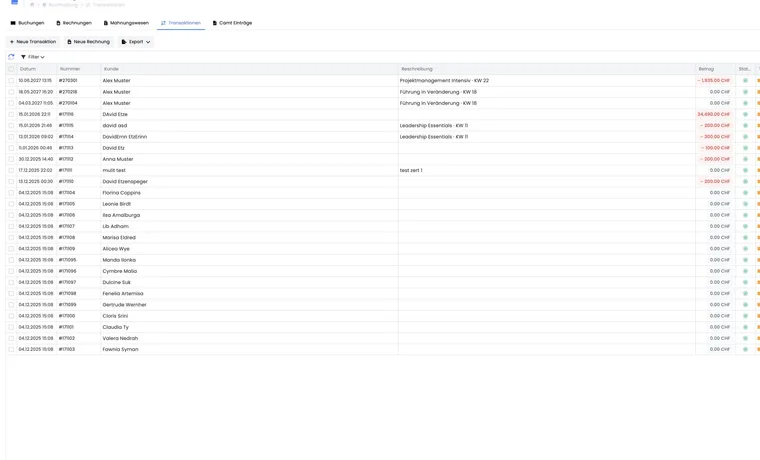
The transaction table can be filtered by customer, status, type, number, amount and booking date or period. Default columns are date, number, customer, description, amount, status and type; further columns can be displayed through column selection.
First set the period and relevant filters. Check currency and transaction type.
Select the rows to export. In this view, CSV, Excel and PDF export only selected records; without a selection, edoobox displays an error.
Choose CSV or Excel for further processing. For CSV exports, set the delimiter to suit the target system. PDF is more suitable for checking or archiving than automated import.
Before importing, check the file's row count, totals, signs, currencies and numbers already imported.
Transfer invoices and electronic invoices
If your accounting system needs invoices as authoritative documents, use the invoice export rather than transaction export. edoobox can prepare invoice documents for a period as a combined PDF and XRechnung V3 as a ZIP. For larger quantities, the file may be generated in the background and provided through the secure file area.
For DATEV, edoobox provides files but does not perform direct DATEV reconciliation. Details are in Transfer invoices to DATEV.
Use API or Zapier in a controlled way
For a custom integration, create a separate API key with the minimum required permissions. The integration must recognise records using stable IDs or numbers so that rerunning does not create duplicates. Save the last successful synchronisation state and log errors.
Zapier New Invoice is suitable for simple follow-up actions on new invoices. A single Zap does not replace complete accounting exports or reconciliation of cancellation invoices, refunds and payment provider fees.
Check import and reconciliation
Compare the count and total of exported records with the import log.
Assign cancellation invoices, refunds and fees to their respective accounting periods, and clarify any uncertainty with your accounting team.
Reconcile bank payments through CAMT and provider payouts against outstanding items.
Prevent duplicate imports with documented period closing and unique document numbers.
First test the format and account assignments in a test company or with a short period.
Use cases
Example: monthly invoice import
An organisation exports all invoices and cancellation invoices for the completed month. After importing, it compares the document count and gross total. Bank payments are assigned separately through CAMT so that the same invoice is not imported again as revenue from the transaction table.
Example: reconcile a Stripe payout
Accounting imports invoices from edoobox as revenue documents. For the Stripe clearing account, it also uses the Stripe payout report with fees and refunds. The net payout is reconciled against the bank receipt without duplicating individual invoice revenue.
Example: daily read-only API synchronisation
An accounting system downloads new and changed invoices daily using its own read key. It saves the edoobox ID as an external reference and updates existing entries instead of creating them again. Failed runs are logged and repeated from the last successful state.
Choose an export or a configured accounting integration
For the transaction table, open Accounting → Transactions, check filters and columns and select the required rows. The CSV export dialog asks for the delimiter. Afterwards, check the exported selection using transaction numbers.
If your account uses the Bexio integration, first establish which documents and payments it already synchronises. Do not additionally import the same operations as a manual CSV file. The monthly report on edoobox payment fees is described in Export transaction fees as CSV; it is not a complete transaction or payout report.