
edoobox API: Getting started
The edoobox API enables automated queries and integrations, for example for websites, reporting, accounting, CRM, WordPress, Zapier or your own internal systems. Always start with a clear use case and an API key with the narrowest necessary permissions.
Preparation
Clarify which data is to be read or written.
Create a separate API key for each integration.
Grant only the permissions that are truly required.
Plan the secure storage of the Secret Key, Access Token, and Postman environment.
Test first with demo data or in a risk-free environment.
Generate API key
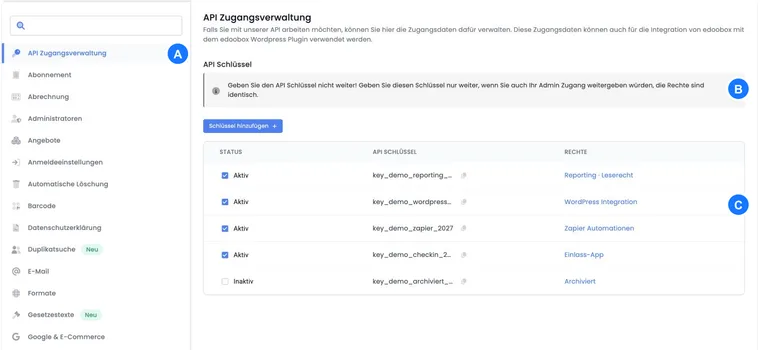
The API V2 uses API keys from the V2 account. Open Settings > API Access Management and select Add key. Choose whether the key should be active immediately, and then determine the appropriate permission.
After saving, edoobox displays the Public Key and Secret Key in a popup. The Secret Key is displayed in full only at this moment. Copy both values immediately into a password manager or secret store. Do not send Secret Keys via email, chat, or screenshot.
Manage API keys in access management
In the API access management, you can see existing keys with their status, Public Key, and assigned permission. The Public Key can be copied in the table. The status can be toggled between active and inactive. Inactive keys remain stored but should no longer be used.
An API key has the permissions of the selected permission set. Choices may include existing sets and predefined ones such as WordPress permission, Zapier permission or read permission. If a predefined set does not yet exist, edoobox may create it when creating the key.
If an assigned permission is later deleted or can no longer be found, the key is no longer logically traceable. In this case, create a new appropriate permission or deactivate the key until the authorization is clarified.
| Element | Meaning |
|---|---|
| Public Key | Visible API key, displayed in the overview and used for authentication. |
| Secret Key | Secret counterpart to the Public Key, displayed in full only once after creation. |
| Status | Only active keys can be used for authentication. |
| Permission | Limits the key's access to the API. |
Practical example: Create an API key for reporting
For an external evaluation, open the API access management, click on Add key, keep the status active, and select a read permission. After saving, immediately copy the Public Key and Secret Key into the secret store of the reporting application.
Authentication and Access Token
Authentication uses https://app2.edoobox.com/v2/auth. Send the Public Key, Secret Key and optionally an expiry date. The response provides an edid and a valid access_token.
All protected API V2 endpoints then require the access_token and the edid. The edid defines which account is currently authenticated. In the authentication response, you also find information about logged-in accounts, account ID, and permissions, typically under data.login.data[edid]. If an access returns multiple accounts, deliberately use the appropriate edid for each request; otherwise, you will read or write data in the wrong account or receive seemingly inexplicable permission errors.
Response structure after authentication
The authentication response contains, in addition to the access_token, the edid. This edid defines which account within the response is currently authenticated. In multi-session or multi-account accesses, multiple accounts may appear in data.login.data.
data.login.data[edid]There you will find, among other things, the account ID and the permissions that are effective with this API key. Always use the token and edid from the same successful authentication for further API calls.
Authentication with Node.js
const response = await fetch('https://app2.edoobox.com/v2/auth', {
  method: 'POST',
  headers: {
    'Content-Type': 'application/json'
  },
  body: JSON.stringify({
    'grant-type': 'password',
    key: process.env.EDOOBOX_PUBLIC_KEY,
    secret: process.env.EDOOBOX_SECRET_KEY
  })
});
const result = await response.json();
if (!response.ok || result.error || !result.data?.access_token || !result.data?.edid) {
  throw new Error('edoobox authentication failed');
}
const edid = result.data.edid;
const accessToken = result.data.access_token;
// Use the token only on the server, in memory or in a secret store.
Authentication with PHP
<?php
$curl = curl_init();
curl_setopt_array($curl, array(
  CURLOPT_URL => 'https://app2.edoobox.com/v2/auth',
  CURLOPT_RETURNTRANSFER => true,
  CURLOPT_CUSTOMREQUEST => 'POST',
  CURLOPT_CONNECTTIMEOUT => 10,
  CURLOPT_TIMEOUT => 30,
  CURLOPT_POSTFIELDS => json_encode(array(
    'grant-type' => 'password',
    'key' => getenv('EDOOBOX_PUBLIC_KEY'),
    'secret' => getenv('EDOOBOX_SECRET_KEY')
  )),
  CURLOPT_HTTPHEADER => array(
    'Content-Type: application/json'
  ),
));
$response = curl_exec($curl);
$status = curl_getinfo($curl, CURLINFO_RESPONSE_CODE);
$failed = $response === false;
curl_close($curl);
if ($failed || $status < 200 || $status >= 300) {
    throw new RuntimeException('HTTP authentication failed');
}
$result = json_decode($response, true);
if (!is_array($result) || !empty($result['error']) || empty($result['data']['access_token']) || empty($result['data']['edid'])) {
    throw new RuntimeException('edoobox authentication failed');
}
$edid = $result['data']['edid'];
$accessToken = $result['data']['access_token'];
First request: retrieve one page of the offer list
After successful authentication, you can query protected endpoints. The example https://app2.edoobox.com/v2/offer/list reads the first page of the offer list, provided the selected permission allows this request. Without a custom list parameter, at most 100 entries are returned. To retrieve the complete set, read the subsequent pages as described in the pagination section.
The current OpenAPI file requires Authorization: Bearer <JWT> together with edid for the usual protected resources. An additional grant-type header is not declared there. In the authentication call, however, grant-type is in the JSON body. Check for differing requirements on the respective endpoint page.
const offerResponse = await fetch('https://app2.edoobox.com/v2/offer/list', {
  method: 'GET',
  headers: {
    edid,
    Authorization: `Bearer ${accessToken}`
  }
});
if (!offerResponse.ok) {
  throw new Error('Could not load offers');
}
const offers = await offerResponse.json();
if (offers.error) {
  throw new Error('edoobox rejected the offer query');
}
Test queries with Postman
With Postman or a similar tool, you can check API endpoints before writing code. Download the OpenAPI file via the integrated API-v2 reference and import it as an OpenAPI definition. Support for the OpenAPI 3.2.1 format depends on the tool version used.
Create your own environment with the host of your environment, your credentials, and variables for JWT and edid. Select the imported endpoint POST /v2/auth and adopt the appropriate body example from the reference. An additional environment file or automatic token adoption is not delivered with the OpenAPI file. Manually assign the actual response fields after successful verification or use a script verified for your environment.
If a subsequent request fails, first check whether the correct environment is active, whether the auth request was successful, and whether the headers edid and Authorization are actually populated from the stored variables.
API access: Use the body example
apiLoginforPOST /v2/auth.Admin login: The body example
administratordescribes email and password if this path is intended for your test case.Further queries: execute only after successful authentication.
Security and operations
Create separate keys per integration, rotate keys upon personnel or service provider changes, and deactivate unused accesses. Store secrets only in systems designated for this purpose and never directly in publicly accessible frontend code.
Document for each key the purpose, responsible person, system, permission scope, and planned rotation date. This ensures that it remains clear which integration has which access even after a service provider change.
If an integration writes bookings, invoices, or participant data in production, plan logging, error handling, test data, rate limits, data protection, and clear responsibilities. Details on administration can be found under Manage API keys and access rights.
Request the next list page specifically
The common V2 list parameter is a JSON object with start as the start position and reply as the page size. For the second page with 100 entries, you set, for example, limit={"start":100,"reply":100}. Encode the JSON as a URL parameter; then advance the next start position by the requested page size.
const url = new URL('https://app2.edoobox.com/v2/offer/list');
url.searchParams.set('limit', JSON.stringify({ start: 100, reply: 100 }));
// Fetch url using the same edid and Authorization headers.
Check the HTTP status, error, and the data range of the specific resource in each response. Use the existing total or page data of this resource to stop. A failed page must not be treated as an empty final page.
For a permanent booking reconciliation, maintain filters and sorting across all pages and save the completed processing status only after successfully importing all pages. The subpage API: Synchronize bookings shows the process with time windows, limit.total, duplicate messages, webhooks, and the additional reconciliation of older bookings. It also explains why time is not a filter for all subsequent changes.
After the first query: Webhooks or own offer pages
For an event connection, authentication alone is not yet sufficient. The instruction Set up and operate webhooks guides you through the appropriate webhook permission, POST /v2/webhook, topic selection, signature verification, and activation up to verified receipt. The setup is performed with the described API requests.
If you want to display offers on your own website, read Own offer website and course planner. There, a separate editorial summary via GET /v2/text/list is distinguished from the derived offer field shortdescription.
Related guides
- Set up and operate Webhooks
- edoobox API
- API: Synchronize bookings
- Manage API keys and access rights
- Account settings
- Admins and their user rights
- Integration with the WordPress Plugin
- Zapier: Create your first Zap
- Admission control with hand scanner / turnstile
Token lifetime and processing lists completely
The examples run on a server and read credentials from prepared environment variables. Without its own expire, the API issues the token by default for 30 minutes. Renew it after expiration via authentication; do not publish or log it.
A list query returns 100 entries by default. The maximum page size is 2000. For larger data sets, process the pages via the documented limit parameters until all required data records have been retrieved. A successful first page does not prove that all offers have been loaded.
For new features such as subscriptions, plugins, or automations, check the respective resource and your own access permission. The prepared Zapier permission is not a general write permission for all edoobox features.