
Settings: attendance list layouts
Under Settings Layout, you manage the templates edoobox uses to create custom attendance lists as PDFs. This area belongs to the global attendance list settings and provides two layout levels: a PDF template for the complete printout and a table template for the participant table.
A PDF template determines the attendance list’s structure, file name, orientation, background, attachments, page margins and editor content. A table template defines columns such as name, upcoming sessions, attendance status, comments or signature. Several PDF templates can use the same table template.
Changes to a shared table template affect every PDF template that uses it. If only one layout needs different columns, first copy the table, edit the copy and insert it into the required PDF template. Check that the new table replaces the previous table reference there.
Access and tabs
Open Settings in the main navigation and select Attendance lists. Depending on your permissions and account, the tabs Attendance status, PDF Template and Table Template are available.
The Attendance status tab manages attendance values and percentage calculations. The layout tabs control the output: create complete PDF layouts in PDF Template, and reusable tables to insert into those layouts in Table Template.
PDF Templates
In the PDF Template tab, you see a table with existing PDF templates. Use Create new template to create a new layout. Clicking on an existing row opens the editor. In the list, you can refresh, sort, select columns, and switch between pages.
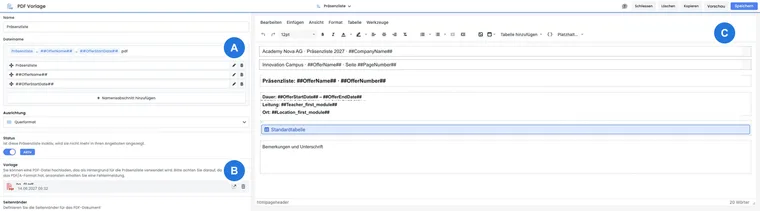
A PDF template contains at least a name, file name, orientation, status and editor content. New templates typically start with the name Attendance list, a file name such as Präsenzliste_##OfferName##_##OfferStartDate## and an inserted table reference. If no table exists, edoobox automatically creates a default table when creating the template.
PDF file name, status, and preview
The name is used for internal selection. The file name is used for the generated PDF file and can contain placeholders. The name and file name must contain at least two characters. Use descriptive file names so that exported attendance lists can be clearly assigned to an offer later.
Choose portrait or landscape orientation. The status determines whether the template is active. Inactive templates remain saved but should not be selected for new attendance lists. The preview becomes available once the PDF template is saved; edoobox cannot render it before the first save.
PDF background, attachments, and margins
Use Upload PDF file to set a PDF file as a background or form template. Exactly one such background PDF is intended per PDF template. The file must not exceed 1 MB in size. Additionally, you can add PDF attachments that are appended to the attendance list as additional pages. The interface is designed for two PDF attachments per template; these files must also not exceed 1 MB each.
Carefully check file sizes and printability. Background PDFs and attachments should remain slim, as large files can slow down PDF creation and dispatch. If your letterhead consists of multiple pages, use only the pages actually needed or consciously attach supplementary PDF pages as an attachment. Margins are managed in millimeters. For the first page, top, right, bottom, and left can be set. For subsequent pages, top and bottom can be managed separately; left and right align with the horizontal margins of the first page.
Use case: Using background PDF and attachments
First upload your letterhead or form as a PDF background. Then check the margins to ensure that table content does not overlap the logo, footer, or fixed form fields. If additional terms and conditions are to be signed with the attendance list, add them as a PDF attachment.
Explicitly check a long list on the first page and a subsequent page: the logo and letterhead need free space at the top, and footer details at the bottom. Adjust the respective margin fields for this instead of forcing the entire table content into very small font. If columns become too narrow, check landscape orientation, fewer session columns, or rotated headers. These margin fields belong to the attendance list PDF; Certificates have their own template workflow.
Editor, placeholders, and tables
The editor of the PDF template contains text, headings, placeholders, optional header and footer lines, and one or more table references. Tables are inserted via Add table and displayed in the editor as a non-directly-editable table marker. When saving, edoobox converts this display into the technical table reference.
The placeholder menu provides offer, participant, session and other PDF values. Common placeholders include ##OfferName##, ##OfferNumber##, ##OfferStartDate##, ##OfferEndDate##, instructors and venue. See All placeholders for emails and PDFs for an overview. For conditions and repeated sections, see IF and EACH.
Via PDF header and PDF footer, special areas can be inserted. Custom CSS code is only sensible for advanced layouts and should be tested with realistic data after every change.
Table templates
In the Table Template tab, you manage tables that are used in PDF templates. Use Create new table to create a table; open existing tables by clicking on the row. A table template has an internal name, status, empty rows at the top and bottom, minimum header row height, minimum data row height, and column definitions.
The standard table contains a column for participants, multiple columns for upcoming sessions with date and attendance status placeholders, and a signature column. You can add, move, and fill custom columns with static text or placeholders.
Column types, repetitions, and widths
Each column is managed in the table builder. Common column types are custom columns, all sessions, upcoming sessions, and participation. Custom columns output exactly the content you enter in the column header and cell data. Session columns generate multiple columns from the sessions of the offer.
The number of repetitions controls how often a session column is repeated. For many sessions, you should consciously limit the number to keep the list readable. The width is managed in percentages; all columns together should not exceed 100 percent to keep the PDF output calculable. The column header and cell data can contain fixed text, HTML or placeholders.
Use case: Controlled limiting of session columns
For a multi-day offer, use a column of type Upcoming sessions and set the repetitions to five. The header contains the date, and the cell data contains the attendance status. This keeps the list printable even with many sessions.
Use case: Building a custom signature list
Create a new table template, name it uniquely, and add a column for membership number, group, or remark. Use the appropriate participant placeholder as cell data, save the table, and then insert it into the PDF template.
Choose the number of session columns to suit the printout you need. A single column does not select a particular lesson. For the standard list of a specifically booked lesson, follow the printing steps with session selection; these also explain how this differs from a custom PDF template.
Saving, copying, deleting, and protection against data loss
PDF and table templates can be saved, copied, and deleted. Copying and deleting are only offered for already saved templates. When copying, edoobox creates a new template with the suffix Copy.
If you close an editor window with unsaved changes or switch to another table, edoobox asks whether changes should be saved or discarded. Incomplete required fields prevent saving. Copy proven templates before making major changes to production layouts.
Typical use cases
Create an attendance list with your own logo, fixed letterhead, and defined margins.
Display different tables for each offer format, for example sessions, membership numbers, or remark fields.
Attach additional PDF pages such as terms and conditions, house rules, or safety instructions to the attendance list.
Use offer, session, instructor, venue or participant placeholders directly in the PDF layout.
Output column header and cell data vertically
- Open the desired table under Table Template and edit a column.
- Activate the option Rotate text 90° upwards under Column header if the heading should stand vertically.
- Activate the same option under Cell data only if the content of the data rows should also be rotated. Both settings are independent.
- Save the column and table and check the PDF preview with the used PDF template.
For a list with many sessions, you can rotate the date headings and keep names and attendance values horizontal. Adjust the minimum header row height for long headings so that nothing is cut off. A newly added column starts with horizontal text.
Check the PDF version and shared CSS
The PDF format and PDF version are selected in the account formats. The CSS code of the PDF editor uses the shared PDF-CSS configuration of the account. After a change, also check other affected PDF templates and multi-page attendance lists.
Complete a PDF template with one table
- Open Settings → Attendance lists → Table Template and save the required table template with columns and active status.
- Open PDF Template, create or copy a template, and place the cursor in the editor at the table position.
- Select Add table and the saved table. Add offer details, margins, and if needed, background or PDF attachments.
- Save the PDF template. Only then is its preview available.
- Check the output with an offer that has multiple sessions and enough people for a page break.
For invalid names, file names, or other required fields, correct the displayed form errors. Close a modified layout only after successful saving or conscious discarding.