
SAML for participants: login, tags and offer access
With participant SAML, people sign in to the edoobox booking process through your Identity Provider. You can import participant data and control offer access through tags assigned to the provider. Admin login and its permissions are a separate area.
Prepare a provider for participant login
- Open Settings → SAML (SSO) and select a provider or create a new one.
- Under Login visibility, select User only or User & Admin. “User” means participants.
- Align the NameID format, metadata and mapped email, first name and last name fields.
- For additional participant data, follow SAML data field mapping.
- Check your booking page’s participant login in the Design Manager and test the provider there.
For a participant-only provider, edoobox hides the admin options for fallback permissions, permission management and admin linking. Participant SSO does not grant admin permissions.
Change the SSO button label
The SAML login button on the participant login page uses the SAML provider’s name. This name is separate from the unchangeable account abbreviation.
- Open Settings → SAML (SSO) and the correct provider.
- In the provider form, change the Name field to a label participants understand, for example “Organisation login”.
- Save and check the actual participant login page and embedded booking route.
- For a User & Admin provider, also check the admin entry point before communicating the change internally.
The provider name is not a separate multilingual text template. A heading entered freely in the design or text before the login button is maintained in the relevant template. To change a button label, change neither the account abbreviation nor technical SAML URLs and metadata without checking.
Recognise and update existing participants
An existing SAML link is recognised using the provider and NameID. For a provider with User only, edoobox additionally searches on first login for an active participant with the same mapped email address. If a matching record is found, it is linked; otherwise, a new participant may be created with the supplied data.
For the combined User & Admin scope, initial email linking also depends on the enabled linking option. Test the transition with a known participant before using the provider widely. Use unique personal email addresses and check possible duplicates before migration.
Existing non-empty SAML field values can update participant data during login. Additional fields affect participants only. Therefore, check both the first login and a later change at the Identity Provider.
Maintain participant tags on the provider
- Open the provider’s Configuration tab.
- Under Participant tags, select the required normal tags, for example “Employees” or an organisation group.
- Save the configuration.
- Sign in as a test participant and check the content that depends on it.
Provider tags affect the participant indirectly through the SAML link. They are defined on the edoobox provider; an arbitrary group label in an IdP attribute does not automatically become an edoobox tag. Admins do not receive these tags.
Configure offer filtering
- Assign suitable offer tags to the affected offers.
- First select the same tags as Participant tags in the SAML provider.
- Enable Enforce tag filtering of offers.
- Select the tags to use for offer filtering. Tags assigned to the provider are available for selection.
- Decide whether matching offers should restrict the normal selection or become visible in addition.
- Save and compare a matching offer page with one that does not match.
| Mode | Effect | Example |
|---|---|---|
| Enforced filtering without the additive option | The normal offer selection is restricted to offers carrying all selected filter tags. | A company portal shows this participant group only the training assigned to it. |
| Additionally display offers with these tags | Appropriately tagged offers become accessible in addition to the normal selection. | Signed-in employees also see internal offers. |
The tag name and, if used, tag value or status must match the offer tags. After removing a provider tag, check the filter selection. The additive option is available only with filtering enabled and filter tags selected.
Distinguish multiple tags from internal access
Several selected filter tags apply together: an offer must carry all filter tags. With the filters “Employees” and “Bern location”, just one of these tags is insufficient.
Internal offer access additionally considers the linked participant’s indirect provider tags. A matching normal offer tag can enable this internal access. Therefore, check the effects of provider tags, internal offers and additional filtering together; hiding a widget alone does not revoke offer access.
Tags are evaluated through the existing participant link. Disabling the provider blocks new logins through that provider but does not automatically remove every existing participant link or tag effect. When someone leaves, check their participant access and effective assignments separately.
Align widgets and other tag conditions
Use effective participant tags where edoobox offers tag conditions, for example for widget visibility. Selecting offers and displaying a widget are separate settings. Check both: a person may see an offer but still have a particular notice hidden if its widget condition is set differently.
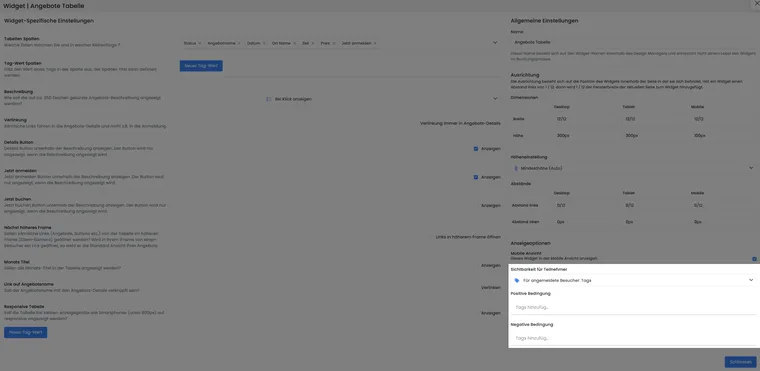
A widget’s visibility can be linked to participant tags. Positive and negative conditions control the widget’s display; configure offer access separately on the SAML provider.
Example: the provider indirectly assigns “Employees”. Internal offers carry the matching offer tag, and an additional information widget is shown only for that participant tag. Check the same page while signed in and signed out. Fundamentals are under Use tags as conditions and Design Manager.
Check login in embedded booking pages
Start login from your website’s actual booking page. Fully complete the login window or redirect and check that you return to the booking process as a participant. The workflow supports returning from external SAML login to embedded booking pages.
If login fails only in an embedded page, compare the same process with the direct edoobox booking page. Check browser messages about blocked windows and cookies. If an error persists, report the browser, exact entry address, provider and time to your SSO administrator or Support. A successful admin SSO test alone does not check this participant return route.
Verify the setup with six cases
- New authorised participant: a profile is created with the correct name and email.
- Existing active person: the expected record is reused.
- Later login after a change: mapped non-empty fields are imported correctly.
- Signed-in and signed-out person: offer filters and widget conditions differ as intended.
- Matching and non-matching offer tag: access corresponds to the selected mode.
- Direct and embedded booking pages: login returns correctly in both cases; existing promotion or referral links remain in the workflow.