
Reverse Charge (B2B)
Reverse Charge is a tax treatment in which the recipient of a service owes the tax. edoobox can calculate the technical B2B status, treat the tax amount accordingly and output a notice on the invoice. Your organisation must clarify whether Reverse Charge is legally permitted for a country, service and customer.
No automatic legal assessment: successfully entering a VAT number does not prove that the specific transaction legally falls under Reverse Charge. Configure countries, services, evidence and invoice text together with your tax adviser.
When edoobox can activate B2B status
Several conditions must align in the public booking process:
An active VAT rate exists for the effective country with Reverse charge (B2B) enabled, or the rate already selected permits B2B.
A separate billing address is active and contains the country relevant to your configuration.
The customer type is not Private customer (B2C).
The VAT number satisfies the validation defined in the billing address widget and may be used for B2B.
If any of these requirements is missing, edoobox does not mark the booking as a Reverse Charge B2B case.
Configure Reverse Charge step by step
Open Settings → VAT.
Create or edit the rate for the relevant country and enable Reverse charge (B2B).
In the global VAT settings, maintain the language-dependent invoice notice. Without custom text, edoobox uses a default notice about the service recipient’s tax liability.
In the Design Manager, add the Billing address widget.
Configure the customer type, country basis, VAT field and validation rules.
Create test bookings for valid, invalid and ineligible cases.
Control country basis and customer type
With Reverse Charge country basis, select Billing address or Participant. With Billing address, its country is used first; if missing, the logic may fall back to the participant’s country. Choose this basis deliberately when residence and invoice recipient are in different countries.
The customer type options are Do not display, Private and business customers, Business customer and Private customer. For Private and business customers, also set a default. A process treated as B2C does not activate Reverse Charge.
Understand VAT numbers and VIES validation
| Setting | Effect |
|---|---|
| Check details (DB VIES) | EU VAT numbers are validated by format and through the designated VAT check. |
| Allow only valid VAT IDs | A number that has not been successfully validated blocks input; this option is particularly restrictive outside the verifiable EU context. |
| VAT number must match the selected country | The number’s country code must match the country. The code EL is also recognised for Greece. |
| Display the VAT number field only for Reverse Charge countries | The field appears only if the effective country has an active B2B VAT rate. |
Without enabled VIES or valid-only validation, the technical logic accepts a non-empty input and permits B2B only above five characters. This is a technical minimum condition, not substantive verification. For reliable B2B processes, enable the appropriate validation.
Effect on price and invoice
For VAT-inclusive prices, the included tax component is not shown as tax owed in a Reverse Charge case.
For VAT-exclusive prices, no additional tax amount is added for the activated B2B case.
The language-dependent Reverse Charge text is provided for invoice output.
The invoice template receives
InvoiceIsReverseChargeas a true/false value.In the structured electronic invoice, edoobox technically marks Reverse Charge as the corresponding tax case.
Control custom text with InvoiceIsReverseCharge
In addition to the global invoice notice, you can display a custom block in a supported template. Use the documented IF syntax with spaces around the operator:
{IF?InvoiceIsReverseCharge = true}
This invoice is issued without separately stated tax under the reverse-charge procedure verified for this transaction.
{ELSE}
The invoice shows the standard tax information.
{ENDIF}
Test both branches. The text must substantively match your country and service; do not use generic sample wording in live invoices without checking it.
Correct an existing booking
In V2 booking editing, an admin can change the active billing address and B2B switch. The switch remains effective only if an active billing address, a permitted country and a VAT number longer than five characters are present.
Check the document afterwards: changing the booking does not replace a proper invoice correction. Check the VAT breakdown, Reverse Charge text, PDF and, if applicable, electronic invoice, and use the intended correction process.
Recommended test matrix
Business customer, eligible country, valid VAT number: Reverse Charge active.
Private customer with the same address: Reverse Charge inactive.
Country code and country do not match: the form shows the configured error.
VIES validation unavailable or number invalid: with strict validation, the process is not accepted as a valid B2B case.
Invoice and cancellation invoice: tax amount, notice and
InvoiceIsReverseChargeare correct.
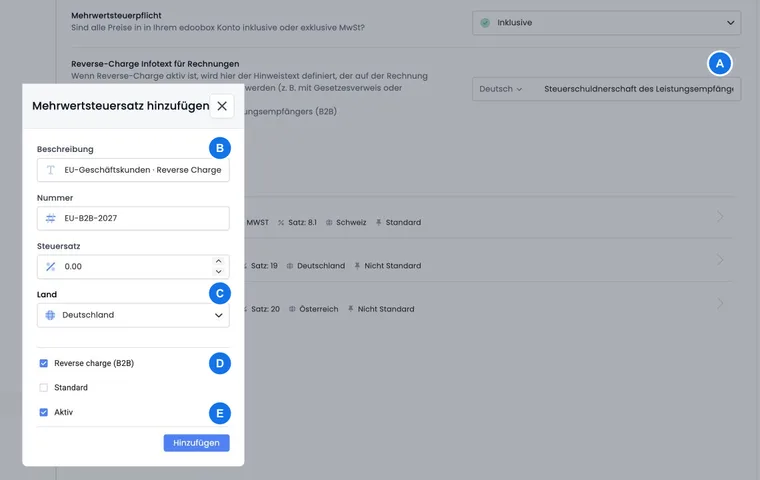
Example: An EU business customer with a successfully validated VAT ID
The billing country has an active B2B VAT rate. The customer selects Business customer and enters a successfully validated VAT ID matching the country. The test invoice shows no regular tax amount, contains the verified Reverse Charge notice and supplies InvoiceIsReverseCharge = true.
Example: A private customer in the same country
The same address is tested with the Private customer type. Although the country generally permits Reverse Charge, the B2C type disables B2B status. The invoice uses normal tax treatment. This prevents the country rule alone from treating every booking as B2B.
Example: A VAT ID does not match the billing country
A German billing address is entered with a different country code in the VAT ID. Because VAT number must match the selected country is active, the input remains invalid. The team corrects the country or number rather than forcing the B2B switch afterwards without evidence.
Check changed billing details in structured output
If you change the customer type, VAT number or country basis, check the PDF and structured electronic invoice file. A correct visible notice in the PDF does not automatically confirm all required details in the XML record. Choose the required format using Electronic invoices with ZUGFeRD and XRechnung and check processing with the intended recipient.
For an invoice managed by Bexio, also consider tax mappings and external invoice management: Bexio mappings and customer details.