
Check refunds and transaction fees
A refund consists of several separate processes: the booking or invoice is substantively corrected, the actual payment is returned to the payer and the transaction list documents the result. A cancellation invoice alone does not move money.
“Fee” is also ambiguous: a payment provider’s processing fees may only be visible in its portal or statement. Always check which kind of amount you are looking at.
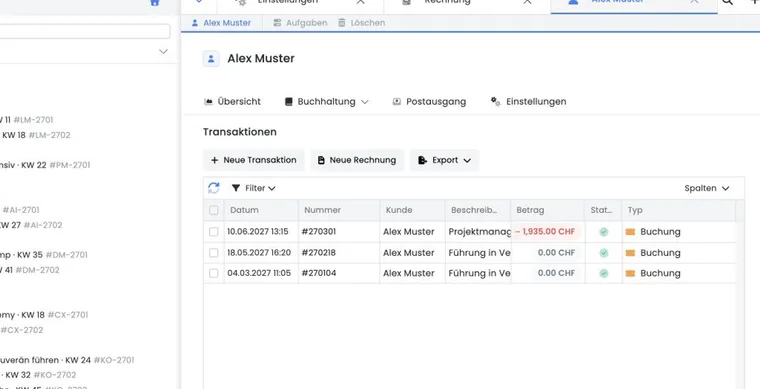
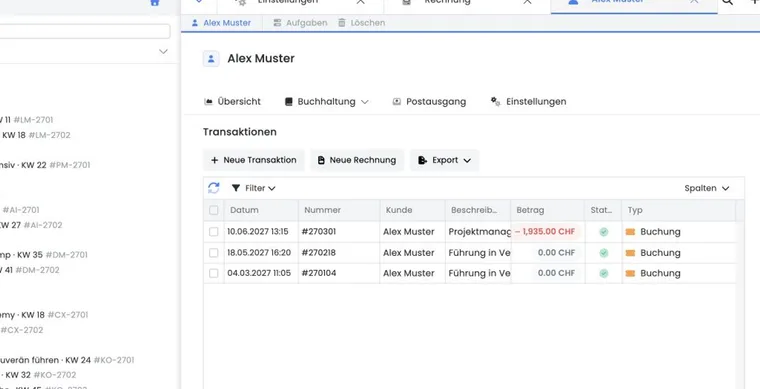
Substantive checks before a refund
Open the booking, invoice and participant profile.
Check whether attendance has already been cancelled, rebooked or price-adjusted.
Distinguish the invoice amount, amount paid, outstanding balance and existing credit.
Open the specific payment transaction, not merely a booking or invoice line.
Compare the currency, customer, transaction number and remaining refundable amount shown by edoobox.
Never refund solely because of a negative invoice balance. The refund dialog concerns a specific provider payment and knows its already refunded and remaining refundable amounts.
Distinguish direct and external refunds
| Payment method | Behaviour in edoobox |
|---|---|
| Stripe | A direct refund is possible if the system reports that the payment is refundable. |
| Worldline/Saferpay | A direct refund is possible if the payment is refundable; provider errors are reported separately. |
| PayPal Checkout / current PayPal | A direct refund is possible if the payment is refundable. |
| Historical PayPal Legacy | edoobox opens the transaction externally in PayPal; processing takes place there. |
| Historical Sofort payment | edoobox opens the payment details externally with the provider. |
| Other or non-refundable payment | The dialog shows that no refund is possible; use the intended substantive manual process. |
The direct feature may be temporarily disabled system-wide, for example during maintenance. A missing action therefore does not automatically indicate an invoice error.
Execute a direct refund
In the participant profile, open the payment transaction and select Refund.
Check the original amount, amount already refunded, transaction number and customer.
Enter an internal reference of 2 to 30 characters, for example “Cancellation 4711”.
Enter a positive amount no higher than the displayed refundable amount. With current PayPal, an amount below 1 currency unit cannot be processed.
Confirm Refund online exactly once and wait for the success message.
A successful online refund may be complete even if the subsequent PDF update is still pending. In that case, check the original payment and provider status; do not trigger a second refund to fix a PDF problem.
After successful processing, edoobox reloads the current transactions and payment details. A partial refund leaves a remaining amount available. Once everything is refunded, the dialog shows This transaction has already been fully refunded.
Complete an external refund
For historical PayPal or Sofort payments, the button opens an external provider view. Clicking alone does not execute a refund. Sign in with the provider, check the recipient, amount and currency, and complete the process there.
Then check the provider status and reconcile the process in edoobox or your accounting records. Document a manual payout so that the transaction number, amount, date and responsible person remain traceable.
Record a bank refund already executed
The refund dialog on an invoice has a different meaning from the action on an online payment: it is used exclusively to record a bank transfer refund that has already been executed. It does not trigger a payout itself.
- Execute the substantively verified bank refund through your accounting department.
- Then open the affected invoice and its refund dialog.
- Check the displayed amount that may be recorded and enter no more than that amount.
- Confirm Record refund already made.
- Check the invoice balance, participant balance and bank document.
Refund online payments through their associated original payment using Refund online. Do not additionally record the same amount as a bank refund.
Distinguish fees and refunds correctly
A refund in edoobox shows the substantive amount and associated payment route. A payment provider’s processing fee, by contrast, may be visible only in its portal or statement.
Check the original payment, refund amount and remaining refundable balance.
Compare the booking, invoice, transaction and currency.
For Stripe, PayPal or Worldline/Saferpay, also check the status in the provider portal.
Document non-refunded provider fees separately from the booking correction.
A refund and a cancellation fee are separate processes. Active cancellation conditions can affect the correction; check the preview and the final amount before confirming. Dunning, announced as “Coming soon”, can also provide for fees. Check whether this feature is enabled and active for your account; individual activations may already be possible on request to support.
Coordinate automatic refunds under cancellation conditions
A cancellation group saved against the booking can determine the refund route following successful cancellation. Check the fee and route actually selected in the booking details:
| Method | What to check after cancellation |
|---|---|
| Online refund | Original payment, refund amount executed and fee retained. Technical repayment requires a supported payment route and an available refundable amount. |
| Voucher code | Check the generated code, amount and delivery. A code is a different return method from payment back to the original card. |
| Positive participant balance | Check credit and applied fees in the relevant profile. Account credit is not yet a bank or card refund. |
| Manually paid invoice | Process any TODO containing a bank refund amount. The cancellation fee already applied is shown separately in the notice; do not transfer the original gross amount again. |
| Automatic refund disabled | Money already received can still be applied to cover the fee. Check the remaining refund requirement and perform the agreed manual process. |
Example without further fees: of a CHF 200 payment, CHF 50 is retained as a cancellation fee. The refund amount is CHF 150; the covered fee should not create an additional outstanding payment of CHF 50. If only CHF 20 has been paid, a CHF 50 fee may instead leave CHF 30 outstanding. For multiple payments, currencies or additional fees, use the actual linked amounts.
Stop and coordinate if an error occurs: a failed automatic refund can block booking cancellation. After refreshing, check the booking status, original payment and provider status. Only continue once it is clear whether money has moved and what remains outstanding. Do not start a manual payout and another online refund in parallel. For specific fee states and blocked cases, read If cancellation or fees cannot be completed.
Choose a refund or credit for the next booking
Clarify the intended return method before cancelling. The saved cancellation condition may provide for an online refund, voucher code or positive participant balance. Enabling the global credit switch afterwards does not convert a refund already triggered into credit.
| Desired result | Procedure and follow-up checks |
|---|---|
| Return money through the original payment route | Check the original payment and remaining refundable amount; reconcile the executed refund with the provider. |
| Retain the amount for a later course booking | Before execution, check the refund route saved on the booking. After cancellation, check credit in the correct profile and same currency; then check the subsequent booking using credit. |
| Issue a transferable code | Check the intended voucher route and the code actually generated. A code and profile credit are used differently. |
Refund already submitted: open the original payment and check the current provider status. Clarify with the payment provider whether an incomplete process can still be stopped. A cancellation invoice, deleting a task or a new manual credit does not recall the refund. Do not enter additional credit for the same amount while the actual money movement is unclear.
Refund just one attendance from a shared payment
In a collective booking, several participants may be paid through the same invoice and original payment. An online refund selects an amount from the payment; it does not automatically select a person or invoice line.
- Open the collective booking and identify exactly which attendance is being removed and which remains. Use the workflow for individual collective participants; do not accidentally cancel the entire booking.
- Check the remaining services, saved cancellation conditions and actual amount to refund. Do not simply divide a total by the number of people if rates, additional services or fees differ.
- Check and correct the associated invoice documents through the intended process. Then check whether an automatic refund or bank refund task has already been created.
- If the payout is still missing, open the shared original payment. Through a supported payment provider, refund only the agreed partial amount up to the remaining refundable balance. Repayment uses this original payment route; the removed person does not become a new freely selectable payout recipient.
- For a bank payment, return the approved partial amount through your accounting department and record the bank refund already executed once.
- Check remaining attendances, valid invoices, the partial amount paid out and the balance of the original payment. Document the link to the affected attendance clearly.
Example: One of three equally priced attendances is removed
Three attendances were paid together with CHF 360. One CHF 120 attendance is removed. If the agreed conditions require exactly CHF 120 to be returned and no refund has yet been executed, the team corrects the booking and document and refunds CHF 120 from the original payment. The other two attendances remain. If prices or fees differ, determine the amount from the actual line items.
Perform follow-up checks
The provider reports the refund as successful.
edoobox shows the correct amount already refunded and the remaining amount.
The invoice, cancellation invoice and booking balance are substantively correct.
Accounting can link the original payment and refund using the transaction number and date.
The participant receives a clear notification if your process provides for it.
Example: A full Stripe refund after cancellation
After cancellation, administration creates the required invoice correction. In the Stripe payment, edoobox still shows the full amount as refundable. They enter “Cancellation 4711”, refund the amount once and then check the provider status, transaction list and invoice balance.
Example: A partial refund after a price reduction
An additional service is removed while attendance remains active. After correcting the invoice, administration refunds only the difference through the current PayPal payment. The dialog then shows the partial amount as refunded and the remaining balance as still refundable.
Example: Separate a refund from the provider fee
An online payment is partially refunded. The team checks the refund amount in edoobox and separately checks in the provider portal whether an original processing fee was retained.
Additional practical information
Decision guide: Which of the three corrections is still outstanding?
Assess a refund case separately for attendance, document and money movement. The person may already be cancelled while the refund is still outstanding; conversely, a money movement alone does not establish whether the invoice matches the agreed outcome.
Record the intended final state: which service remains booked, what amount should be charged and how much should actually be refunded? Compare this plan with the booking, invoice and payment transaction. This also helps when several employees handle different parts of the process.
Practical question: How do you avoid a duplicate refund?
Before submitting, check existing refunds and the remaining refundable amount. If a process is still being checked or a response is missing, first clarify its state with the payment route used. Do not simultaneously start a technical refund and a manual transfer for the same amount.
After completion, check the updated payment details and document the process in the appropriate context. Assess provider fees separately using the provider’s statement. A correctly documented customer refund and your payment provider’s costs are different information.
Download edoobox transaction fees
Payment systems now includes Download transaction fees. As an authorised superadmin, select the month and download a CSV of edoobox fees for supported Stripe and PayPal payments. This export does not replace the statement of all provider processing fees and does not contain a complete refund overview.
The steps and limitations are in Export transaction fees as CSV. Reconcile positive fee entries and actual provider refunds separately.