
Category details
Category details are the central workspace for an individual category. Open them from the category dashboard, offer tree or linked offer-management areas. Here you manage the overview, description, settings, design, internal code, duplicate-booking prevention, image, offers, promotions, notes and key figures.
Visible actions depend on permissions, active status, archive, bin, internal function, main category or subcategory, and the Design for subcategories setting.
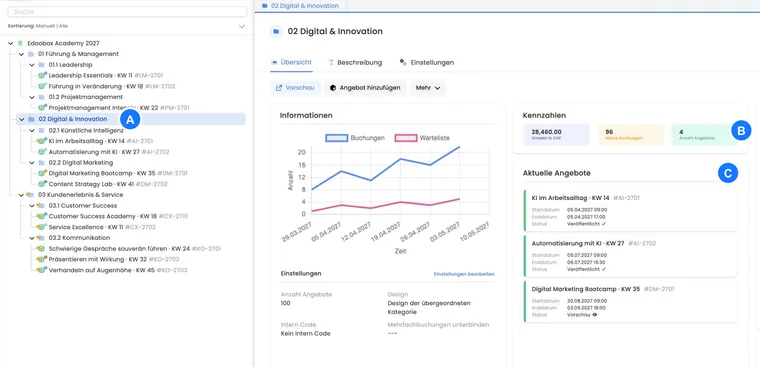
Overview, description and settings
Category details have three tabs: Overview, Description and Settings. Overview shows information, key figures, current offers, promotions and notes. Description opens the category description editor. Settings combine the name, internal code, design, duplicate-booking prevention and image.
When opened, edoobox loads the category, associated key figures, promotions and further dashboard data. If a category is not found, edoobox takes you to a not-found page. If it is in the bin, Overview displays a notice. For archived or deleted categories, the settings page also shows an archive/bin panel.
Example: check the category and design before publication
Check a category before publication
Open a category from the offer tree. First check key figures, current offers, notes and existing promotions in Overview. Then switch to Settings if the name, design, internal code or duplicate-booking prevention needs changing.
Check a subcategory with its own design
If a subcategory's design selection cannot be edited, first check in general offer settings whether Design for subcategories is enabled. Then, in category details, inherit the parent design or choose a separate design.
Information, key figures, offers and promotions
The information area shows key settings such as design, internal code and duplicate-booking prevention. Edit settings takes you directly to the Settings tab.
Key figures show revenue in the organisation currency or currencies used, active bookings and offer count. Current offers load from the category and show name, number, start date, end date and status. Clicking opens the respective offer details.
If key figures or offer lists are unexpectedly empty, first check status, archive, bin, selected category level and your admin permissions. Particularly after restoring or moving a category, reloading the view and checking the offer tree may help.
Promotions appear in a separate area. If none exist, an empty state appears. Admins with sufficient permissions can open and edit promotions. Categories can also have their own notes and TODOs that remain visible in category details. Basics are in Promotion campaigns and vouchers.
Actions in category details
For active categories, the preview can be opened. edoobox uses the category's Share link and displays the category in the booking process in the selected language. Admins with editing permissions can add a new offer directly within the category.
Depending on status, the More menu provides further actions: rename a category, restore an archived or deleted category, archive a category, move it to the bin or delete it permanently. Archiving, moving to the bin and deletion are protected by confirmation dialogs. After permanent deletion, edoobox returns to the dashboard.
When restoring a category, select a target category. Afterwards, check the offer tree, preview, design and visibility to ensure the category appears where intended.
The preview uses the category's Share link. After moving or renaming categories or changing designs, therefore also test existing website integrations, QR codes and internal links that lead directly to that category.
Create and rename categories
New categories require sufficient permissions. In the dialog, enter the name in the current offer language and select a parent category. The Add button remains disabled until a valid parent category and a name in the required language are present.
If a parent category is already supplied when creating, it is preselected. After successful creation, edoobox normally opens the new category details so the description, design and other settings can be added immediately.
When renaming, edoobox uses compact language inputs. For multilingual accounts, maintain category names in all active languages so the public view, search and booking process align.
Example: create a subcategory
Open the desired main category in the offer tree and select Add category. Enter the name in the current language, check the parent category and save. Then complete the description, design and other settings yourself in the new category detail.
Name, internal code, design and image
The name controls display in administration and the booking process. The internal code appears only if the internal function is available. It can be maintained on main categories; for subcategories, edoobox may display a notice that the function is unavailable there.
For design, use the parent category's design or select an existing design. Subcategories can have their own design only if the global Design for subcategories setting is active. Booking process design is explained in Design the booking process with the Design Manager.
The image is managed through the category's image dialog. If an image exists, edoobox shows a preview; otherwise a placeholder appears. The image can be visible in the booking process if the chosen design or template uses category images.
Prevent duplicate bookings
With Prevent duplicate bookings, choose a customer data field that edoobox checks for subsequent bookings within this main category. If a field is selected, edoobox compares later bookings using that field and prevents duplicate bookings by the same person according to the chosen logic.
The setting can be disabled. It can be edited only on main categories; edoobox shows a corresponding notice for subcategories. Note the guidance on MustPay, as payment windows and waiting-list situations can affect perceived availability.
Example: block duplicate bookings in a main category
Open a main category, go to Settings and choose a customer data field under Prevent duplicate bookings. Then use two test bookings to check that edoobox prevents duplicates as expected.
Description and languages
The Description tab uses the same description editor as offers, but for the category resource. Maintain the category description here without additional offer text blocks. It can appear in the booking process if the design displays category descriptions.
If several languages are active, maintain the description per language. For structured content, use images, links, PDFs, videos, accordions or tabs. Details are in Description texts in offers and categories and Accordions or tabs in description texts.
Status, main categories and permissions
Category actions deliberately depend on status. An active category can be opened in the preview and used for new offers. Archived categories remain traceable but do not appear like active ones. Categories in the bin can be restored or permanently deleted.
Main categories and subcategories do not behave identically. Internal codes, duplicate-booking prevention and custom designs may be restricted by level. If an option is missing, first check whether you are editing a main category or subcategory, whether it is archived, whether the global setting is active and whether your admin permissions suffice.
Default lists usually hide archived and binned items. If you cannot find a category, check the offer tree, dashboard, search, archive, bin and direct links.
Main categories pass structure and often design to subcategories. Plan changes carefully: a new description, different design or duplicate-booking prevention can affect several offers beneath them.
Checklist before using a category
Maintain the name in every active language.
Check the description in the public booking process.
Check the design and category image using the preview.
Check that current offers, statuses and key figures are plausible.
Check promotions if discounts or vouchers apply at category level.
Enable duplicate-booking prevention only if the selected data field is maintained reliably.