
Tag an offer
Tags are keywords for offers. They help to group offers across categories, build filters on the web presence, create targeted iFrame views, or control booking conditions.
A tag is not automatically publicly visible. It only becomes relevant for participants when you use it in a filter widget, in the embedding code, in a condition, or in a template. This allows you to organize offers internally in great detail without having to display every term directly on the web presence.
What tags are used for in offers
Organization: Mark offers by topic, level, location, target group, or type of delivery.
Website: Help participants find a suitable offer faster with tag filters, for example using sections such as beginner courses, advanced courses, online or in person.
Embedding: Display only offers with specific tags in dedicated sections of your website.
Conditions: Allow or exclude bookings for follow-up offers based on a person’s tags.
Templates: Output content in e-mails or PDFs depending on tags.
Create a new tag
Open the desired offer, switch to the offer settings, and select the edit action in the Tags area. In the sidebar, you can search for existing tags or add new tags.
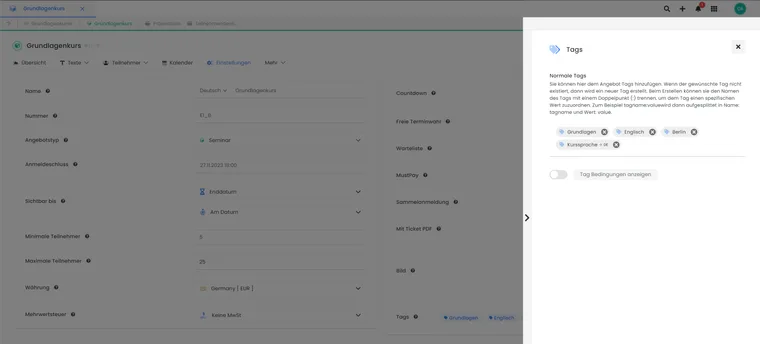
In the tag sidebar, you can assign multiple keywords to an offer.
When adding tags, you can reuse existing tags or create a new one. Before creating a tag, check existing spellings so that variants such as “online”, “Onlinekurs” and “online-kurs” do not fragment the same filter logic.
There is no functional limit on the number of tags per offer, but use them sparingly. Tag names should be short, unambiguous and clear to other admins. Aim for fewer than 20 characters, and avoid umlauts, spaces and special characters in tags used for website filters.
In addition to normal tags, tags with values or tags as conditions can also be used depending on the process. Normal tags structure offers for search, filters, and embedding. Conditions control whether follow-up offers are bookable only with specific tags or without specific tags.
Umlauts, spaces, and URL encoding
If tags are used in links or embedding codes, special characters must be URL-encoded. An ä becomes, for example, %C3%A4 in a URL. Therefore, use simple lowercase without spaces for web filters wherever possible, such as grundkurs, online, or zuerich.
If you still use spaces, umlauts, or special characters, generate the URL via the Preview-Share function. There, edoobox inserts tags correctly encoded into the link. Avoid manually reconstructing such URLs.
Edit or delete tags
Edit a tag only if it is clear where it is used. A renaming can affect filters, embedding codes, conditions, evaluations, or template conditions.
Tags can be edited via the tag management or from the offer detail. When deleting, edoobox requires a confirmation so that a production tag is not accidentally removed.
When deleting, the tag is completely removed and detached from all offers, participants, promotions, and other links in which it was used. Before deleting, check old offers, copied offers, tag filters, iFrames, conditions, promotion logic, and template conditions. For a controlled cleanup, it is often better to first assign a new tag and gradually switch over the usage.
If a tag is already used in an embedding code, the old code does not automatically remain meaningful. Regenerate the Preview-Share code after renamings or cleanups and replace it on the website.
Global tag management and effects
You can find the global tag management in the settings in the Tags area. There, tags can be created, renamed, or deleted. This management does not affect only a single offer, but all places where the same tag is used.
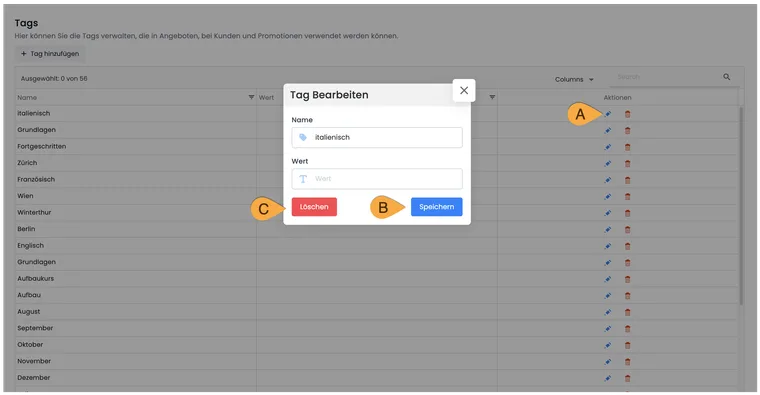
The global tag management changes a tag for all places where it is used.
- A
- Open the tag for editing via the pencil icon.
- B
- Save changes to the name or value.
- C
- Delete the tag; check all usages and consequences beforehand.
Before making changes, especially check the following places: offers with tag filters, Preview-Share links, iFrame embeddings, widget visibilities in the Design Manager, promotion campaigns, participant tags, and IF conditions in e-mail or PDF templates.
Option 1: Filter widgets in the booking process
In the Design Manager, add a tag filter widget or offer filter widget to the offer overview. Participants can then select a filter section during booking to see matching offers.
For each design, choose whether to display one or more filter widgets. Define the visible filter sections and assign the appropriate tags to each one to determine which offers appear when selected. This is useful when visitors should be able to switch between topics, levels, locations or offer types.
Example: You have offers in the English, German and French categories. All beginner courses receive the tag grundkurs. In the tag filter, create the Beginner courses section and assign this tag to it. Participants then see beginner courses across different categories in one filtered view. With this option, visitors actively select the section during booking.
The detailed widget setup is in Using the tag filter widget and Template: Offer Overview.
Option 2: Tags via embedding code or iFrame
Alternatively, generate embedding code that displays only offers with specified tags. This is useful when different website pages should show their own offer lists, such as “Online courses”, “Outdoor activities” or “Beginner courses”. Visitors immediately see the filtered view without first selecting a section in the tag filter.
Open the Preview-Share function at the appropriate level: at the account abbreviation if all offers should be checked, or directly on a category if only offers of this category should be filtered. Depending on the view, you access Preview-Share via the context menu in the offer tree. Add the desired tags in the Preview-Share dialog and then click on the generated code to copy it to the clipboard.
| Variant | Example |
|---|---|
| One tag | ?edtag=grundkurs |
| Multiple tags | ?edtag=grundkurs..outdoor |
Multiple tags are separated by two dots in the embedding code. Used tags are visible in the URL but are not automatically displayed as visible labels in the iFrame.
Tags in share code, iFrame, and direct links
The share generator can take over tags into the generated embedding code. In web links, the tag is used as a filter parameter; in the iFrame code, a tag attribute can be set. This allows building landing pages that directly display only suitable offers.
Generate such links via the Preview-Share function instead of manually assembling parameters. This is especially important for tag values, linked tags from other accounts, umlauts, or spaces. If you rename a tag later, the affected embedding code must be regenerated and replaced on the website.
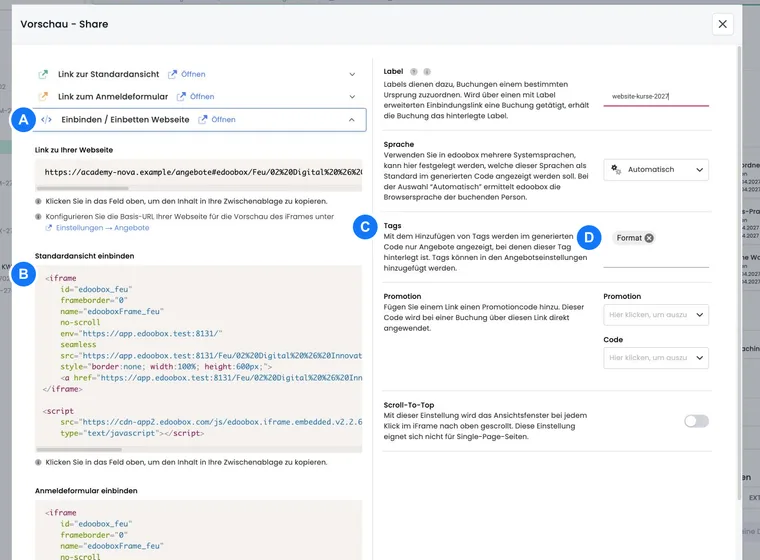
Application example: Website for online courses
All online offers receive the tag online. For the website “Online courses”, the administration generates an embedding code with this tag via Preview-Share. The page thereby shows only online offers, even though these are located in different categories in edoobox.
Select the appropriate level in the offer tree
The level at which you open Preview-Share determines the search scope. At the account level, edoobox can output all suitable offers; at the category level, only suitable offers within this category are considered.
Combining a category with tags is particularly useful for websites with multiple subpages. Each subpage can have its own iFrame containing exactly the offers relevant to that topic. This also supports a clear search engine structure: each subpage can have a relevant heading, introduction and filtered course list.
Tags with values and conditions
In addition to normal tags, there is extended tag logic. Tags with values are suitable for structured values such as level or region. Tags as conditions control whether an offer is bookable only with specific existing tags or without specific tags.
In offers, positive and negative conditions can become visible. If conditions are already stored, they should not be hidden so that admins do not overlook existing releases or exclusions.
In templates, OfferTags contains the names of the normal tags and conditions linked to the offer. The placeholder OfferURLTagFilter, on the other hand, builds its filter link only from normal tags. To check a booking authorization, use the intended condition for this; an output tag name alone does not prove authorization.
Manage tags in the offer detail
In the offer detail, you can view and edit normal tags, positive conditions, and negative conditions. Use clear documentation in the offer if tags control bookability or visibility. Otherwise, it will be difficult to trace later why an offer is visible, invisible, or bookable only for certain persons.
Normal tags: Structure offers for search, filters, embedding, and internal organization.
Positive conditions: Allow bookability or visibility only if a required tag is present.
Negative conditions: Exclude persons or situations with specific tags.
If Include or Exclude conditions already exist, these fields should remain visible. This ensures that admins do not overlook existing releases or exclusions.
Application example: Release advanced course only after basic course
Assign the normal tag grundkurs to the beginner course, and use the same tag as a positive condition for the advanced course. edoobox considers normal tags from the participant profile and from applicable bookings. The booking prerequisite also checks when the source offer ends in relation to the follow-up offer’s start. This does not automatically prove attendance, a passed exam or an issued certificate. If admission is restricted to people who have passed an assessment, maintain a separate profile tag, such as pruefung-bestanden, and use it as the condition. Test the process with one eligible and one ineligible participant.
Distinguish SSO tags from ordinary filter sections
A SAML provider can further restrict visible offers using tags. If several of these offer filters are set, an offer must satisfy all filter conditions; for a tag with a value, the value must also match. This differs from a custom section in the public tag filter.
The separate release of internal offers with provider tags follows its own access concept. Check SSO offer filters and internal access separately and test an authorized and an unauthorized profile. Disabling a provider does not automatically delete existing participant tags. The SAML guide describes the assignment.