
Legal texts
The new legal text management lets you maintain your own terms and conditions, privacy information, withdrawal notices and participation terms as multilingual texts with fixed versions. The interface is called Settings → Legal texts; the new section is labelled Legal texts (New).
This guide connects text management with the booking process and saved evidence. You determine the content and use of your texts for your offer.
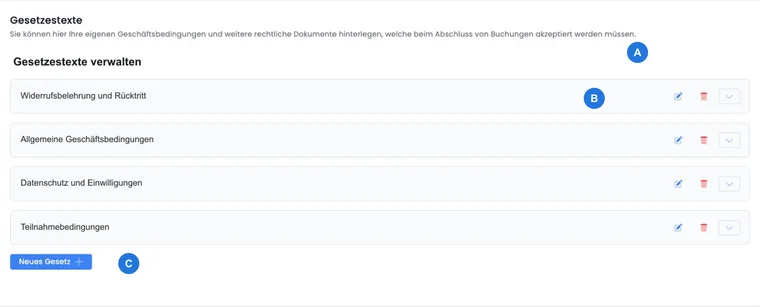
Which texts you can save
A legal text is a named entry, such as Terms and conditions or Privacy. Within this entry, each language has its own versions with content and a confirmation label. The widget in the design refers to the entry and uses its published language version.
| Task | Appropriate instructions |
|---|---|
| Create a text and maintain names and languages | Manage legal texts |
| Revise content and make it authoritatively available | Publish a new version |
| Require and check confirmation at booking completion | Integration and evidence |
| Set deadlines, fees and withdrawal terms for offers | Cancellation terms and withdrawal |
| Check legal texts when selling a participant subscription | Subscription Legal Texts and Confirmations |
Create and publish a legal text
- Open Settings → Legal texts and click New legal text in the new section.
- Enter an informative name in the active languages, for example AGB and Terms and Conditions. The name is not yet translated text content.
- After creation, edoobox opens the first version in the current admin language. Check the displayed language.
- Enter the content and Confirmation field label. Click Save to save the draft.
- Check the saved draft and select Publish when it should be used. This makes the version read-only.
- Create and publish each required translation in its respective language group.
- Link the text in the correct design using a Legal texts widget and define mandatory confirmation there.
- Check the display and saved version reference using the guide to integration and evidence.
Maintain versions properly
If a published text changes, open New version for the required language in the existing entry. The content and confirmation label from the last published version in that language are copied. Saving alone leaves the existing published version active.
Publish immediately makes the new text the current published version in that language. The previous finalised version automatically appears as Archived. Existing widgets remain linked to the same legal text and do not need reassignment for this version change.
A typo in a finalised version is also corrected using a new version. The complete workflow and a multilingual example are in Publish a new legal text version.
Display in the booking process
In the Design Manager, add a Legal texts widget to Registration summary. Select the Linked legal text and, if required, enable Must the legal text be accepted before the booking can be completed? Use multiple widgets for different texts.
The public course booking process first looks for the latest published version in the selected booking language. If it is missing, the first configured account language may appear instead. A translated label alone therefore does not provide translated text. Check the Language and Version stated in the widget.
PDF opens the browser's print view, where participants can save the displayed text as a PDF. This is not separate evidence of consent. Details: Integration, languages and evidence.
Check mandatory confirmation and the booking context
Publication and mandatory confirmation are separate settings. Only a visible widget linked to the correct text controls confirmation in the respective workflow. Check the account's default design and any custom category or offer designs. For group bookings, this display documents confirmation during the booking process; it does not prove independent action by each added person.
Cancellation terms are configured separately and assigned to an offer. If their group is linked to the same legal text, the widget may display a compact rules table with an additional withdrawal confirmation. The text version alone does not save these rules; check their state in the booking's cancellation evidence.
Subscription sales use the separate selection and evidence workflows under Legal texts and confirmations for subscriptions. A test course booking does not fully cover this process.
Migrate existing texts and older widgets
Existing accounts may already have had terms and conditions, withdrawal and privacy texts transferred to the new text list. This migration is not identical for every account: existing new texts, account status and previous content affect the result. Check the content, names, languages and publication status of every transferred entry.
An existing new text list does not mean all previous designs use the new widget. Older widgets for terms and conditions, withdrawal or privacy have their own workflows. Open each design in use, compare previous texts and deliberately replace the old integration with suitable Legal texts widgets. Remove duplicate displays only after checking. Earlier bookings do not thereby receive retroactive confirmation from the new generation.
New accounts may contain prepared texts and suitable widgets. Adapt their content to your company and offer before use.
Related guides
The relationship with cancellation rules, withdrawal, refunds and data protection is explained in Legal texts, cancellation and evidence.
- Manage legal texts, names and languages
- Publish a new legal text version
- Legal texts in the booking process and evidence
- Cancellation terms and withdrawal
- Legal texts and confirmations for subscriptions
- Design Manager
- Booking details
Manage agreements between your organisation and edoobox under Sign and manage the data processing agreement. Data protection organisation and deletion are described in Data protection with edoobox: FADP and GDPR.