
Set up SMTP email server
edoobox can send emails through the default address noreply@edoobox.email. For live use, however, Microsoft 365, Mailjet or your own SMTP server are recommended so that the sender address, reputation and sending limits better suit your organisation.
With SMTP, automatically generated emails are sent through your existing mail infrastructure. The edoobox system remains relevant as a fallback if your own sending route is unreachable.
Benefits of your own SMTP server
Participants receive emails from your own sender address instead of the default edoobox no-reply address.
You use your own sender domain and the authentication intended by its mail provider. Your own domain does not guarantee delivery; check SPF, DKIM and actual sending notifications.
Your mail provider determines the applicable sending limits.
Replies reach your organisation more directly.
Microsoft 365: for Microsoft 365 work or school accounts, use Connect a Microsoft account for sending email. Personal Microsoft accounts are not intended for this email sending.
Save SMTP details in edoobox
The following steps configure SMTP sending for the entire edoobox account. Automated system emails and the current manual message dialog use the organisation’s sending provider. Before making a change, check which other messages and scheduled tasks it will affect.
Open your edoobox account’s global settings.
Switch to Email → Server.
Select Use another mailing system (SMTP) and click Connect.
Enter the server, username, password, port and encryption as specified by your mail provider.
Save the connection and test sending.
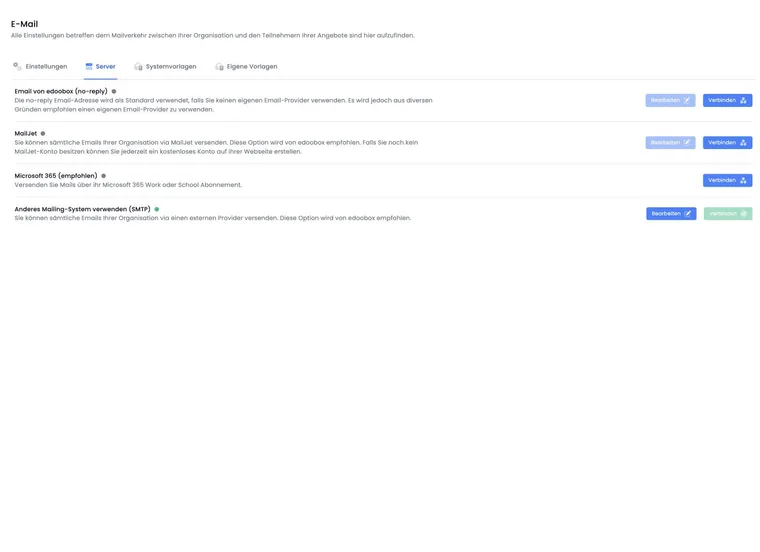
The username is often the same as the email address. Check the server, port, encryption and authentication against your provider’s exact requirements. When connecting, edoobox sends a technical test email to noreply@edoobox.com and saves the configuration only if the test succeeds. This fixed test address is not your own test mailbox. After connecting, also send a message to an address you control internally and check its actual receipt, sender, reply destination and attachments.
Connection test and attempt limit
edoobox limits setting up and testing an organisation sending route to approximately ten attempts within 30 minutes. Therefore, do not blindly adjust individual fields; first compare all details with your provider’s documentation.
When editing an existing connection, the saved password is not displayed again. If the password field remains empty, edoobox can reuse the existing password for the new test. A new password replaces the previous value.
Change the active sending route
Only one sending route is active at organisation level. Successfully connecting SMTP causes edoobox to disable the organisation’s Mailjet and Microsoft connections. Therefore, after every switch, check the first automatic messages in the outbox.
Check the provider before connecting
Many SMTP problems arise from the mail provider’s security rules rather than edoobox. Therefore, check the provider’s technical requirements before connecting.
Is SMTP sending through third-party tools permitted for the mailbox or tenant?
Does the mailbox require an app password, OAuth procedure or specific SMTP permission?
Which port and encryption are correct, for example 25, 465 or 587?
Which daily and per-minute limits apply to the mailbox?
Does your mail server require a firewall allowance or fixed source networks? Clarify the currently valid connection details directly with edoobox Support before allowing access.
Test and approve the connection
After connecting, send a test message to an internally controlled recipient address. Depending on the provider, edoobox cannot display every technical error in detail. Therefore, also check logs or security notices with the mail provider.
Many providers require SMTP or sending through third-party tools to be enabled in the account first. Also check your provider’s daily limit before sending larger email volumes.
Gmail and Google Workspace
Free email providers such as Gmail are only partly suitable for large sending volumes. Gmail or Google Workspace may require an app password. Check the official Google requirements for app passwords. An app password requires appropriate two-step verification and is not available for every organisation account or security configuration. The edoobox SMTP dialog offers username and password; a provider’s exclusively required OAuth login is not automatically configured by this.
If the connection still fails with an app password, check whether the Google Workspace organisation settings allow SMTP access through third-party applications.
Mailjet as an alternative
If your own mail server reaches its limits, Mailjet can be a good alternative. Mailjet is designed for larger volumes and, depending on settings, displays delivery status, opens or bounces.
For newsletters or very large campaigns, also assess whether a dedicated newsletter integration is more appropriate than direct system email sending.
Failover and fallback
If edoobox detects another SMTP provider error within 30 minutes, it may disable the organisation SMTP connection and inform your organisation. Errors caused solely by invalid recipient addresses are treated differently from connection or provider problems.
Further messages may then use the default edoobox route, provided it is available and not blocked for your account. Deactivation therefore does not guarantee that every previously failed message has already been delivered. Check the affected entries and currently active sending route, correct the cause and reconnect SMTP after a successful test.
After switching, check the reply-to address of an actual message. It should still lead to your organisation.
Large email volumes and delivery status
For many automatic emails, reminders, dunning notices or larger courses, deliverability matters more than technical SMTP success alone. Free mailboxes are usually unsuitable because daily limits, spam rules and lack of reputation quickly become problematic.
Mailjet or a specialised sending service can show delivery status, bounces and, depending on settings, opens more transparently. After changing the sending route, always check the outbox, sender, reply-to address and possible bounce messages.
Use cases
Example: Test SMTP before a course starts
An organisation selects a provider or enters it manually, connects the server and then sends booking confirmations and invoices to internal test addresses. It checks the sender, reply-to address, attachments and outbox before scheduling live reminders.
Example: The provider requires an app password
The mail provider rejects normal login details. IT checks whether SMTP is permitted for third-party applications, creates a separate app password according to the provider’s rules and reconnects edoobox. The personal primary password is not saved in edoobox.
Example: The sending route is disabled after errors
After repeated server errors, SMTP is disabled automatically. Administration checks the system notice and outbox, resolves the cause with the provider and only reconnects SMTP after a successful test. Until then, it deliberately monitors the fallback route used.
Check all processes in use after connecting
After connecting successfully, send a booking confirmation, invoice and custom message to internal test addresses. If using dunning or participant subscriptions, also check a dunning stage and renewal reminder. Compare the visible sender, reply-to address, HTML content and every attachment.
Your mail provider determines the host, port, encryption and any app password. Provider presets in edoobox do not replace this current check. Selecting SMTP does not automatically produce higher sending limits or better delivery. Check your own provider’s contractual and technical limits.