
Participants
The Participants section is the central working list for people. From here, you can start new bookings, open profiles, filter target groups, select records for export, import person data or switch to tasks and settings.
Person and booking are different levels: master data such as name, email address or language belong to the person; price, offer, invoice and participation status belong to the respective booking. Therefore always open the appropriate detail section before making a correction.
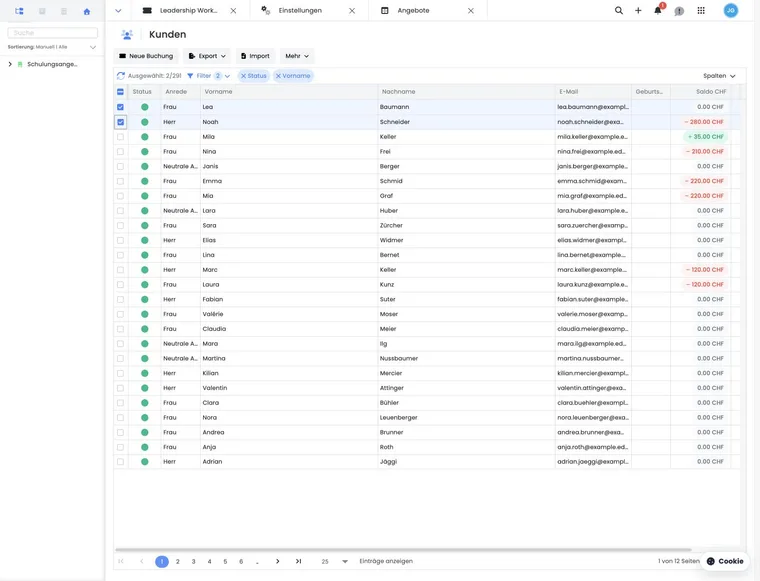
What the participant overview offers
New booking: connect an existing or new person to an offer and price category.
Filters and search fields: narrow down people by master data, data fields, tags, language, country and other criteria.
Column selection: show only the information needed for the task.
Import: import new or existing person data in a structured way and define duplicate handling.
Export: output selected rows as CSV, Excel or PDF.
More: manage global participant data fields.
The table supports sorting, multiple sort criteria, pagination, and adjustable column widths and column order. Save a useful view for recurring work instead of displaying all data each time.
Use selection and export correctly
CSV, Excel and PDF exports require at least one selected table row. The export includes the selected people and the visible, exportable columns for them. A filter alone does not constitute an export selection.
Set filters and check the results.
Select the desired people using the checkboxes.
Check the columns.
Select an export format and process the file in compliance with data protection requirements.
From the record to the correct detail view
Clicking a table row opens the user profile. There you will find master data, bookings, invoices, emails, transactions, notes and other information tied to the person. For status, price, participation or cancellation, switch from there to the booking details.
Follow the links between person, booking and invoice. Under Settings → System → Open resources, you can personally specify whether supported records open as tabs or a popover. In the popover, follow the links to the booking or invoice and use its back navigation to return to the previous view. Further information is available under Dialogues and side editing panels.
Tools within an offer
When the participant table is opened in the context of an offer, additional printouts are available: attendance list, full participant list and a combined PDF file of certificates. The certificate file is created as a task and then stored in the internal offer documents.
Before starting, check whether the participants and desired attendance or certificate logic suit the offer. Further steps are provided under Attendance and certificates.
Data quality and duplicates
Search by name and email address before creating a new record. Duplicate people split bookings, invoices and communication across several profiles. Use stable identification fields during imports and deliberately choose how to handle duplicates.
Person data is reused in emails, invoices, attendance lists, certificates and exports. With every change, check whether it should apply permanently to the person or whether only a booking-specific value needs adjustment. Use the duplicate search to review pending candidates, compare fields and merge confirmed duplicates in a controlled way.
Clean up test data selectively
Treat test offers, test bookings and people as separate records. Multiple selection in the participant table is used for exports and tasks, among other things; it is not a general bulk deletion function for people here.
- Narrow down the intended test data using search fields and filters. Open the profiles found and check their bookings and invoices.
- Decide which data must be retained and save any required exports and receipts before removal.
- For test offers, check the separate process Archive and restore offers. Archiving is not permanent data deletion.
- For a person who actually needs to be deleted, open the user profile and, with the necessary permissions, select More → Delete. Confirm only after checking that this is the correct profile.
- If blocking bookings are displayed, open and resolve them first. Do not delete additional records speculatively or bypass the protection by importing again.
For regular, rule-based data cleanup, there is a separate automated deletion function. Carefully check its conditions; it does not replace a one-off selection of arbitrary test data. Duplicate real people are reviewed and merged using the duplicate assistant.
Manage bookings, payments and participation
Use cases
Example: Clarify an invoice by telephone
The administration searches for the person, opens the profile and follows the links to the affected booking and invoice. It checks payment, balance and outbox in the respective specialist views and only then decides whether to allocate a payment, correct an invoice or resend an email.
Example: Export selected members
The table is filtered by the ‘Mitglied’ tag and German language. The people actually needed are then selected, only name, email and language are displayed, and the data is exported as an Excel file. The export contains the selection, rather than automatically including all filtered rows.
Example: Check a duplicate person before a new booking
The search shows two profiles with the same email address. Instead of creating a third profile, the administration compares names, company, bookings and invoices, documents the findings and starts the new booking only in the substantively correct profile.
Filter participants by subscription or pass
- Open the participant table and its filters.
- Under Memberships & Passes, select the required subscription plans.
- If needed, enable Active membership only and apply the filter.
- Check the matches and open a profile in the Memberships section.
You can select several subscription plans. ‘Active membership only’ considers currently valid periods or passes with remaining uses. Check the status and validity of a specific assignment in the profile; a member tag alone does not replace this subscription record. To export, then select the desired people and check the visible columns.
Setup and subsequent changes are explained under Manage subscriptions.