
Global VAT settings
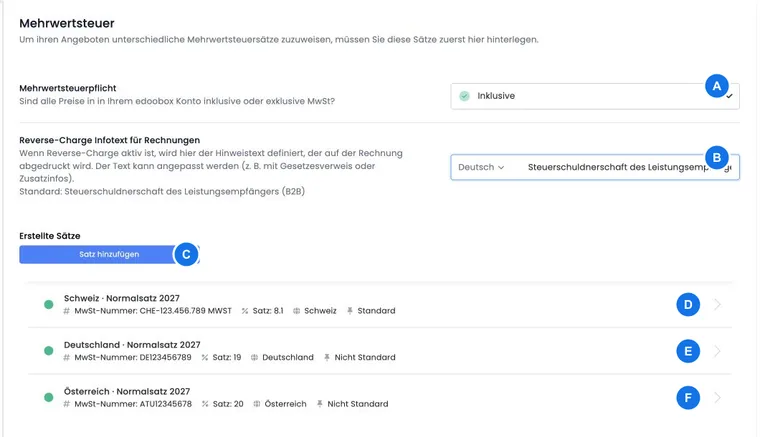
Global VAT settings maintain the tax rates later used in offers, price categories, additional services and invoices. Correct setup is important for properly displaying booking prices and invoices.
Additional service groups may use their own VAT assignments. Therefore check additional services as well as offers when changing tax settings.
Prices including or excluding VAT
First decide whether offer prices already include VAT or VAT is calculated additionally.
Including VAT: The visible final price stays the same. edoobox shows the tax portion within the price.
Excluding VAT: edoobox adds tax to the offer price. The final price for participants increases accordingly.
Important: Switching between including and excluding VAT may affect offer prices, price categories and invoice presentation. Check this setting carefully before production offers become bookable.
Enter VAT rates
Open Settings → VAT.
Click Add rate.
Enter a clear description, such as “Switzerland 8.1%”.
Enter the VAT number if it should appear on invoices.
Set the tax rate, country, active status and default if needed.
Check whether Reverse Charge or GeoDynamic VAT is relevant.
Existing tax rates can be adjusted or deactivated later. Use clear descriptions so admins recognise the correct rate when maintaining offers.
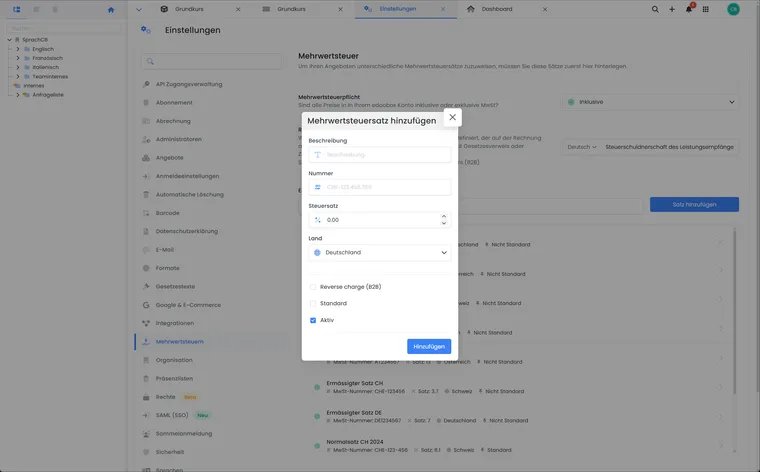
In the dialog, enter the tax rate and associated country. Check default, active status and Reverse Charge if applicable before adding.
Default tax rate
When a new offer is created, edoobox may apply the default tax rate. Whether its country matches the organisation also matters.
If the country does not match or no default exists, deliberately choose the rate in the offer. Therefore always check new offers in price settings.
Assign tax rates to offers and additional services
Global tax rates are selected in offers, price categories and additional services. Offer pricing details are in Price categories and Offer settings.
If using additional sales, also check Additional services: additional service group columns. An additional service may receive different tax treatment from the course itself.
Reverse charge information text for invoices
For B2B reverse charge cases, an appropriate notice must appear on invoices. Maintain it in multiple languages so invoices remain understandable in the participant's language.
First activate the required languages, then adjust the text in VAT settings. Further details are in Reverse Charge (B2B).
GeoDynamic VAT
For expected international bookings, GeoDynamic VAT may help. Tax calculation then aligns more closely with the participant's or organisation's country.
Check such rules with tax advice and test bookings because country, B2B/B2C context, billing address and offer type can interact.
Changes to existing bookings
Changing a VAT rate does not automatically apply retroactively to existing bookings or invoices. If an existing document must use a different rate, cancellation and recreation are often necessary.
Document tax changes internally to keep later reports and invoice checks traceable.
Example: adjust reverse charge text in multiple languages
A provider activates German and English, sells to businesses abroad and saves the reverse charge notice in both languages. A test booking then checks whether the invoice shows the correct text and appropriate tax rate.
Verification after tax changes
After changing VAT rates, perform a test booking with an invoice. Check pricing including or excluding tax, the assigned offer, additional services, reverse charge notice and Rechnung.pdf. Existing invoices should not be changed retroactively without control.
Change the default and deactivate old rates
- Create or open the active tax rate needed in future.
- Mark it as Default. edoobox removes the previous rate's default marker.
- Check new offers and GeoDynamic fallbacks with the new default.
- Deactivate the previous rate only after it is no longer marked default and your operational process permits deactivation.
The current default rate cannot simply be deactivated or deselected as the last default. Resolve the corresponding error by setting the new default first.
Technical setup does not establish compliance with tax law. Save the values and country assignments confirmed by accounting for the specific service.