
Table tools
Table tools help you adapt edoobox tables to your work: show and hide columns, identify filters, select rows, refresh tables, and export data.
Many edoobox areas use the same tools. Once you understand them, you can work much faster with offers, participants, bookings, invoices, transactions, promotions, tags, and outstanding invoices.
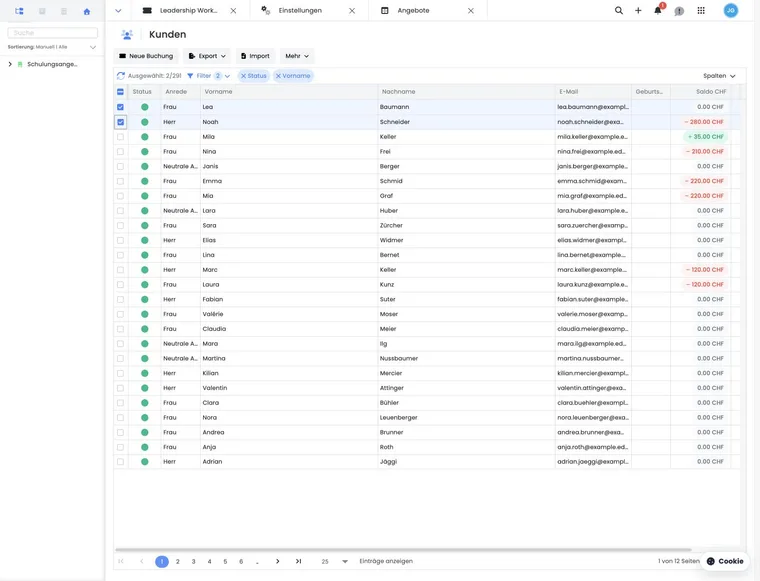
Overview of toolbar tools
Columns: shows or hides columns and saves the selection per admin.
Active filters: shows filters as chips that can be removed individually.
Selection counter: shows how many rows are currently selected.
Synchronize: reloads the table and shows a spinner while loading.
Export: creates CSV, Excel, PDF, or other formats depending on the table.
Bulk actions: performs actions on selected rows when supported by the table.
Not every table shows all tools. Visibility depends on the table, data, admin permissions, screen width, and enabled table functionality.
Show and hide columns
Use Columns to open a selection of columns available for this table. Enable columns needed for review, editing, or export and hide unnecessary ones.
Some columns remain visible for functional or technical reasons, for example selection columns, actions, or key information. Filterable columns may be marked with a small filter icon.
Apply the selection with Okay. Cancel discards the selection not yet applied.
Reset personalized columns
If a table already has a personal column configuration, Reset columns may appear in the column menu. After confirmation, edoobox deletes your personal configuration for this table and uses default columns again.
This helps if many changes have made a table confusing or if you want to check the layout originally intended by edoobox.
Saved admin configurations
Personalized table states are saved per admin and table area. A column selection therefore applies only to the logged-in person and relevant table, not globally to all admins.
When the table is reopened, edoobox combines default columns with your saved selection. Fixed columns, widths, and positions remain protected. This lets admins adapt tables to their work without changing other people’s views.
Use case: A personal customer list
An admin displays company, phone, and tags in the user overview and removes unneeded columns. The next time they open it, they see their customized view again. Other admins retain their own table view.
Identify and remove active filters
Active filters often appear as chips above the table. Clicking a chip removes the corresponding filter from the URL query and reloads the table.
Individual filters remove only their own value. Group filters may remove several values together, for example a date range with start and end dates, storage with active/archived/recycle bin, or validity with current/planned/expired.
If a table shows less data than expected, check active filter chips first. For detailed filter logic, see Table filters.
Work with selected rows
Tables with checkbox selection can show how many rows are currently selected. The selection counter is especially important before bulk actions and exports.
Many export or bulk actions check whether at least one row is selected. If none is selected, edoobox shows a message. Select only records that should actually be processed or exported.
Export all results across multiple table pages
User, booking, and invoice tables export the selected rows. The table’s result count is therefore not automatically your file’s row count. A checkmark in the header does not prove all pages are selected: compare the selection counter with the expected number.
- Set filters and date range and note the result count.
- Display required columns, including a unique number or ID, and choose a fixed sort order.
- Increase Rows per page if needed. Up to 250 rows are available in normal operation.
- Select the intended rows on the loaded page and check the selection counter.
- Create the export. If there are more results than selected rows, move to the next page, check the selection again, and export another part. Do not assume that selection persists after changing pages.
- Merge the files in your spreadsheet with exactly one header row. Check the total count and unique IDs for gaps or duplicate rows.
Do not change filters or sorting during such an analysis. Concurrent incoming bookings may shift pages; compare the dataset again at the end. For a repeatable complete offer-specific export, consider the fixed offer exports or the Export Manager instead. These export routes have their own fields and limits.
Use case: Export 430 filtered invoices
Accounting sets a fixed invoice date range and sort order, displays 250 rows per page, and exports selected rows from the first page. The second page’s 180 rows follow after checking the selection again. In the merged file, it checks 430 invoice records using invoice numbers. Two header rows or numbers already exported must not be counted as additional invoices.
Synchronize a table
Synchronize reloads the table without changing the entire page. While loading, the icon may be replaced by a spinner.
This tool is useful when new bookings, invoices, transactions, or customer data have been created in parallel. It does not necessarily replace a full page reload but is faster for most table updates.
Export and further processing
Depending on the table, export functions use visible columns, selected rows, or dedicated export definitions. Before exporting, check that filters, selection, and columns match the intended analysis.
When preparing a table for export, first select relevant columns, then set filters and select rows if needed. For further details, see Tables and export options.
Where table tools are used
Table tools appear in customer lists, invoices, transactions, bookings, offers, promotions, tags, attendance lists, additional services, and payment reconciliation, among other areas. Not every table supports multiple selection, column configuration, or export.
The user overview is a good example of synchronization, selection counter, filter chips, and column selection working together. For a table with expanded sub-rows, see, for example, Additional service group columns.
Recommended table workflow
Open the table and check active filter chips first.
Display the columns needed for the current task.
Use search and filters to reduce the dataset.
Select rows only if the export or bulk action requires a selection.
Export or process the verified selection.
After a one-off report, remove filters and selection marks no longer needed. Reset columns only if you want to discard your personal display settings.
This process prevents many misunderstandings: otherwise, an export may appear incomplete merely because filters or column selection did not match the task.
Table tools on small screens
On small screens, not every tool can be displayed as conveniently. Many tables are optimized for repeated admin work on desktop. For extensive exports, column configuration, or bulk actions, use a larger screen where possible.
Filter chips may scroll horizontally. If not all chips are visible, scroll the chip row or remove filters directly through the filter panel.
Common sources of errors
Missing data: Check active filters and hidden columns.
Empty export: Check whether rows needed to be selected.
View appears misconfigured: Reset personal columns.
New data missing: Use Synchronize or reload the page.
Other admins see something different: Column configurations are saved personally.
Display and interpret the footer
In a supported table, open Columns and enable or disable Show footer. Apply the setting with Okay. Visibility is saved with your personal table configuration.
Depending on the column, the footer shows a count, sum, or ratio. Monetary amounts are separated by currency. On-screen values refer to the table’s currently loaded rows, meaning the loaded portion in paginated lists. They are not an automatic total for all matching results. If an export includes such a footer, its values are calculated from the exported records. Not every export format includes a footer.