
Embed an iFrame in a Joomla website
In Joomla, you can display the edoobox booking process using an iFrame wrapper. Visitors remain on your website and can book your edoobox offers directly there.
Create a menu item in Joomla
In Joomla, open Menus and create a new menu item.
Choose Wrapper or iFrame Wrapper as the menu item type.
Give it a clear title, such as Book courses.
Enter the edoobox URL
Enter the required edoobox address as the web address. Use the complete HTTPS link from Preview / Share for the required level. If you want to show only a particular category or individual offer, use the corresponding link from Preview / Share.
Check that published offers exist. An iFrame without published offers appears empty to visitors.
Save and publish
Save the menu item and open the published page. Check width, height, scrolling behaviour and the display on mobile devices.
Configure links and embedding deliberately
Always copy the link or iFrame code generated by Preview / Share. An address from the browser bar may contain a temporary state and is not intended as a permanent embed link. For an individual offer, you can choose the standard view or direct registration form; categories and the root directory focus on the overview.
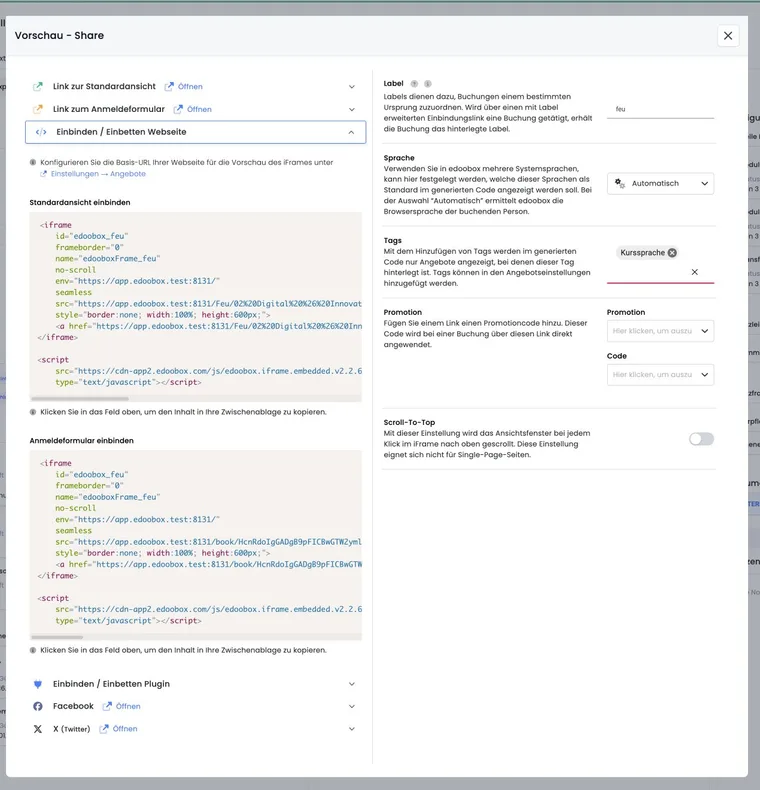
In the Share dialog, you can further tailor the generated code to its purpose:
- Label: Identifies a booking's source, for example
joomla-kurse. Use distinct labels for multiple integrations. - Language: Starts automatically or in a selected active booking language.
- Tags: Opens the embedded view with a suitable offer selection already applied.
- Promotion: Passes a selected promotion code directly through the link. Share such links only with the intended audience.
- Scroll-to-top: Returns the surrounding page to the start of the embedded view when changing steps.
If the Share dialog shows no correct link to your website, first save the base URL of the page containing the iFrame under Settings > Offers.
Check the display and entire booking journey
A Joomla wrapper expects only the full edoobox link in its URL field. Do not insert HTML/script code there. Configure width, height and scrollbars in the wrapper. If you instead want to use the complete edoobox embed code with its script for automatic height and navigation, you need a suitable HTML content element in your Joomla installation. Check with the website administrator that it saves the code unchanged.
After every change, check desktop and smartphone displays and the complete workflow: open the offer, complete the form, accept the terms, open the payment page and display the completion page. Also check that the language, tag filters, promotion and label are applied as intended.
Example: Joomla menu item for seminars
An association creates a Seminars menu item in Joomla. It uses the edoobox link for the Further training category as the wrapper address. Members can then book suitable seminars directly on the association's website.
Example: multilingual campaign page in Joomla
An organisation creates a separate Joomla page for a spring campaign. In the Share dialog, it selects French, the Outdoor tag, a time-limited promotion code and the fruehling-joomla label. After insertion, it tests a complete booking on smartphone and desktop and checks in edoobox that the source can be clearly identified.
Automatic wrapper height is not guaranteed for edoobox
According to the official wrapper documentation, Joomla's Auto height option works only on the same domain. An edoobox domain and your Joomla domain are different origins. For a simple wrapper, therefore set a suitable height or use an allowed HTML element with the complete edoobox code.
The separate direct link in the edoobox code is not automatically included with a URL-only wrapper. Add a visible link to the booking portal on the Joomla page and check it with the iFrame disabled or blocked.
Related guides
Wrapper and automatically adjusted height
The official Joomla iFrame wrapper guide describes the URL field and size settings. It refers to Joomla 4; labels in your installed version may differ. Check for sufficient height throughout the booking journey. A basic wrapper does not automatically load the additional edoobox embed script on your website.
Direct link and Tracking V2
The complete edoobox HTML code includes a direct link to the booking portal. With a URL-only Joomla wrapper, add this link separately to your page. Check it on the published website.
For Tracking V2, your website also needs the connection between the iFrame, website context and consent. A fully visible booking form does not confirm successful tracking setup.