
Manage the waiting list and fill available places
The waiting list separates interested people from definitively booked participants. It is useful when an offer is fully booked, registration has closed or you want to continue in an orderly way after cancelling an offer. A waiting list entry does not occupy a definitive place, but remains a complete booking with contact person, participant count and history.
Its benefit goes beyond collecting names: you can allocate available places in a controlled way, compare several source offers, offer a replacement and decide before each transfer whether the person should confirm themselves or be booked administratively.
Distinguish waiting list, enquiry list and MustPay
Feature | Purpose | Suitable use |
|---|---|---|
Waiting list | People wait for a place to become available. | Fully booked or closed offers, replacement dates, measuring demand. |
The organisation deliberately decides which enquiries to accept. | Admissions processes, applications or substantive preliminary review. | |
A booking becomes definitive only after successful payment. | Binding advance payment while a place is still available. |
Activate the waiting list and check prerequisites
Open the offer and go to Settings.
Enable Waiting list.
Check registration deadline, display deadline, status and maximum participant count.
Perform a test registration with a fully booked or closed demo offer.
The public waiting list is intended for normal registration. It cannot be used with Free date selection. The waiting list switch is unavailable for multi-offers and their sub-offers. Plan a separate enquiry or replacement process outside normal multi-offer booking for these.
Waiting list entries are not limited by the offer’s maximum participant count. However, that maximum remains decisive when inviting people or definitively transferring them.
When public registration becomes a waiting list registration
For a published or guaranteed offer, registration normally occurs directly while deadline and capacity permit. If registration has closed, the offer is closed or another non-directly-bookable status is active, waiting list registration is offered when the waiting list is enabled. The display deadline limits how long the offer remains publicly visible.
With capacity reservation enabled, edoobox additionally distinguishes fully booked from temporarily reserved. Temporarily reserved places are not immediately offered as waiting list places; the person returns to the offer and can check again later.
Collect interest beforehand and invite people to book later
Initially, only non-binding interest should be recorded for a future offer. Use a clearly labelled waiting list route for this. Technically, a waiting list process with personal data is created; it is neither an automatic definitive place commitment nor newsletter consent.
- Prepare a dedicated interest offer with an understandable name. Enable waiting list, leave MustPay off and use Closed status so no normal definitive registration is offered. Align public visibility and dates so the page actually remains accessible.
- Adjust description and waiting list button text, such as ‘Register interest’. Explain that it is non-binding and which later message is intended.
- Distribute the generated public offer link or QR code. Check with an internal person that only a waiting list entry is actually created and the appropriate waiting list confirmation arrives.
- When the regular destination offer is ready, publish it with checked capacity and prices. Open its waiting list and select the interest offer as source.
- Select the intended entries and choose Send enquiry. The person completes the new booking themselves. Afterwards check source and destination processes, confirmation and payment.
A registration period starting in the future does not by itself create an interest list. Check the actual public route and time window. Later publication of the destination offer does not automatically send all invitations in this process. You deliberately trigger the checked enquiry sending. If the organisation should decide on admission itself, use an enquiry list instead.
Waiting list for a fully booked price group
The waiting list is activated for the offer. A quantity limit on a price category does not create a separate queue with automatic advancement for that price. For example, if the youth price is exhausted while adult-price places remain, the offer as a whole may remain normally bookable.
- Under Price categories, check whether only a price limit or overall count has been reached. Consider reservations.
- Do not change the overall status to closed merely for this reason if other price groups should continue booking normally.
- To record a person’s interest in the sub-allocation, after consultation use Participants → Waiting list → Add in the offer. Check contact person and price category in the entry. This manual entry does not confirm a future place.
- Before later transfer, recheck the correct price category and overall places. For a member price, also check personal entitlement. Then deliberately choose between Send enquiry and Confirm.
The classic waiting list is unavailable as a separate sub-allocation queue for individual lessons with free date selection or workshops in a multi-offer. Plan a separate enquiry or replacement process there. If you create separate offers for target groups instead, they have separate capacities; a shared room does not automatically combine them.
Example: Youth allocation full, regular price still available
A workshop has 20 total places, at most 8 at the youth price. The 8 youth places are taken, while 4 adult places remain. The administration leaves the offer open and, after consultation, records youth interest as a manual waiting list entry. When a suitable place later becomes free, it checks both limits and the desired price before sending an enquiry. It expects no automatic reallocation between price groups.
Understand statuses in the waiting list view
Waiting list: The booking awaits definitive participation. It may originate publicly, manually or from offer cancellation.
MustPay: The public booking awaits required payment. This is not a normal place in a waiting queue.
Active: The booking is definitive. This status additionally appears when you enable Show normal bookings.
Cancelled bookings are filtered out of this view. For complete history, open the booking details.
What happens when an offer is cancelled
If you set offer status to Cancelled, edoobox automatically moves that offer’s active bookings to its waiting list. Any MustPay status is removed and booking price recalculated. Open enquiry list entries are rejected.
Use the offer’s waiting list overview
In the offer, open Participants → Waiting list. By default, the table shows non-cancelled waiting list bookings for the current offer. Visible information includes contact person, balance per currency used, participant count, entry time and status.
In Waiting list from these offers, you can add other offers as sources. Only then does the Offer column appear. Show normal bookings removes the waiting-list-only filter and additionally shows active, non-cancelled bookings. Therefore always check status and source offer of every selected row before a bulk action.

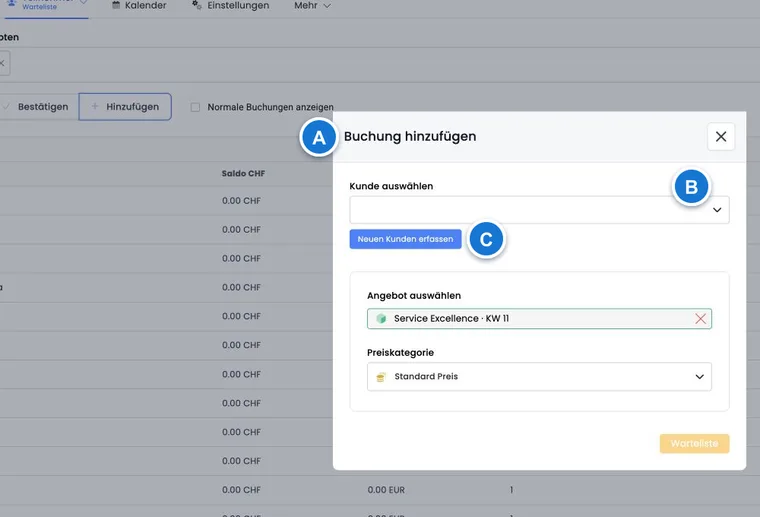
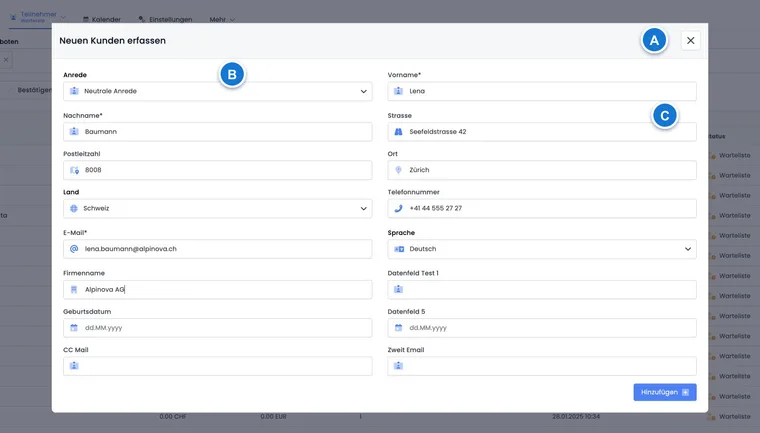
Send enquiry, email, confirm and add
Action | Actual effect | Check beforehand |
|---|---|---|
Send enquiry | Sends the Waiting list enquiry email template with a personal link to the destination offer. The person completes the booking themselves. | Available places for everyone in the selected bookings, valid email address, destination offer and prices. |
Opens a normal message to people in the selected bookings. Duplicate recipients are combined. | The message changes no booking status. | |
Confirm | Removes waiting list and MustPay within the same offer. For a different source offer, creates a new booking in the destination offer and cancels the old booking. | Capacity, balance, price category, invoice, promotion and any group participants. |
Add | Administratively creates a new booking directly on the current offer’s waiting list. | Contact person, price category and correct registration type. |
Send enquiry: The person decides themselves
Before sending, edoobox shows available places, enquiry count and affected participant count. If capacity is insufficient, you can increase the maximum participant count in the dialogue. Each selected booking needs a valid email address; undeliverable enquiries are reported.
The link leads to the destination offer’s completion page and adopts existing contact data. Only when the person completes the process is the original waiting list entry cancelled and a new booking created in the destination offer. If the place is no longer available when the link opens, edoobox returns to the offer.
Confirm: Administrative transfer with consequences
Within the same offer, the existing booking becomes active, MustPay is removed and price recalculated. The action itself sends no booking confirmation. If needed, send it using Send booking confirmation manually.
If the row comes from another offer, edoobox treats confirmation as rebooking: a new destination booking is created, payments and existing invoice references are transferred or rebuilt as far as possible, and the source booking is cancelled. Use this action only if direct rebooking is intended. For a non-binding choice, Send enquiry is the safer action.
Offer a replacement in a controlled way
Create and publish the replacement offer with correct capacity, prices and email templates.
Open its waiting list view.
Under Waiting list from these offers, select the original offer.
Select desired bookings and choose Send enquiry if people should accept themselves.
Afterwards check source and destination bookings, outbox and available places.
Several source offers are possible. Enable Show normal bookings only if you deliberately want to include definitive bookings for rebooking or information too.
Read group bookings and counts correctly
One table row represents a booking, not necessarily one person. For a group booking, the contact person appears in the row; Participant count shows affected people. An enquiry checks this total against available places and transfers the booking group together.
Before an action, check whether the contact person participates, whether open participation is included and whether everyone should receive the same destination booking. Details are provided under Group registration: Global settings.
Remove or correct a waiting list entry
Open the relevant booking and cancel it in the booking details if interest no longer exists. An active individual booking cannot be moved back to the waiting list as a normal correction in the V2 interface. Depending on the case, choose cancellation, rebooking, a new waiting list booking or a personal message.
Offer cancellation is the exception: it moves all active bookings to the waiting list together and therefore requires subsequent financial and communication checks.
Who informs waiting people when a place becomes free?
A cancellation or increased capacity does not replace sending enquiries. The normal waiting list process described here does not automatically assign a place to the next person or send all matching waiting list enquiries merely because of this.
- Check genuinely available places and order according to your own allocation process. A table row may include several participants.
- Select suitable bookings specifically and use Send enquiry if people should decide themselves. The personal link does not yet permanently occupy the place; booking must complete successfully.
- Use Confirm only if administrative transfer is intended. This action itself sends no booking confirmation; deliberately send and check it afterwards.
- Check available places, destination booking and outbox after every step. Plan another offer to other waiting people if the first contact does not accept.
If your account additionally uses a custom integration or rule, check its actual trigger and sending separately. Avoid parallel automatic and manual invitations that contact more people than places available.
Checklist when a place becomes free
Check status, entry time, person count and source offer.
Check balance, MustPay, invoice and any group participants.
Choose between Send enquiry and Confirm.
After the action, check destination booking, available places and outbox.
For administrative confirmation, deliberately send the booking confirmation afterwards.
Use cases
Example: A place becomes free in a fully booked course
A course with twelve places has three waiting list entries. After a cancellation, the team checks the first booking: one person, no outstanding balance, valid email address. It selects Send enquiry. Only after completion through the personal link does the new booking become active; the team then checks confirmation in the outbox.
Example: Replacement date for several waiting people
A Sunday session with four available places is published as an alternative to a fully booked Saturday session. In its waitlist, Saturday is selected as the source offer. The team chooses four suitable individual bookings from the six waitlist entries and sends requests. The other two entries remain on the waitlist for now. After each successful booking, the team checks the new booking in the target offer and the cancelled original entry. If an invited person does not accept, it checks the available capacity again before contacting the next entry.
Example: Follow up a cancelled offer properly
A seminar is cancelled. edoobox automatically moves active bookings to the waiting list and removes MustPay. The administration sends the prepared cancellation email, checks invoices and repayments, then offers a replacement date through a new destination offer.
Open waiting list entries and cancellation fees
A still-open waiting list or enquiry booking is not confirmed participation. Cancelling such processes therefore produces no cancellation fee or automatic refund under the new cancellation rules in edoobox. Nevertheless check existing payments and special cases in booking details. Once participation is definitive, stored cancellation conditions are relevant.