
Single Sign On via SAML in Microsoft Azure
Requirement: SAML Single Sign-On requires a suitable edoobox subscription. Plan setup with your Entra administrator and retain an independent superadmin login during introduction.
Microsoft Entra ID authenticates people through their company accounts. The edoobox provider can be visible at login for admins, participants or both. Field mapping, fallback permission, ACL, admin linking and provider tags then determine actual access.
Always use your own edoobox provider’s metadata for configuration. Fixed APP1 or APP2 example addresses can lead to the wrong environment or account.
Requirements and roles
A Microsoft Entra role permitted to configure Enterprise Applications and SAML SSO.
edoobox superadmin with access to SAML and permission profiles.
A test group with at least one person and a clear target role.
A decision on admin, user or combined login scope.
A fallback and emergency process for certificate, claim or assignment errors.
1. Create an Enterprise Application
In the Microsoft Entra Admin Center, open Entra ID > Enterprise applications > All applications, create your own non-gallery application and then select SAML under Single sign-on.
Initially assign only a test person or group. Whether assignment is mandatory also depends on the application’s Entra setting.
2. Obtain Entra metadata and create the provider in edoobox
- In the Entra application, open SAML setup and obtain the App Federation Metadata URL or IdP metadata as XML. This source is already needed to create the edoobox provider. If the source is not yet available, have your Entra administrator provide it.
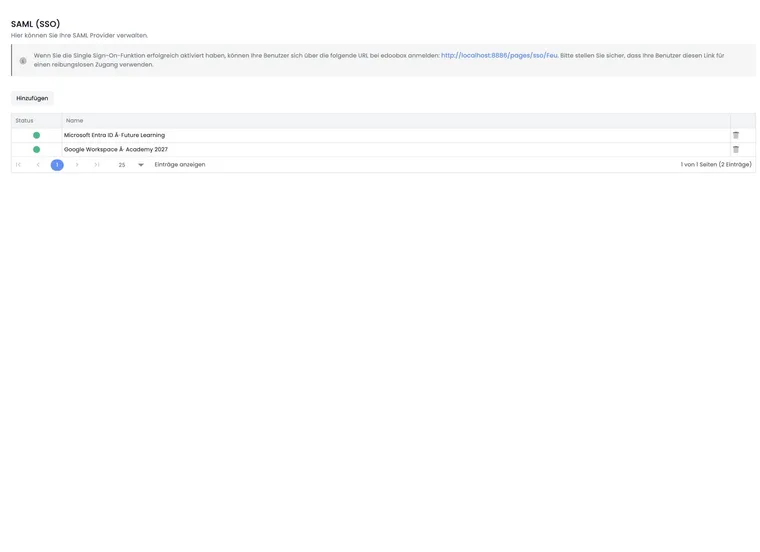
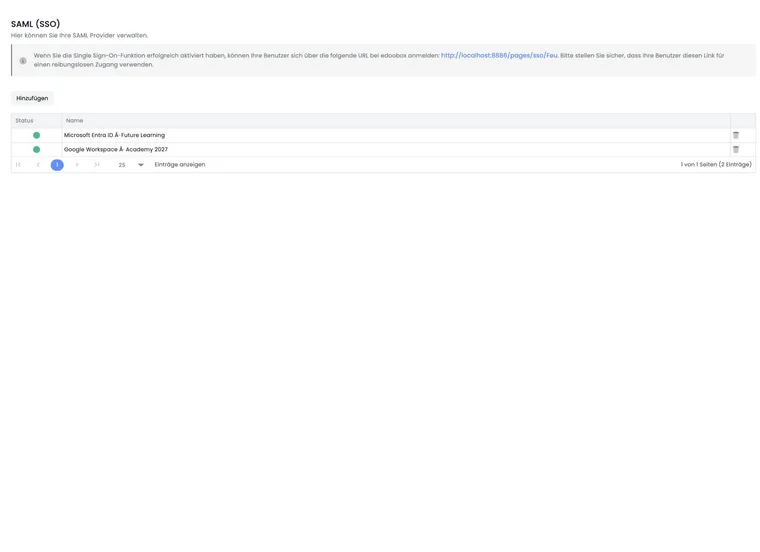
- In edoobox, open Settings → SAML (SSO) and create a provider with a unique name.
- Select User & Admin, Admin only or User only. For admin scope, select the intended fallback permission.
- Align the NameID format with Entra and import the Entra metadata as a remote XML URL or XML upload.
- Complete creation and open the saved provider. It is active after successful creation. Begin with a limited test assignment at the Identity Provider.
3. Exchange metadata in both directions
In edoobox, download the provider’s federationmetadata.xml. Copy the following from it into Entra’s basic SAML configuration:
Identifier (Entity ID): exactly from the edoobox metadata.
Reply URL (Assertion Consumer Service URL): exactly from the edoobox metadata.
Sign-on URL: the edoobox SSO URL displayed in SAML management for admin login; test participants from the booking process.
You already supplied the Entra metadata when creating the edoobox provider. After the exchange, check the Entity ID, login service and certificate on both sides. The original metadata source is displayed read-only under Information in the saved edoobox provider.
4. Check claims and field mapping
The current edoobox mapping recognises the usual Microsoft claim URIs:
| Claim | edoobox field |
|---|---|
http://schemas.xmlsoap.org/ws/2005/05/identity/claims/emailaddress | email |
http://schemas.xmlsoap.org/ws/2005/05/identity/claims/givenname | first_name |
http://schemas.xmlsoap.org/ws/2005/05/identity/claims/surname | last_name |
edoobox.acl | acl if permission management is enabled |
Check the received mapping in edoobox. A technically valid SAML login is insufficient if email, name or ACL arrive under a different claim name.
5. Control admin permissions through fallback permission or ACL
Without enabled ACL import, permission management in edoobox remains authoritative for already authorised admins. The configured fallback permission alone does not permit an arbitrary new admin identity. With Permission management via edoobox, the edoobox.acl claim can supply one of the following roles:
| Value | Effect on admin login |
|---|---|
edoobox.acl.0 or edoobox.acl.1 | No permitted admin access; login is rejected due to missing admin authorisation. |
edoobox.acl.2 | Instructor permissions |
edoobox.acl.3 | Administration permissions |
edoobox.acl.4 | Superadmin permissions |
If several roles arrive, edoobox uses the highest valid ACL level. Grant acl.4 only to a very small, controlled group.
6. Further current provider options
| Option | Effect |
|---|---|
| Link admins with SAML | On first login, searches for an existing admin with the same email address and links them. |
| Auth Request Signed | Signs the AuthnRequest with the edoobox provider certificate; Entra must expect this appropriately. |
| Participant tags | Assigns indirect tags only to participants signed in through this provider. |
| Enforce tag filtering | Restricts the normal offer overview to offers with all selected filter tags. |
| Display additional offers | Additionally displays matching tagged offers, including for targeted internal offer access. |
Filter tags must be part of the provider tags. Admins do not receive participant tags. Therefore, plan admin permissions and participant access separately.
7. Assign users and groups
In the Enterprise Application, open Users and groups and assign the test group. If using ACL, configure the intended app roles and their output in the appropriate claim. Check the attribute name actually supplied and map it to acl in edoobox. The generic Microsoft roles claim is not automatically recognised as an edoobox ACL. Document which Entra group corresponds to which edoobox role.
Group assignments simplify operation but do not replace revocation in edoobox if an existing admin still has access outside the SAML process.
8. Activate and test in production
Check the provider status in edoobox. After successful creation, the provider is active; existing providers’ status can be changed under Configuration.
Open the displayed SSO URL in a private browser window.
Check NameID, email, first name, last name and the expected permission.
Test a user without app assignment and, with ACL, also a user without a valid role.
For user scope, check normal, filtered and additive offers.
Document certificate expiry and responsibility for metadata rotation.
Troubleshooting
Reply error: compare Identifier and Reply URL with the current edoobox metadata.
User not authorised: check app assignment, tenant and Entra policies.
Admin missing: enable admin linking or ACL and check the claim value.
Incorrect permission: check app roles, the
edoobox.aclclaim and the highest level supplied.Signature error: check the certificate, metadata, Auth Request Signed and clock synchronisation.
Incorrect offers: check provider tags, offer tags and additive or enforced mode.
Use cases
Example: Course administration through Entra groups
The “Course administration” group supplies edoobox.acl.3, and the small “edoobox Superadmins” group supplies edoobox.acl.4. A person without a valid app role receives no admin access. All three cases are tested before release.
Example: Safely migrate existing admins
An organisation enables Link admins with SAML and tests with an existing admin whose Entra and edoobox email addresses are identical. Further groups are assigned only after successful login and a permissions comparison.
Example: Additional internal offers for employees
A user provider assigns the Employees tag. Internal offers carry the same offer tag. In additive mode, these offers additionally appear after Entra login; the public offer selection remains unchanged for everyone else.
Align roles and claim names
For roles, follow the Microsoft guide to app roles. Configure SAML attribute output and names according to Customise SAML token claims. What matters to edoobox is that the mapped ACL attribute contains valid values such as edoobox.acl.3.
Usage notes and further setup
The provider dialog is divided into Configuration, Data field mapping and Information. The original metadata source is displayed read-only under Information. For a source change or required renewal of uploaded XML, plan the transition with your responsible SSO administrator.
Configure data matching with SAML data fields and admin permissions. For User only, additional participant fields, indirect provider tags, internal offers and login in embedded booking pages, read Participant SSO, tags and offer access.
Portal navigation and roles follow the official Microsoft SAML configuration guide (checked on 16 October 2026). You need, for example, Cloud Application Administrator, Application Administrator or the corresponding application owner role. Use a suitable Enterprise Application with SAML configuration.