
Send a payment reminder
In current edoobox V2, a payment reminder is sent directly from a booking. It uses the Payment reminder email template. Check payment state and data context beforehand: the amount inserted is not the outstanding remainder of one invoice in every invocation.
Important: Sending does not create a dunning stage or a dunning fee. A separate Dunning area contains rules and a dunning journal. Its automation is announced as Coming soon; individual activations may already be possible on request to support. The manual sending described here remains separate.
Check before sending
Check booking and associated invoices. Compare invoice amount, assigned payments and outstanding invoice remainder with the amount your reminder outputs. Consider the different amount contexts.
Check whether incoming payment has not yet been assigned through CAMT or manually.
Ensure the contact person has a valid email address.
For several bookings on one invoice, check the invoice as a whole before contacting individuals.
Send a payment reminder
Open the relevant booking.
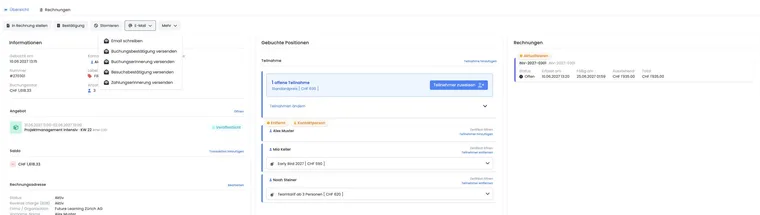
In the action bar, open Email.
Select Send payment reminder. The message is sent immediately; complete the amount and recipient checks beforehand.
Wait for success confirmation, then check the message in the outbox.
The action is disabled for already cancelled bookings. If sending fails, first check email address, mail server and outbox status.
Outstanding fee after cancellation: For a still-outstanding cancellation fee, fee details has its own Send payment reminder action. Open the fee and check amount, status and recipient. This action is unavailable for cancelled, written-off or waived fees. A separate outstanding fee can thus be handled even though the cancelled booking’s normal reminder action is disabled. Further steps: Cancellation rules and fees.
Distinguish booking reminders and payment reminders
| Message | Purpose | Typical time |
|---|---|---|
| Booking reminder | Reminds people of participation, dates or organisational details. | Before delivery. |
| Payment reminder | Draws attention to an outstanding payment balance. | After internal checking of incoming payment. |
Distinguish invoice remainder, account balance and reminder amount
Which template belongs to which trigger?
The current system template catalogue has Payment reminder email, Invoice: Email, and Payment reminder and Overdue notice under Overdue payment management. A dedicated system template named Invoice reminder is not listed there. If you see that name in your account, check whether it is a custom-named template or task name. The visible name determines neither trigger nor available invoice data.
| Trigger | Template used / selection | Data context |
|---|---|---|
| Booking → Email → Send payment reminder | Payment reminder email | Participant data and classic reminder values such as AccountUserBalance and AccountUserURL; no freely selectable individual invoice context. |
| Financial task Payment reminder | The same classic payment reminder process for selected people or the offer. | Check the amount from this invocation; the task name does not turn it into an invoice remainder. |
| Invoice details → Send invoice by email or financial task Invoice email | Invoice: Email with invoice PDF. The task searches existing outstanding invoices. | Reference to the specific invoice, including InvoiceNumber, InvoicePayURL and offered billing address values. Sending does not create a missing invoice. |
| Custom email task | An account-owned template of type Email. | This task’s person/offer context. Even a custom template named ‘Invoice reminder’ does not thereby automatically receive an individual invoice remainder. |
| Overdue notice rule | Templates from Overdue payment management, with their own Dunning... placeholders. | Rule and dunning context; automatic sending only when the dunning feature is enabled and active. |
For a classic scheduled reminder in Task Manager, select the financial task Payment reminder. To send an existing invoice, select Invoice email or sending on the document. Do not transfer a system template to a supposedly equivalent custom email task. The task process explains selection and follow-up. Check offered placeholders in the editor of the respective base template.
Check the output amount before sending
| Value | Reference | Check |
|---|---|---|
| Outstanding invoice remainder | A specific valid invoice less payments assigned to it. | Compare invoice details, incoming payments and current invoice. |
| Participant balance | Profile movements in the respective currency, potentially from several bookings and credits. | Do not use as the outstanding amount of an arbitrary individual invoice. |
| Classic payment reminder | The template uses ##AccountUserBalance##, among other values. Depending on trigger, the amount is populated from linked transaction items or profile balance per currency. | A separately recorded partial payment is not necessarily deducted as an invoice remainder from the booking-related item amount. Reconcile with the actual invoice remainder before use. |
| MustPay reminder | Dedicated template and payment deadline of the MustPay process. | See MustPay and countdown; do not infer an invoice reminder from this. |
| Overdue payment management templates | Dedicated rule and overdue notice contexts with separate placeholders. | The presence of these templates does not activate global automation. |
- Open the invoice and check total amount, receipts actually assigned and remainder. First reconcile any missing bank receipts.
- Check the specific reminder route with an internal demo profile, especially after partial payments or with several invoices. The manual sending action sends immediately; outbox checking occurs afterwards.
- If the classic template amount does not match the desired invoice remainder, do not use this action without checking. Send an individually written message with the checked invoice number, currency and actual outstanding remainder. Check the responsible recipient; the profile email dialogue offers existing profiles, rather than any arbitrary free invoice email as a separate recipient type.
- Check sending and later incoming payment. An individual profile message has no dedicated invoice context; deliberately enter checked information and do not adopt unchecked invoice placeholders.
Example: Partial payment and a second booking
An CHF 300 invoice has a CHF 100 down payment; CHF 200 remains outstanding. The same profile has another outstanding booking for CHF 80. A request concerning this one invoice should refer to CHF 200. Neither the original CHF 300 item amount nor a combined CHF 280 profile balance may be inserted without checking. The team uses the confirmed invoice remainder and states the unique invoice reference.
Maintain template and placeholders
Edit Payment reminder email under email templates. Use only placeholders offered in this template’s placeholder menu. An overview and testing guidance are provided under All placeholders for emails and PDFs.
Test subject, salutation, output amount, payment details, links and signature with a demo booking. Also compare a partially paid case and a profile with several bookings. Inserting an invoice placeholder from another template does not automatically make it available in the classic payment reminder context. Check every active language separately.
Handle fees separately
The payment reminder changes neither invoice nor booking balance. If your organisation contractually charges processing or reminder fees, these must be substantively reviewed outside sending, posted separately and communicated understandably.
No fee merely from clicking: Send payment reminder must not be understood as automatic fee posting.
Example: Invoice past its payment deadline
An CHF 480 invoice has been due for five days. Accounting first imports the current CAMT file and confirms no payment arrived. It then opens the booking, sends the payment reminder and checks sending in the outbox.
Example: Payment is already on the way
A customer reports transferring payment the previous day. The team waits for the next bank import and initially sends no reminder. This avoids an unnecessary message.
Additional practical information
Benefit: Address an outstanding payment specifically and traceably
A payment reminder helps when a checked outstanding amount exists and the contact person needs clear information about the next step. State amount, booking reference and payment route understandably. Customers can associate a clearly referenced message more easily than a general request.
Before sending, check the current state, particularly after a bank import or announced transfer. The reminder is then part of coordinated service rather than a substitute for payment reconciliation.
Limitation: Repeated sending is not automatic overdue notice management
The action sends a message; it does not organise its own sequence of overdue notice levels and fees. Define internally when to follow up again and who handles the case. Before every further contact, compare current balance and previous outbox.
For several bookings on one invoice, coordinate communication with the responsible contact. One booking context must not lead to several contradictory requests for the same invoice process. Check and follow up outstanding payments helps with this overall review.
Manual reminder and prepared overdue payment management
Under Settings → Cancellation & Withdrawal → Overdue payment management, you can review the displayed rules section. Separate processes are provided for With invoice and Without invoice. Reminder, overdue notice with optional fee and cancellation are different rule types.
Check whether the feature is enabled for your account and whether its global status is active. A saved rule or an individual rule marked active does not yet mean automatic sending is running. Contact support about possible individual activation. The Outstanding payments and dunning overview explains the journal, filters and availability status.
Example: You send a payment reminder from the booking today. This does not start an inactive overdue notice chain or post a reminder fee. Before the next manual contact, continue checking CAMT, invoice and outbox.