
Settings: legal texts, languages and versions
Under Settings → Legal texts, you manage named texts, their translations, and versions per language in the Legal texts (New) area. Here you edit the content. The display and mandatory confirmation are subsequently determined in the Design Manager.
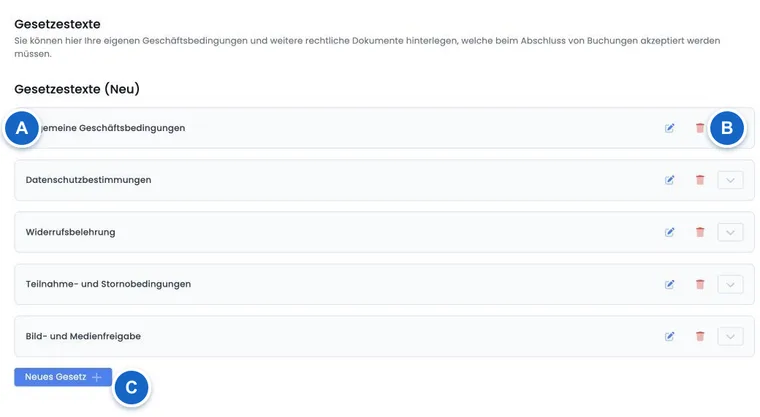
Access and permission
Open Settings and select Legal texts. Viewing this area requires read access to settings; creating, changing or deleting texts requires the corresponding editing permissions. Ask an authorized administrator to check any missing permissions. Seeing the menu item alone does not confirm permission to make changes.
A card corresponds to a legal text. Via the card header, you expand its language groups and versions. The pen symbol on the card header edits the Name; clicking on a version card opens its Content. These two actions change different data.
Manage names in active languages
- Click on New legal text or on the pen symbol for an existing text.
- Select an active language and enter the name in that language, for example German AGB and English Terms and Conditions.
- Switch to the other languages using the language chips or language selector. Up to four active languages are offered as chips.
- Save the name. Then open the version cards to edit the actual content and confirmation labels.
The management overview uses the name in your admin language; if it is missing, a name in another available language may be displayed. The public text content has its own language selector. A missing name field does not translate any content, and clearing a name is not a reliable way to remove a language.
If adding a previously missing name language to an existing text fails, reload the page, check what was actually saved and have the error investigated. Do not delete the existing text and its versions for this purpose.
Versions per language
Expand a text. edoobox displays a language group for each active account language and sorts its versions by number in ascending order. Numbers are assigned per legal text and language; a German version 3 therefore does not necessarily have an English version 3.
New version is available if no version exists yet or the highest version in that language has already been finalised. If a draft exists there, open and edit it first. A new language group does not generate an automatic translation.
Status: draft, published and archived
| Status | Meaning | What you can do |
|---|---|---|
| Draft | Content that has not yet been finalised. It does not replace the previously published version. | Edit the content and confirmation label, save them and publish later. |
| Published | The highest finalised version in this language; ready for public selection. | View it in read-only mode or start a new version. |
| Archived | An older finalised version, after a higher version in the same language has been published. | View it in read-only mode and retain it as evidence of the existing version. |
Archived is an automatic classification. This interface has no separate archive action. A German version change does not archive an English version.
Editor and confirmation field
Open the required version card. The dialog shows the name, language, version number and status. For a finalised version, it also shows the administrator who published it and the publication date.
In the Confirmation field label field, enter the text beside the checkbox, for example, “I have read and accept the participation terms”. The actual content appears below in the text editor. For a draft, click Save and reopen it to check the saved version. Closing the dialog or clicking Cancel does not save unsaved changes.
Publish saves the displayed content and confirmation label and immediately finalises the version. It can then no longer be edited, including through the API.
Create a new version without losing previous evidence
In the existing legal text, select New version for the correct language. edoobox copies the most recently published content and its confirmation label into the new draft. If there is no previously published version, it starts with empty content and a default label.
Check and revise both fields. Publish the new version only when you want the change to take effect. This interface does not offer a date for automatic publication later. Existing widget links remain in place because they refer to the legal text rather than a specific version number.
For complete steps with a multilingual example and instructions for correcting a text published by mistake, see Publish a new legal text version.
Deletion with confirmation
The bin icon at the top of the card applies to the entire legal text. The dialog names the text; the delete button is only enabled when you enter exactly DELETE. Individual version cards do not offer a delete action here.
This entry confirms your action and does not automatically check every use of the text. First check all designs, linked cancellation groups and existing booking evidence. A deleted text is no longer loaded as an active legal text by the public widget. This view has no documented restore action.
Deleting is unnecessary when changing versions. For a text that is no longer used, first remove it from new workflows and retain any historical versions you need. Publish a correction as a new version instead of removing the existing evidence.
Use in the Design Manager
Open the design that is actually assigned and the Registration summary template. Add Legal texts, select the Linked legal text and define whether confirmation is mandatory. Repeat this for any other required texts and designs.
The public course booking process prefers the current booking language; if no published content exists in that language, the first configured account language may be used. If neither that language nor the selected language has published content, the widget displays a notice about the missing link or published version. The guide to integration and evidence also covers print/PDF and migration of existing setups.
Cancellation terms and legal texts
Open the cancellation terms and select the required legal text in the group. Assign the group to the offer. In the appropriate widget, edoobox supplements the published text with the compact rules table for this offer group. A configured confirmation concerning withdrawal may appear as an additional mandatory field.
Publishing a text does not create any deadline or fee rules. Conversely, saving a cancellation group does not publish a text draft. Therefore check the text version, group assignment and displayed table together. The cancellation rules applicable to the booking are saved separately and must also be considered when reviewing evidence.
Evidence in booking details
Open a booking and go to Information → Legal texts. edoobox displays saved entries with their mandatory status, accepted/not accepted status and, for accepted texts, the corresponding version. Clicking opens the version in read-only mode.
The displayed date refers to the publication of the text version. It is not a separately recorded time of consent or evidence of an IP address. The Archived status here means that a newer version in the same language now exists; it does not undo a confirmation given previously.
Older bookings or bookings created through other workflows may have no entries from the new generation. This alone does not prove that no terms were displayed in the earlier process. The limitations and checks are explained in Legal texts in the booking process and evidence.
Distinction from data protection and account agreements
These legal texts are your content for people making bookings. The data processing agreement between your organisation and edoobox is managed separately under Sign and manage the data processing agreement.
Further organisational tasks involving data fields, access rights and deletion are explained in Data protection with edoobox: FADP and GDPR. A checkbox for a text does not enable automatic data deletion or newsletter consent for every other purpose.
Pre-publication checklist
- The correct legal text, language and version number have been selected.
- The name, text content and confirmation label have been checked in full.
- The draft has been saved and reopened; approval to publish has been obtained.
- All required language versions have been published at the intended time.
- All designs in use have been checked for the appropriate widget and mandatory status.
- The linked cancellation group, displayed rules and any additional withdrawal confirmation have been checked.
- Evidence for a new booking and access to a previous version in the booking details have been checked.
Use legal texts in other booking workflows
For participant subscriptions, the selection of legal texts, direct purchase and the shared shopping cart differ. Check these workflows using Legal texts and confirmations for subscriptions. An administrative subscription assignment or renewal does not constitute a new public checkbox confirmation.
Related guides
The relationship with cancellation rules, withdrawal, refunds and data protection is explained in Legal texts, cancellation and evidence.