
Internal access code
The internal function hides an entire account, main category or individual offer behind an internal code. Public overviews do not normally display protected content without the appropriate internal link.
An internal code is shareable link protection. Anyone with the complete link can pass it on. For personal, role-based access, use a suitable login or SSO solution instead.
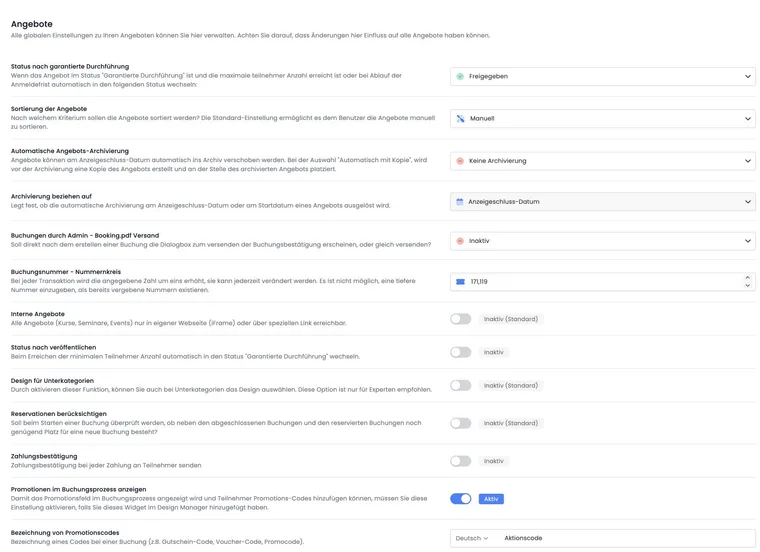
Requirements and effects
The internal function must be available in the subscription.
Admins need sufficient permissions for global offer or category settings.
All integrations, Share links and external systems must be checked after a change.
The function protects discoverability through normal public routes. It is not a substitute for individual permissions, encryption or a guarantee against sharing or indexing a link already published.
Make the entire account internal
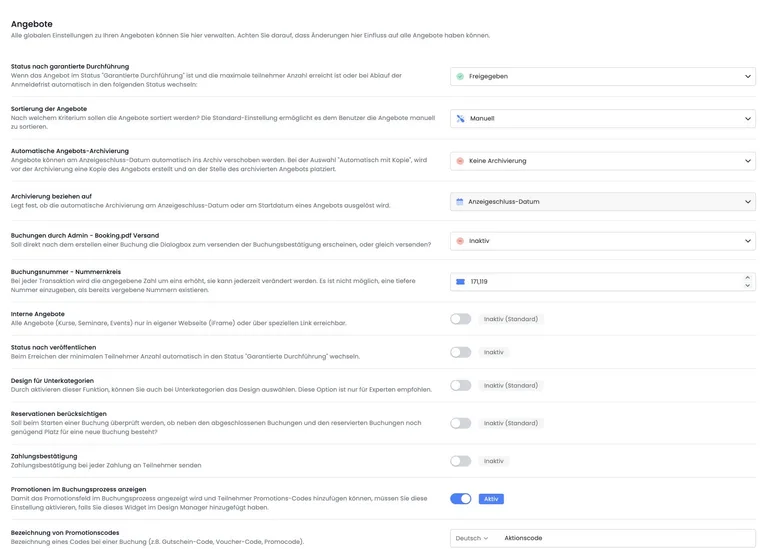
Open Global settings → Offers.
Enable Internal offers.
Read the consequences in the confirmation dialog.
To activate, enter the displayed word INTERNAL. When reverting to external, the dialog requires EXTERNAL.
Then open the new internal starting link in a private browser window and test navigation and booking.
In internal account mode, the public starting address uses a path containing the account abbreviation and internal code. Normal old starting links without this context no longer reliably lead to protected offers.
Change with a broad impact: The account option affects all offers. Plan the change, update your website, newsletters, QR codes and integrations, and have a tested way back.
Protect only one main category
Open the settings of the required main category.
Edit the Internal code.
Use a value that is difficult to guess and save.
Generate or copy the intended internal link and test the main category, subcategories and offers.
In the current interface, an internal code can be edited only on a main category. It applies to the structure beneath it. A subcategory does not receive its own independent code.
Update links and integrations
After every change, check:
buttons and iFrames on your website;
direct links in emails, PDFs, QR codes and learning platforms;
calendar, card and offer-list widgets;
links in automated tasks or external systems;
previews in all active languages.
If you change or delete a category code, previously distributed links containing the old code no longer work as intended. Therefore maintain a list of places where internal links were published.
Distinguish SSO offer filters from internal access
Offer filters and provider tags can be used for a public SAML provider. The two settings follow different rules:
- SAML offer filters: If several filter tags are set, an offer must meet all filter conditions. For tags with a value, the configured value must also match.
- Internal access with provider tags: One matching provider tag may suffice for the intended tag-based authorisation. The person must be signed in within the appropriate provider context.
Example: the offer filters “mitarbeitende” and “standort=zuerich” display only offers with both attributes. Check any separate provider-tag authorisation for an internal offer area independently.
Test without login, with the intended SSO profile and with a profile without matching authorisation. Deactivating a provider does not automatically remove all saved participant tags; clean up outdated permissions through the intended process. Setup is described in Single Sign On via SAML.
Security and operational checks
Do not show internal codes on publicly indexed pages, open documents or support screenshots.
Change the code after accidental sharing and update all links.
Do not protect particularly sensitive documents solely through an internal link.
Compare public and internal offer lists in a signed-out browser.
After reverting to external, check which content is publicly discoverable again.
Example: internal training for employees
A company protects the “Internal Academy” main category with a code and distributes the link on its intranet. Public courses remain normally accessible. After a staffing change, it reviews whether SSO with group tags would provide better personal access control.
Example: hide the entire account before launch
Before public launch, the entire demonstration account is set to internal. The project team and agency test every booking route through the internal starting link. Before launch, it is reverted with EXTERNAL and the normal starting address is checked in a private browser.
Example: an internal code was shared
A protected link accidentally appears in a public document. The administrator changes the main category's code, updates the intranet, QR code and email template, and checks that the old link no longer opens protected offers.
Make an individual offer internal
- Open the offer and select Settings → Internal code.
- Enter the code and save the change.
- Generate the appropriate link again through Preview-Share.
- Check the new link and normal public entry point in a signed-out browser.
An offer may also be internal because of a parent category's code. For a missing offer, therefore check both the offer itself and its category hierarchy. Changing a code does not automatically update the old Share URL.