
Resources and object links
Resource links open related records in edoobox, such as an admin profile, booking, category, offer, participant profile, invoice or task.
edoobox uses resources to display these objects consistently as badges, headers, selection fields, note links, side windows or table information. This helps admins recognise more quickly whether a notice belongs to a person, booking, category, offer or invoice.
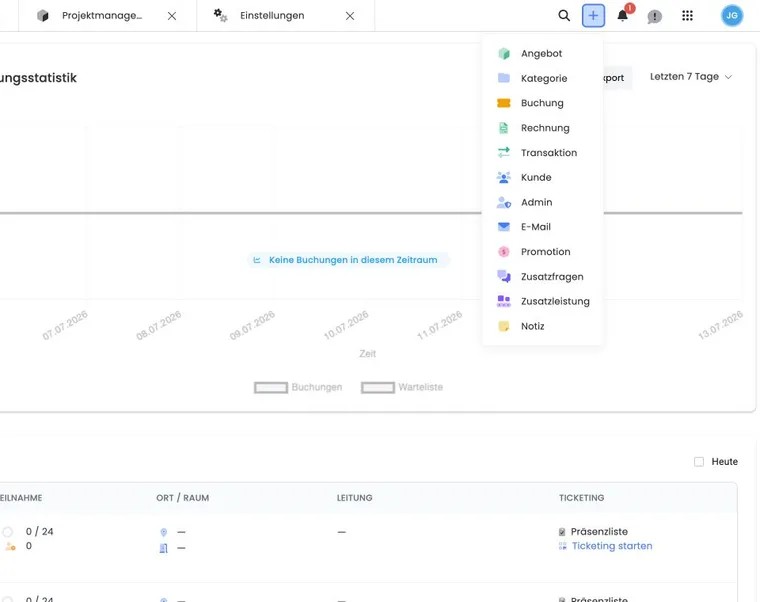
What a resource is
Such a link leads to an existing record. Its name, type, icon, colour and additional details help you identify the right destination before opening its detail view.
This allows edoobox, for example, to use the same display in a note regardless of whether the note is attached to a booking, offer or person.
The distinction matters: a resource link does not save the object’s content again. If the target object is later deleted, archived or inaccessible to an admin, the link may appear restricted.
Which information is displayed
Resources may show different details depending on the object:
User: name, status, email, telephone or a link to the user profile.
Booking: booking number, offer, customer or participant count.
Offer: offer name, status, category, appointments or participant counts.
Admin: name, email and admin role.
Category: category name and target route.
Invoice or task: depending on context, number, status, due date and link to a booking or offer.
If a linked resource is deleted, archived or inaccessible to the current admin, a badge may seem incomplete or fail to lead to the expected details view. Check permissions, the archive/recycle bin and whether the target object still exists.
Where links are visible
Resources appear in notes, tasks, email selection fields, headers, side windows and tables. In manual email sending, for example, admins, offers and users may appear as consistent recipient chips. Not every resource type is available in every selection; some fields deliberately permit only substantively appropriate objects.
When you click a resource badge, edoobox often takes you to the appropriate details view, such as the user profile, booking details or offer details.
Use links correctly
Link notices and tasks to the object where other admins would look later. An invoice query often belongs with the person and booking; a room allocation notice is more suited to an offer or category.
If several resources are affected, attach the note to all relevant objects. The relationship then remains visible in different views.
For tasks, linking is particularly helpful when several teams work on the same offer. A task linked to an offer remains clear in the pending list even if its title is brief.
Distinguish resources from files and the Secure File Manager
Resources are object references. Files, downloads, offer files and protected documents are managed separately. For files, read Internal and external documents and files and Secure File Manager.
A note can therefore be attached to a booking while a file is maintained as a separate document elsewhere.
Example: A note with several resources
A participant asks about rebooking. Administration creates a note and links it to the user profile, original booking and destination offer. The same information can later be found in all three contexts.
Track a query against the correct object
- Open the note, task or execution containing the affected link.
- Read the resource type and displayed number or name.
- Open the linked details view and compare the person, offer or booking with your case.
- Make the substantive change in the correct object and then return to the original process.
A side window’s title identifies the object open. In a subscription definition, you edit the plan; for a personal assignment, switch to the affected person. If access is missing, have permissions checked before changing a similar object as a substitute.
Open subscriptions and plugins in a side window
Subscription definitions and plugins also have their own resource views. A subscription can open with an overview, editing and assignments; the user profile provides access to the area for assigned subscriptions. A plugin link leads to its details.
Use the object context appropriate to the task: the definition describes the product, the assignment in the user profile concerns the personal subscription, and the plugin details view concerns its enablement in the account. When switching between side windows, check the title and context before changing data.