
Set up Mailjet for sending emails
Mailjet is a cloud mailing platform and an alternative to sending through the standard edoobox sender address or a custom SMTP server. Connecting Mailjet allows edoobox emails to be sent and signed through your own domain. This makes your communication more recognisable and may improve deliverability.
Mailjet displays delivery information for sent emails, such as whether a message was delivered, opened or rejected by the receiving server as a bounce. These reports help identify recipient-address, spam-filter or domain-reputation problems faster.
Prerequisites
- You have a Mailjet account or create one with Mailjet.
- You use your own domain, such as
kurse.example.ch. - You can set SPF and DKIM DNS records or ask IT to do so.
- You have access to edoobox email settings.
Check current terms directly with Mailjet. External free allowances and pricing models may change and should be checked before setup.
Create a Mailjet account and copy API keys
The connection uses your Mailjet account's Public Key and Secret Key. In Mailjet, find them under My account, REST API, API Key Management or Primary and Sub-Accounts.
Treat the Secret Key like a password. Enter it only in the designated edoobox setting and do not forward it by email.
Connect Mailjet to edoobox
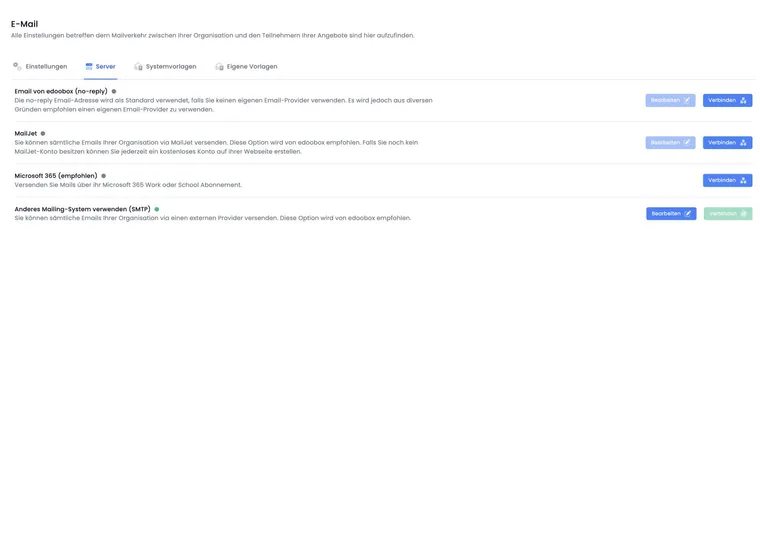
- In edoobox, open Settings, then Email.
- Switch to the Server tab.
- Open the Mailjet section.
- Enter the email address, Public Key and Secret Key from Mailjet.
- Click Connect and then test sending.
To use a traditional SMTP server instead of Mailjet, follow Set up an SMTP email server. For Microsoft 365, use Connect a Microsoft account for email delivery.
Permitted domains in Mailjet
Mailjet suits custom domains. Major free-email providers such as Hotmail, GMX or Outlook are unsuitable as sender domains because you cannot manage their DNS records. Use a domain for which you may configure SPF and DKIM.
Improve reputation and deliverability
With the standard edoobox no-reply address, many organisations share a sender reputation. Mailjet or your own SMTP system lets you build your own domain's reputation. This is particularly important when regularly sending booking confirmations, reminders, invoices or task emails.
Configure the DNS records recommended by Mailjet. SPF tells receiving mail servers that Mailjet may send on your domain's behalf. DKIM signs outgoing emails so receiving servers can verify authenticity.
Which statuses edoobox receives from Mailjet
After successful connection, edoobox automatically configures any missing Mailjet callbacks. These include sent, open, click, bounce, spam, blocked and unsub. This helps interpret sending problems in the outbox.
An open or click status does not reliably prove someone read a message. Mail clients, privacy features and image blockers can prevent or automatically trigger these signals.
Only one organisation sending method is active
Activating Mailjet as the organisation's sending method makes edoobox disable the previously active organisation SMTP or Microsoft connection. Conversely, Mailjet is disabled when another organisation sending method is activated. After every change, check the sender, reply address, scheduled tasks and first outbox entries.
Test after connecting
Send a test email or make a test booking. Check the sender, reply address, delivery, Mailjet status and whether the email avoids spam. Also test a template from Overview of all email templates to see how actual booking messages look.
Use cases
Example: use a custom course domain
An academy wants to send confirmations from kurse@akademie.ch. It creates a Mailjet account, copies the Public Key and Secret Key, saves the domain's DNS records and connects Mailjet in edoobox. It then checks a test booking and verifies delivery in Mailjet.
Example: investigate recurring bounces
After a reminder mailing, several messages appear as bounced. The administrator checks affected recipients in the outbox, compares Mailjet's delivery status and corrects invalid addresses. DNS or reputation problems are handled separately from individual faulty recipient addresses.
Example: switch from SMTP to Mailjet
Before sending for a large course series, the organisation connects Mailjet. Knowing this disables the previous organisation SMTP, it checks SPF and DKIM, sends booking confirmations and invoices to internal test addresses and then checks the sender, reply address and sent and open callbacks.
Check DNS displays and actual messages together
After successful connection, edoobox shows SPF and DKIM details for the sender domain. Compare record names and values with those at your domain provider. Successful API access and successful domain verification are different checks; perform both.
After changing providers, check active dunning levels and subscription renewal reminders as well as booking confirmations and invoices. They use the same organisation sending method but different recipients and templates. Check the outbox and receiving test mailbox. Use the displayed information in your Mailjet account for current DNS requirements. The official Mailjet guide to senders and domains also covers validation and domain verification.
Handle failed setup
Successful API access and an authenticated sender domain are separate steps. For an error, first check the Mailjet account or subaccount owning the keys and its authorised sender address. Then compare the displayed SPF and DKIM entries with your DNS management.
Repeated connection attempts may be temporarily limited. Correct the cause and wait to retry instead of continually sending the same data. First resolve any account block or email-sending warning. Changing providers does not prove the restriction has been lifted.