
Zapier Template: New Invoice
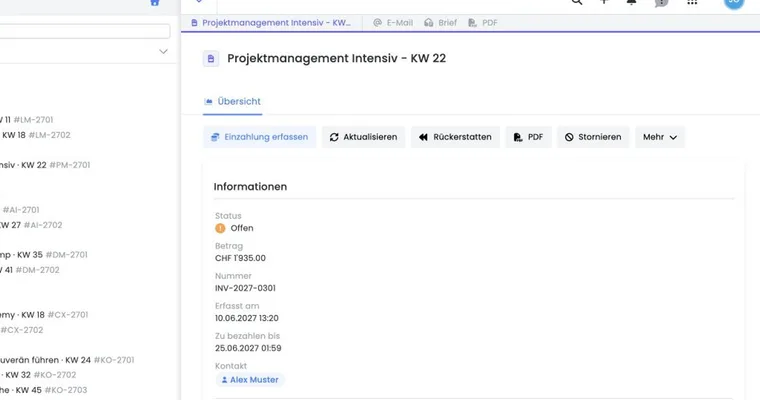
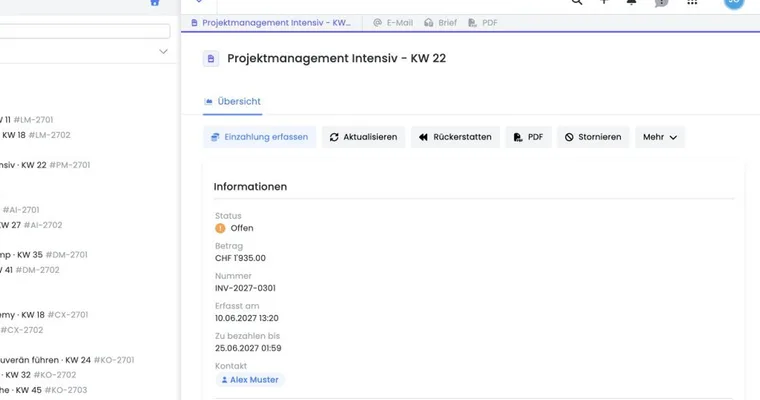
The ‘New Invoice’ Zapier template responds when a new invoice is created in edoobox. Zapier can then, for example, save an invoice PDF or send information to another system.
Use this template only after clarifying which invoice data may be transferred to which service.
Prepare Zapier access securely
Create a dedicated Zapier key in API keys and access permissions. During creation, edoobox offers a prepared Zapier permission group if absent from the account. Check permissions and use separate keys for other integrations.
The secret key is displayed only once after creation. Save it in the intended password or integration store and enter it directly in Zapier. Do not share keys in emails, screenshots or shared spreadsheets.
Define the Zap’s goal
First decide what should happen to the invoice. Typical destinations include Google Drive, an email inbox, spreadsheet or accounting system.
Create a Zap for new invoices
Select the template, connect edoobox and configure the destination system. Map fields so invoice number, recipient, amount and file arrive clearly.
Trigger, data scope and follow-up
New Invoice starts when a new invoice is created. Clearly map invoice number, recipient, amount, currency, status and PDF or download link. Check how filenames, folders and existing records are handled in the destination system.
A New Invoice Zap is not complete payment or cancellation reconciliation. Later payments, corrections and cancellation invoices must be considered separately in the chosen process. Use a unique invoice ID or number so rerunning a Zap does not create unnoticed duplicate documents.
Check with a test invoice
Create a test invoice and check that Zapier transfers the file and data correctly. Open the saved PDF in the destination folder and compare the invoice number, recipient, amount and currency. Also check the storage permissions.
If the workflow requires permanent PDF storage, the action must actually save the file. A spreadsheet cell containing a download link is not a saved invoice; a time-limited link may expire. During testing, check that the stored file can be opened independently of the original download link.
Example: Save an invoice to cloud storage
An organisation wants every new invoice automatically saved in Google Drive. Zapier receives the trigger from edoobox, stores the PDF in the appropriate folder and adds the invoice number to the filename.
Example: Check invoice and cancellation separately
An organisation automatically files new invoices in an accounting folder. It first tests an invoice, then a corrected booking and cancellation invoice. For each document, it checks unique filename, invoice number and destination folder, and ensures the New Invoice Zap is not mistaken for payment reconciliation.
Practical check for invoice Zaps
Test the Zap with an actual test invoice and check which fields reach the destination system. Invoice number, amount, currency, contact, status and booking link should be clearly mapped before live invoices are forwarded automatically.
Check instant or polling in the invoice template
Open the Zap’s first step and read the actual trigger. According to the Zapier app list, New Invoice Created and New Invoice (Polling) are different variants. Polling does not always supply all additional fields. A missing offer name therefore does not automatically indicate a failed PDF download.
- Choose the required variant and connect your dedicated edoobox access.
- Generate a new controlled test invoice.
- Check invoice ID, amount, currency and an actually usable file link.
- Search the destination for the same invoice ID before creation.
- Activate the Zap and compare the first real run in History.
Related guides
Choose native functions before the Zap
For internal tag/data field changes, notes and email/PDF template selection, first check Automations in edoobox. For Bexio accounting, a native Bexio connection provides invoice mode, mappings and payment reconciliation.
If Bexio is connected natively, an additional invoice Zap must not create the same documents in Bexio a second time. Before activation, define which process owns the document and which reference prevents duplicates.
Prepared Zapier permissions include read access to subscription definitions, periods, redemptions and user subscriptions. This does not mean the installed Zapier app offers a trigger or write action for every such record. Check actual selection and test record in the Zapier editor.