
FAQ
This FAQ briefly answers common questions about edoobox V2 and links directly to the detailed guide. Always follow the linked detail page for a complete workflow.
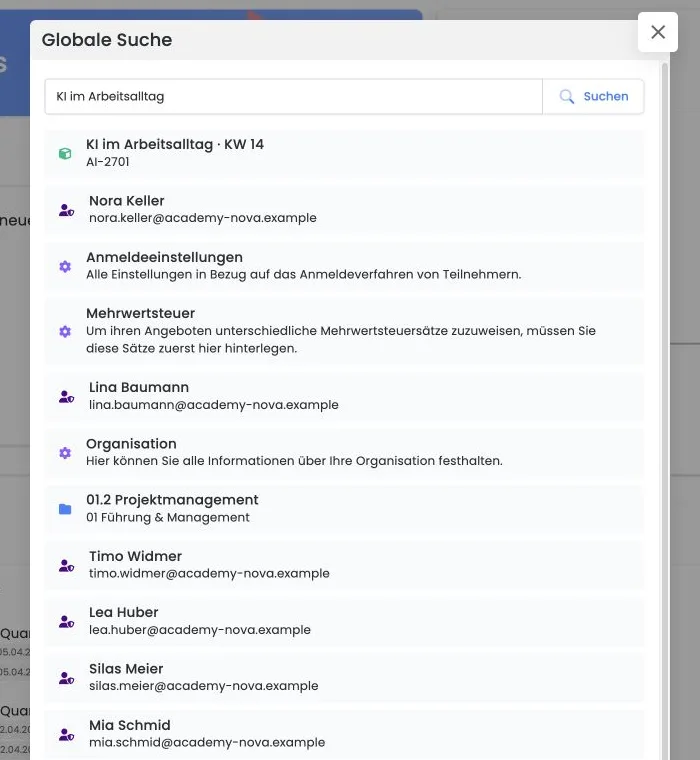
For a specific person, booking or offer, use the global search. Search for an invoice number in the invoice overview. For a general question, use the search at the top of this documentation.
Frequently asked questions
How can I quickly find a person, booking, invoice or offer?
For people, bookings and offers, open the global search in edoobox and enter a distinctive detail. Invoices do not appear as separate global search results; use the invoice overview for them. Use table filters for column and status filtering within a table.
How do I check whether an email was sent?
Open the outbox and search by recipient, subject or period. Check the status, sending method and any error message. An open or click reported by the provider is a technical signal, not reliable proof that the person read the entire message.
Can I check admission using a smartphone?
Yes. Use the edoobox Entry App or the described ticket admission scan. Test the device, login, camera, ticket format and offline/network situation before the event day.
Which API should I use for a new integration?
Plan new integrations with the current edoobox API and create a separate key with the minimum necessary permissions. Getting started, secret handling and tests are described in API: getting started. Existing older integrations should be inventoried before changes and migrated deliberately.
Why should I enable two-factor authentication?
A second factor provides additional protection for admin access if a password becomes known. Combine it with individual accounts, appropriate permissions and an organised recovery process. Details are in Admin authentication, 2FA and SSO.
Which plan limits apply to my account?
Rely on the current display under edoobox subscriptions. It compares “current status” and “included in subscription”. Fixed numbers from old guides or agreements may differ from your current plan.
Why can I not switch to a smaller subscription?
The change is blocked if a current numeric limit is exceeded or an active feature is missing from the target plan. In the subscription manager, open Show details, address the stated reasons carefully and test affected processes before trying again.
Can I open several resources at the same time?
Depending on the setting, customer profiles and bookings open as workspace tabs or popovers. Check the Open resources option under Settings → System. Use the links between profile, booking and invoice for comparisons; the guide to dialogs and side panels explains how to use them.
Is edoobox alone sufficient for FADP or GDPR compliance?
No. edoobox provides agreements and features for privacy-conscious processes; your organisation remains responsible for purposes, legal bases, data minimisation, legal texts, retention and connected systems. Use the checklist under Data protection with edoobox and seek specialist advice if required.
What should I tell support about an error?
Specify the account, affected workspace, expected and actual result, time and reproducible steps. If possible, start feedback from the affected view. Do not transmit passwords, complete card details or unnecessary personal data.
How can a new team learn edoobox most quickly?
Set up a trial account with a realistic demonstration offer, assign roles and perform a complete test booking. A personal online introduction is useful for decisions spanning several areas.
From the symptom to the appropriate guide
First search for the affected object or visible error message.
Check the detailed guide for the entire process, not just the individual button.
Test with demonstration data and document the result.
Create a support report if the error remains reproducible.
Use cases
Example: investigate a missing confirmation
A participant reports a missing confirmation. The admin finds her booking through the global search, opens the outbox and checks the recipient address, status, sending method and error message. After correction, the intended message is triggered again and the result checked.
Example: compare three related resources
The accounting team searches for an invoice number in the invoice overview, opens the invoice and follows its links to the associated booking and participant profile. It compares the amount, booking status and contact details, making changes in the relevant detail view.
Example: report a support case reproducibly
A status change fails for a specific offer. The admin repeats the workflow with demonstration data, notes the time and steps and immediately creates a support report. Personal data is removed before additional screenshots are taken.
Questions about subscriptions, plugins and templates
Is the edoobox account subscription the same as a membership?
The account subscription is your edoobox software plan. A plugin adds an account feature. A participant subscription is your customers' membership or pass. Start with Participant subscriptions or the Plugin Manager.
How do I restrict a price to people with a subscription?
Select the required memberships in the price category. Eligibility for a price and a discount are separate rules; a pass can grant access even without a discount. Price categories also explains your edoobox plan's limit on the number of prices.
Why can I not see the Plugin Manager?
Check your settings permissions and whether your account has been enabled. Visibility of the manager alone does not activate a paid extension.
Which email templates and placeholders are available?
The template overview and placeholder reference contain the verified contexts and variants. IF and EACH control conditions and repetitions; use the examples in the appropriate data context.
Can I use a passkey as a second factor?
Yes. Set up two-factor authentication and passkeys describes registration, device names and device management.