
Save table views and column configuration
Many modern edoobox tables can remember your personal display settings. Depending on the table, these include visible columns, column order, widths, and rows per page. The configuration belongs to the currently logged-in admin and the respective table type.
The column configuration applies personally to your admin login. Filters and sorting are not saved with it. Check active filters and sorting separately before every export or bulk action.
What edoobox actually saves
| Setting | Saved? | Note |
|---|---|---|
| Visible columns | Yes | Select through “Columns” and apply with “Okay”. |
| Column order | Yes | By moving column headings in supported tables. |
| Column width | Yes | Saved automatically after widening or narrowing. |
| Rows per page | Yes | Supported values in normal operation are 10, 25, 50, 100, and 250. |
| Filter | No, not in the column configuration | Filters are held in the current view or URL and remain separately reviewable. |
| Sorting | No, not as personal column configuration | Current single or multiple sorting serves the task at hand. |
| Several named views | No | One personal configuration is maintained per admin and table type. |
Select and arrange columns
Open the Columns menu in a supported table.
Enable or disable the intended columns. Select all toggles all freely selectable columns together.
A small filter icon marks columns that can be used as filter fields.
Select Okay to apply the selection. Cancel discards only the selection not yet applied.
Then reorder columns using their headings and adjust widths if needed.
Select the intended page size at the bottom of the table.
Structurally necessary columns, such as the selection column, may have a fixed position, visibility, or width. These columns intentionally cannot be changed like normal data columns.
Personal configuration rather than a team preset
The saved display belongs to the admin. Two employees opening the same booking table may see different columns, orders, and page sizes. A change does not automatically overwrite other admins’ views.
For a shared working standard, document the required columns and filters, for example in an internal checklist. Do not share admin logins just to obtain the same table view.
Check filters and sorting separately
Active filters appear above the table as filter chips and are often held in the current view’s URL parameters. Remove individual chips or reset filters before starting a new task.
Sorting is also a temporary working setting. Especially with multiple sorting, check the markers on column headings. A saved column selection does not prove that filters or sorting are still correct for the next export.
Reset columns to their defaults
Select Reset columns in the column menu and confirm the dialog. This removes the custom column configuration and restores the default structure provided by edoobox.
The action affects columns. Other personal table values, such as a separately saved page size, may remain. Check these after resetting as well.
Prepare exports and bulk actions safely
Check active filter chips and date range.
Check sorting and visible columns.
For a selection action, note the “Selected: X/Y” display.
Check the export format and fields actually exported in a small file.
Only then create a complete file or run a bulk action.
Use case: A compact view for course support
A support employee displays booking number, offer, customer, status, and outstanding balance, removes columns not needed for the task, and sets 50 rows per page. This configuration appears again the next time they open the table without changing the accounting team’s view.
Use case: Accounting with its own column standard
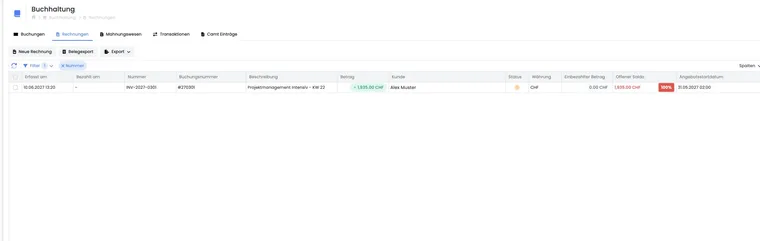
In the invoice table, the accounting team places number, date, customer, amount, currency, and status side by side. It resets the date range filter before each month-end close. Columns remain saved, while the date range is deliberately checked every time.
Use case: Find a missing column
An admin can no longer see the “Outstanding balance” column. They first check the “Columns” menu and enable it again. If the configuration has become confusing, they use “Reset columns” and rebuild their personal selection from the default.
Display and interpret the footer
In a supported table, open Columns and enable or disable Show footer. Apply the setting with Okay. Visibility is saved with your personal table configuration.
Depending on the column, the footer shows a count, sum, or ratio. Monetary amounts are separated by currency. On-screen values refer to the table’s currently loaded rows, meaning the loaded portion in paginated lists. They are not an automatic total for all matching results. If an export includes such a footer, its values are calculated from the exported records. Not every export format includes a footer.
A saved page size only increases the loaded portion. It does not select all filtered results. For a multi-page export, use the selection counter and complete partial exports.