
Sofort Überweisung (Klarna)
This page supports organisations needing to check, continue operating or orderly replace an existing Sofort/Klarna connection. For new online payments, use a currently available solution from Payment systems for participant payments.
Why the area is visible or invisible
Current V2 hides Sofort/Klarna entirely if neither the payment method is active nor a key is saved. If the area is missing in a new account, this is expected behaviour, not a display error.
When present, the area contains exactly two essential settings: Klarna Sofort key and Use payment system. Without a saved key, the activation switch remains locked.
Check the existing configuration
Open Settings → Payment systems → Sofort (Klarna).
Check whether the saved key belongs to the provider project that remains valid.
Only change the key if the provider has explicitly supplied a new value for this existing contract.
Check the activation status and make an internal test booking.
Compare the edoobox transaction, provider transaction ID, booking status and return flow.
Interpret payment status and abandonment
Redirection to the provider is not yet a confirmed payment. Assess the process using the provider status and the transaction created in edoobox. If abandoned, the booking must not count as paid solely because of the return page.
This is particularly important with MustPay and countdown: test a successful return, deliberate abandonment and missing confirmation before continuing to use an existing offer.
Refunds and support limits
The generic V2 refund feature currently supports Stripe, Worldline/Saferpay and PayPal V2. Sofort/Klarna is not on this list. Therefore, process a provider refund in the existing provider project and document it against the booking, transaction and invoice correction.
For provider-side rejections, have the transaction ID, time, amount, currency and booking number ready. edoobox can explain the local booking status but cannot lift a block or contractual decision in the Klarna account.
Replace a legacy integration
Identify every offer still displaying Sofort/Klarna.
Choose a replacement solution, for example Stripe, PayPal Connect, Worldline or Invoice.
Test the new route, including abandonment and refunds.
Enable the new payment method under Payment systems and check its selection in Design Manager and in the booking process for all affected offers.
Only then disable Sofort/Klarna, retaining old transactions as evidence.
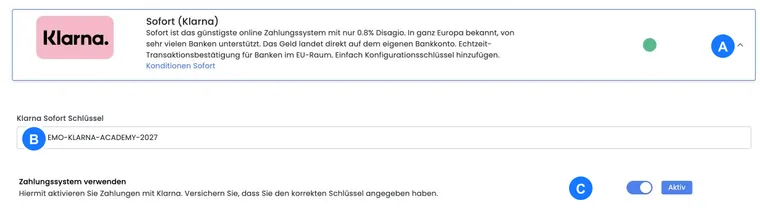
Example: An existing Sofort payment is checked
A longstanding account still sees the area. The team checks the key and activation status, makes an internal payment and compares the provider ID, booking and return flow. The payment method remains active in the ongoing offer only after this end-to-end test.
Example: The area is missing in a new account
A new organisation cannot find Sofort/Klarna in payment systems. Instead of recreating old screenshots, it chooses a currently visible payment method, configures it according to its guide and tests it with its target market.
Example: An orderly switch to Stripe
An existing Sofort workflow is to be ended. The organisation connects Stripe V3, tests payment, abandonment and refunds, and then replaces the payment method in all offers. Outstanding Sofort transactions remain documented separately until completion.
Check the current connection and payment purpose
Display requires an existing activation or saved key. The environment may additionally hide the feature. Creating a new offer therefore does not fix a missing area. To replace it, first check a current payment method visible in the account and conclude outstanding legacy payments through their original payment route.