
Global search in edoobox
The global search takes you directly from almost any admin view to a supported record or settings section. It is particularly useful when you have a name, email address, offer number or booking number but do not know the menu path.
The search is not a full-text archive of all edoobox data. It deliberately searches predefined resource types and fields. Use the designated overviews and filters for invoices, payments, emails or voucher codes.
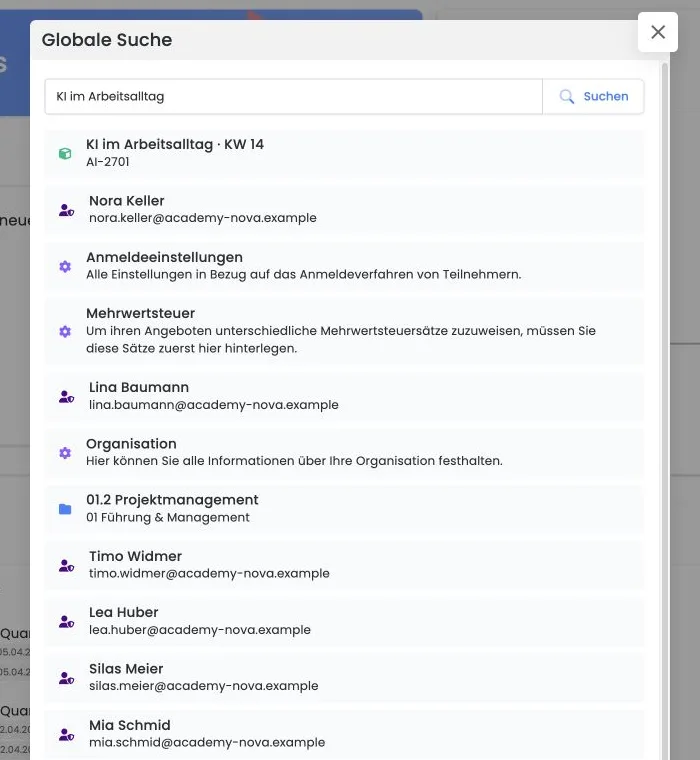
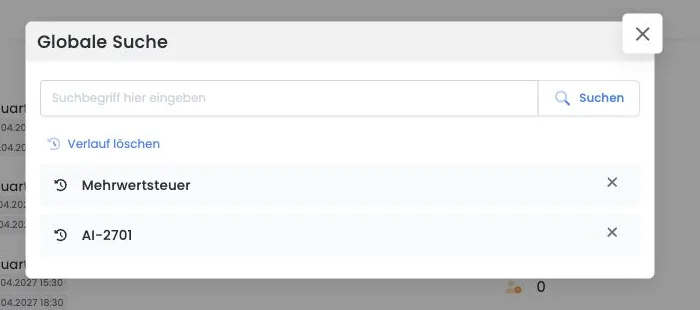
Open the global search and a result
Click the magnifying glass icon at the top right or press Alt+K.
Enter at least two meaningful characters. The input field automatically receives focus when opened.
Wait briefly until the search icon finishes loading and results appear.
Check the result's icon, name and subtitle. The subtitle helps distinguish two people or offers with the same name, for example.
Open the matching result. The search window closes and edoobox takes you to the resource or setting.
Which data the global search actually finds
| Result type | Information searched | Typical destination |
|---|---|---|
| Participants | First name, surname and email address | Participant profile |
| Admins | First name, surname and email address | Admin profile |
| Offers and categories | Name; for offers, also the offer number | Offer or category overview |
| Bookings | Booking number | Booking dashboard |
| Settings | Predefined labels for the saved settings sections | Appropriate settings section |
Directly searchable settings include API access, offers, registration settings, automatic deletion, barcodes, email, formats, legal texts, Google & E-Commerce, VAT, organisation, attendance lists, permissions, group registration, languages, participant data fields and payment systems.
What is not searched directly
The global search does not return separate results for invoices, payment references, transactions, email messages, promotion or voucher codes, sessions, rooms or document contents.
Open an invoice through the invoice overview, a found booking or a participant profile.
Search for a payment or reference in the transaction or payment reconciliation views.
Search for a sent message in the outbox.
Check a voucher or promotion code in the promotion and voucher views.
Use Create/edit invoices and cancellation invoices, Participant transactions, Outbox or Promotion campaigns.
Understand search behaviour and ordering
After input, edoobox waits approximately one second before executing the new search query. This avoids starting a query immediately after every keystroke.
The displayed results are then sorted by similarity. Minor spelling variations may work; an exact email, offer or booking identifier remains more reliable.
For bookings, the booking number is the intended search value. A participant name, offer name or invoice number is not a reliable substitute.
Do not immediately repeat the same input while the loading indicator is visible. The four data areas are updated in the background and the result list responds accordingly.
Consider the active account and admin permissions
Records are searched in the context of the currently active edoobox account. If you work with several accounts, first switch to the correct one and start the search there again. See Multi-Sessions in edoobox for information.
Data queries only return information permitted by the current account and relevant permissions. For predefined settings terms, a result may be visible even though opening it is prohibited due to missing admin permissions. Do not change permissions merely to make a single result accessible; review the required role under Admins and their user permissions.
Manage search history in this browser
After a search, edoobox saves the entered term for the current admin in the local browser cache. If you later open the search window with no results, the most recent terms appear in reverse order.
Click a history entry to run the same search again.
Use the close icon to remove just that term.
Clear history removes all saved search terms for this admin in the current browser.
Shared workstation: The history contains search terms such as names or email addresses. Clear it after sensitive support cases if several people use the same browser.
Open results
A search result closes the search window and opens the resource or setting. For supported person, booking and invoice views, the display depends on your personal Open resources setting: Tabs or Popover.
In an already open resource popover, supported linked resources open another window. Use Back or Close to return to the previous context. Settings open as a settings page. Operation is described in Open resources as tabs or popovers.
If no matching result appears
Use at least two characters and, where possible, the field intended for the resource.
Wait for the loading indicator and check spelling.
For bookings, use the booking number instead of an invoice number or person's name.
Check the active account and admin permissions.
For unsupported data types, open the appropriate overview and use table filters there.
Example: trace a support case using an email address
A customer reports that her invoice has not arrived. The administrator opens the global search with Alt+K, searches for the full email address and opens the participant profile. From there, they go to the affected booking and invoice. Only then do they check the same address in the outbox, since invoices and sent messages are not direct global search results.
Example: match a payment using a booking number
A bank statement shows booking number 48217. The administrator searches for exactly 48217 and opens the booking dashboard. There, they compare the invoice, outstanding amounts and transactions. They would instead search for a bank reference or invoice number in payment reconciliation or the invoice overview.
Example: open a setting without searching menus
An admin needs to check a VAT rate. They open the global search, enter “VAT” and go directly to the settings section. After checking, they remove the term from history. If access is missing, they ask the responsible person to review role permissions.
Search for enabled extensions
Plugins and Plugin Manager are also searchable settings terms if the section is enabled for your account. The Automations result additionally requires the automation plugin to be active. A search term does not enable a missing feature or permission.