
Your edoobox subscription: create an invoice
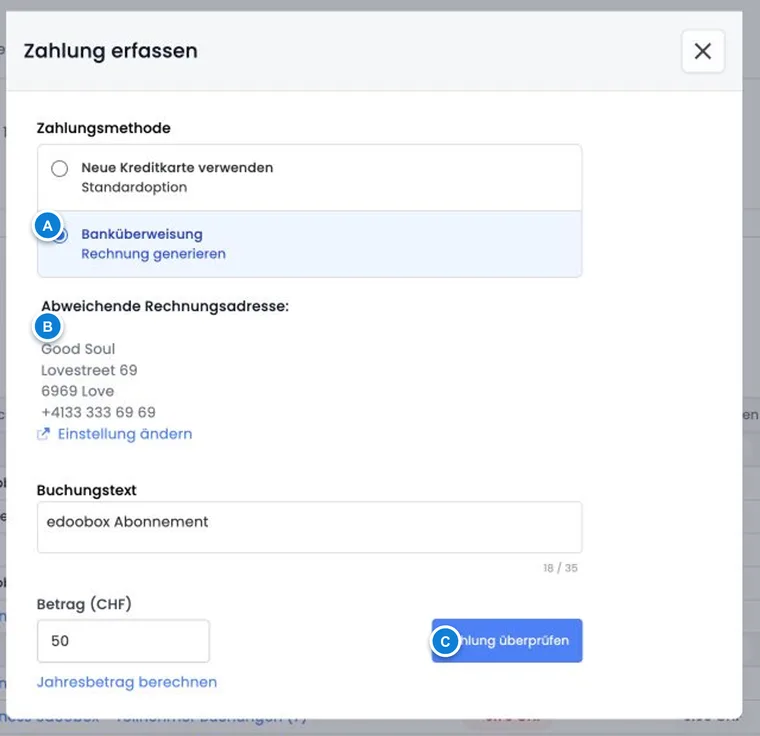
In the account section, record payments to edoobox, settle an outstanding account balance or build credit for future subscription fees. You can pay immediately by credit card or generate a PDF invoice for a bank transfer.
This billing is entirely separate from your participants' payments. Configure booking payment methods under Payment systems for participant payments.
Distinguish bank transfers from credit cards
| Payment method | What happens when confirming | Check afterwards |
|---|---|---|
| Bank transfer | edoobox generates a PDF invoice. No immediate payment takes place yet. | Billing address, amount, payment details and subsequent posting in the account journal. |
| Saved credit card | The selected masked card is charged after the confirmation dialog. | Success message, account balance and card used. |
| New credit card | The new card is used for this payment and saved if requested. | Success message and, if saved, default and backup roles. |
Sofort/Klarna payment, previously offered, can no longer be selected for subscription payments in the current V2 payment form.
Record a payment
Open Billing and check the current account balance.
Click Record payment.
Choose bank transfer, a saved card or a new credit card.
Enter a short transaction description and the amount in the displayed account currency.
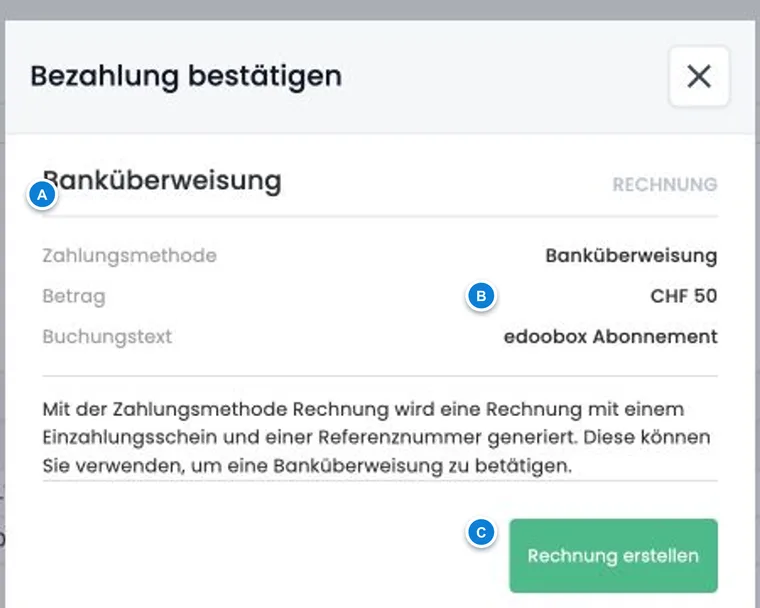
Click Review payment and check the method, amount and transaction description in the confirmation dialog.
Create the invoice or perform the card payment.
edoobox remembers the last payment method used per admin. Nevertheless, check it again for each new payment, particularly if several company cards are saved.
Choose a suitable amount and transaction description
The transaction description is limited to 35 characters and defaults to “edoobox subscription”. Use a short description understandable to your accounts department. The minimum amount in the current interface is 5.00 in the account currency.
If the account balance is below -5, edoobox suggests the absolute outstanding amount. Calculate annual amount lets you copy the annual value calculated from the current subscription into the amount field. Check the suggestion again after a plan change.
The annual suggestion is the current monthly plan price multiplied by twelve. It helps with prepayment and does not promise a different contract term or discount. Also account for usage-based charges, such as Business bookings or paid services, using your plan and account journal.
Create a PDF invoice for bank transfer
For a bank transfer, the confirmation dialog shows the payment method, amount and transaction description. After Create invoice, edoobox requests a PDF invoice and downloads it.
Use only the payment details and reference from this document. Do not create and pay the same invoice more than once. After transferring, check Account: billing and account journal to ensure the amount was assigned to the correct account.
If an alternative billing address is active, edoobox displays it in the payment form. An incomplete or invalid active billing address also blocks card payment in this form; first correct it in account settings.
Pay directly by credit card
For a saved card, the confirmation dialog shows the last digits. For a new card, you can decide whether to save it. A declined payment produces an error message and is not considered completed.
After successful payment, check the updated account balance. Full card details are not shown in the edoobox interface; saved cards appear masked with their brand, expiry date and status.
Define automatic billing and recipients
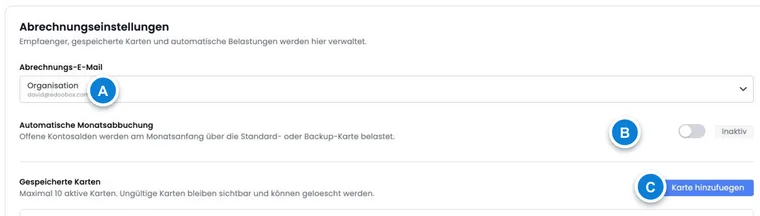
In billing settings, choose who receives billing emails:
the email address saved for the organisation,
an active and valid alternative billing address, or
an active admin.
With Automatic debit, you allow due subscription amounts to be charged to a usable card according to the billing process. Use a monitored company address as recipient and check failed payments regularly.
Automatic top-up with the Business subscription
Business subscriptions also display the top-up setting. Define a threshold and top-up amount. If the balance falls below the threshold, edoobox can add the specified amount using the saved payment logic.
The threshold should provide enough buffer before expected booking peaks. The top-up amount must be large enough to avoid repeated small charges without exceeding your internal card limits.
Manage default and backup cards
Up to ten actively usable cards can be saved. A usable card can serve as the default card. Once at least two usable cards are available, you can choose another card as default and mark a non-default card as backup.
The current default card cannot be removed directly. First set another usable card as default. Replace expired cards or cards marked invalid before the next automatic charge is due.
Change plans and pay in the correct order
If you want to change the subscription and then add credit or create an invoice, first make the change under edoobox subscriptions. After a successful change, edoobox displays a receipt and reloads the subscription status. Only then use the updated amount for payment.
Use cases
Example: prepare an annual amount for bank transfer
An organisation wants to prepay its fixed-price subscription. Accounting opens “Record payment”, selects bank transfer and applies the calculated annual amount. After checking the address, amount and transaction description, it generates exactly one PDF invoice and uses its payment details for the transfer.
Example: automatic debit with a backup
A provider saves two valid company cards and a monitored accounting address. Card A becomes default and card B backup. The superadmin then enables automatic debit. Before card A expires, card B is made the new default; only then is the old card removed.
Example: Business top-up for a booking peak
Before launching a large course programme, the team expects many usage-based charges. It enables Business top-up, sets a sufficiently early threshold and a suitable top-up amount. During launch week, accounting checks the account journal, card payments and billing emails.
Distinguish account subscriptions from participant subscriptions
Your edoobox account subscription defines your organization's software package. Configure subscriptions sold to your customers in the Subscription Manager for participant subscriptions. A company card for edoobox account costs does not thereby become your participants' payment source.
The separate tasks are described under Company card, monthly debit and Business top-up and Pause or delete an account.