
Edit email templates: Rechnung.pdf
Rechnung.pdf is the PDF system template for invoices. It controls the appearance of the generated invoice document, not the accompanying invoice email’s text. In edoobox V2, find both together under Settings → Email → Templates → Payment & Invoices → Invoice email.
A good template immediately makes it clear to the recipient who the invoice recipient is, what the amount is for, which payments have already been taken into account, and what balance remains open. Changes should therefore always be evaluated with realistic test invoices and not just in the editor.
Responsibility for invoice details: edoobox provides placeholders and design options. Which mandatory details, tax texts, and retention rules apply to your organization must be determined by your accounting department or professional advisory service.
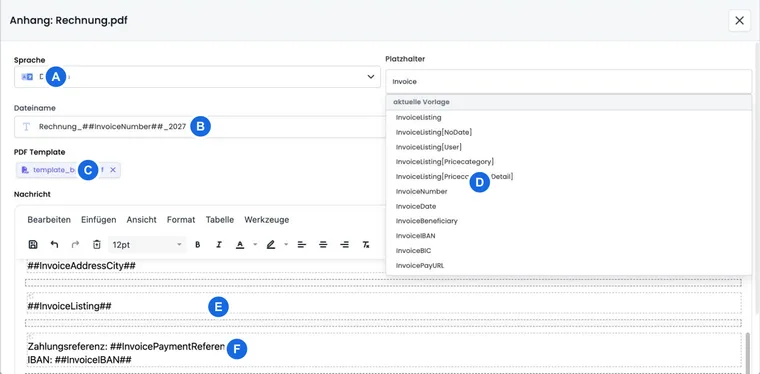
Open template and select the correct language
Open the composite template Invoice email in the template tree.
Select Attachment: Rechnung.pdf. The system template name is fixed; you can change the output file name.
First, select the language you want to edit. Each active language variant must be checked separately.
Save small changes step by step and generate a real PDF via Preview.
Via Reset to edoobox Standard, you can restore the content of the system template. Before confirming, check whether you still need your own texts or layout adjustments.
What you can control in Rechnung.pdf
Text and placeholders: Invoice number, recipient, invoice date, payment terms, items, VAT, payments, and balance.
File name: The attachment can be given a meaningful name per language.
Header and footer: Recurring details such as organization, address, or page notes can be placed in PDF areas.
Background PDF: A PDF template can be stored per PDF template, for example, letterhead. Further basics are available under Custom PDF attachments and templates.
Custom PDF-CSS: The PDF-CSS accessible in the editor is an account setting and can therefore also affect other PDF templates. Always check changes across multiple PDF types.
Output the correct invoice recipient
Use the invoice address placeholders of the template for the address block. If a different address is active, they come from the booking; without an active address, the corresponding participant data is used. A simple block is:
##InvoiceAddressCompany##<br>
##InvoiceAddressName##<br>
##InvoiceAddressStreet##<br>
##InvoiceAddressCity##<br>
##InvoiceAddressCountry##
Check the result with and without a company name as well as with an active different address. InvoiceAddressName is the common name value of the invoice address. A required title can be entered there as part of the full name format. Personal salutation placeholders of the participating person do not form a separate salutation for a different invoice recipient. The process Name, title, salutation, and paying person explains the separation and the appropriate neutral greeting in the invoice email.
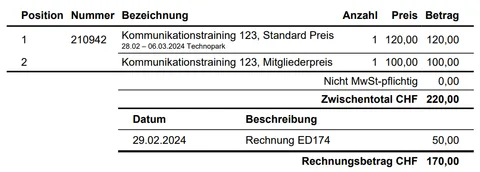
Output invoice items with InvoiceListing
##InvoiceListing## generates the actual item list. The attributes in square brackets change which details appear in it. You can combine multiple attributes comma-separated, for example ##InvoiceListing[User,Pricecategory]##.
| Placeholder | Effect | Typical use case |
|---|---|---|
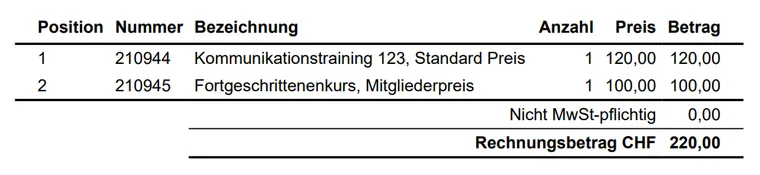
##InvoiceListing## | Standard list with bookings, services, prices, payments, and balance. | Simple single booking. |
##InvoiceListing[NoDate]## | Hides the additional date and offer details in booking items. | Compact invoice when dates are communicated separately. |
##InvoiceListing[User]## | Adds the names of the assigned participants. | Group bookings or company invoices. |
##InvoiceListing[Pricecategory]## | Shows the used Price category additionally in the first item. | Adults, learners, members, or other rate groups. |
##InvoiceListing[PricecategoryDetail]## | Adds the offer name for additional price categories and makes mixed items more distinct. | Multiple offers or rates on the same invoice. |
Two more attributes are supported by the current invoice logic but do not appear in every placeholder selection: TextInvoiceBalance clearly separates the labels Invoice amount and Invoice balance for considered payments; TaxLabelShort uses the short label VAT instead of the detailed tax label. Use such extended combinations only after a PDF check, for example ##InvoiceListing[User,Pricecategory,TextInvoiceBalance]##.
Distinguish between 0 %, “No VAT”, and tax exemption
Check the tax assignment of the service first if an unwanted zero tax line appears. The display in InvoiceListing follows the stored booking and transaction data:
| Configuration | Display and limit |
|---|---|
| An assigned tax rate with 0 % | Remains a tax assignment. The item list can output a VAT column and a tax summary with an amount of 0. |
| No VAT in the offer | Is a different technical assignment. The summary can output Not subject to VAT; this line can also contain an amount of 0. For mixed items, the other tax assignments determine the additional VAT column. |
| An approved note regarding tax exemption | Maintained as additional text. The tax classification and service data must be consistent with it. The text changes neither the tax calculation nor an e-invoice’s structured tax category. |
No dedicated hiding option: The InvoiceListing attributes above cannot remove an individual zero-tax line or rename a tax group «tax-exempt». TaxLabelShort only shortens the tax label; the tax amount and tax line remain. Generated lines cannot be edited in the template editor like text you wrote yourself.
- Ask your accounting team to determine which tax assignment and notice apply to the specific service. Under Settings → VAT, you can create a genuinely required 0-percent rate.
- Open the offer and check VAT in its settings: choose the intended rate or No VAT. Check additional services and free-form transactions separately, as they may have their own tax assignments. Choose the assignment according to the applicable accounting requirements.
- If an explanatory exemption note is necessary, add the agreed wording in Rechnung.pdf. For certain offers, the following offer-specific tax note is suitable. Maintain the dynamic item and payment display.
- Check a new invoice with a single service and a mixed case. Compare tax assignment, tax amount, total and notice. A global tax rate or template change does not automatically correct existing bookings and documents; use the designated correction process.
- For an e-invoice, additionally check the actually generated structured tax details and the acceptance protocol. If the recipient requires a specific tax category or exemption reason, clarify the supported output path. A visually adjusted PDF does not confirm these data.
Example: Zero amount in the tax summary
An offer uses a configured 0-percent rate. The invoice shows a tax amount of 0. The team checks the approved tax assignment and adds the confirmed notice if needed. They do not expect TaxLabelShort to hide a tax line and also check the tax data for an electronic output.
Header, footer, and background PDF
The editor can insert the PDF areas <htmlpageheader name="template_header"> and <htmlpagefooter name="template_footer">. Place only content in them that should be repeated on the intended pages. You can only recognize whether an element appears correctly on every page, only in the available page area, or together with a background in the generated PDF.
A background PDF is suitable for letterhead, lines, or static design. Leave enough free space for dynamic content. Do not use confidential information in the background, because the same template is used for many invoices.
Reliably insert logo in Rechnung.pdf
- Open Attachment: Rechnung.pdf in the required language. Place the cursor where you want the image, for example in the header.
- Select the Image function in the editor or Insert → Image. Use a permanently accessible image address. If a File Manager is offered in your interface, you can select the intended logo there.
- When using your own image address, enter a complete HTTPS address, for example
https://example.org/assets/logo.png. Replace the example address with your actual image file. A website with a logo, a local file path, or a download link valid only for a short time is not a suitable permanent image source. - Set the description and appropriate image dimensions. Maintain the aspect ratio and leave enough space for the invoice address and dynamic items.
- Save and check the generated PDF with a short and a multi-page invoice. Check image sharpness, position, and page breaks as well as each language used.
Logo missing after insertion: Use the image function again and check the image address. When inserting copied formatted content, the editor removes image tags; therefore, do not simply copy the logo from Word or an email. An image that is only accessible after login or via an expiring share link is also not suitable as a reliable template source.
For a fully designed letterhead, you can instead use a Background PDF. Then place the logo once in the background and check the invoice content output over it.
Output a note only for certain offers
If your accounting team has approved a special notice for certain offers, control its display through an offer tag. First configure the applicable VAT. Text or a tag does not change any tax rate, tax amount or structured tax category.
- For example, create the tag Steuerhinweis and link it to the relevant offers.
- Open Rechnung.pdf in the correct language. Add a short IF block with the approved wording.
- Check real invoices of a marked and an unmarked offer. Compare the note and the independently calculated tax values.
{IF?OfferTags IN Steuerhinweis}<p>Insert the notice approved by your accounting team for this service here.</p>{ENDIF}Replace the example text with your agreed wording before use. Write the complete IF-block in one line; the IF instruction explains tag checking and syntax.
Check combined invoices carefully: An invoice’s offer context comes from the first relevant booking item and does not automatically represent the tags of every invoice item. A notice covering the entire document is therefore not a reliable statement about individual items in mixed offers or subscription and free-form transactions. Use a process agreed with accounting and check every tax item. The e-invoice must contain the applicable information in its structured data.
Test with realistic invoices
Generate at least one single booking, one group booking, and one invoice with multiple price categories or additional services.
Check an open, a partially paid, and – if used – a credited or canceled case.
Check long names, multi-page item lists, page breaks, and header and footer.
Compare the invoice amount, payments, VAT, and open balance with the invoice in edoobox.
Send a test email and check its file name, PDF attachment and entry in the outbox.
Practical example: An individual booking with a clear standard invoice
A language school issues an invoice per booking. It uses ##InvoiceListing##, adds the invoice number, payment terms, and bank details, and checks the output with an open and a paid test invoice.
Practical example: A company invoice for several participants
A company registers five employees with two price categories. The template uses ##InvoiceListing[User,PricecategoryDetail]##. This allows the accounting department to assign each item to a person and the correct rate.
Practical example: Partial payment on branded letterhead
An organizer stores a background PDF and combines TextInvoiceBalance with the item list. In the test invoice, the original invoice amount, booked partial payment, and remaining invoice balance are clearly separated. Subsequently, Booking.pdf and Stornorechnung.pdf are also checked because the PDF-CSS applies account-wide.
Also consider invoices for participant subscriptions
An invoice may now concern a subscription or renewal period. Such an invoice does not necessarily have a normal course, its instructor or its dates. Build the invoice’s core using invoice number, billing address, InvoiceListing and payment terms. Do not base a heading exclusively on OfferName.
In addition to course invoices, check an initial period and a renewal of a paid subscription. Compare line item, validity period, tax, amount, payment and balance. A subscription payment link belongs in the subscription renewal reminder; the general invoice link remains InvoicePayURL.
Review format changes for all PDF types
Paper format, PDF version, custom CSS code, and edit protection affect the PDF generation of your account. The example for custom CSS classes shows targeted formatting. After changes, check multi-page invoices and cancellation invoices as well as the other actively sent PDF types. Custom PDF templates do not replace the system template Rechnung.pdf.
Check prerequisites and saved status
You need access to the global email templates and the corresponding enabled template feature. Edit Attachment: Rechnung.pdf in the correct language. The PDF preview first saves the current HTML content, so using it already changes the template in use.
For an invoice email, change the email component separately. For an invoice with a missing offer reference, use invoice data as the core. An additional custom participant PDF template cannot replace the invoice template via a participant document automation.