
Multi-offer / Congress module
A multi-offer combines several sub-offers in one booking process. It suits congresses, conferences, course series or programmes where each person can choose from several workshops or modules.
The main offer provides the shared framework. Sub-offers have their own sessions, capacities and price categories. In a group registration, each person can choose different sub-offers and prices.
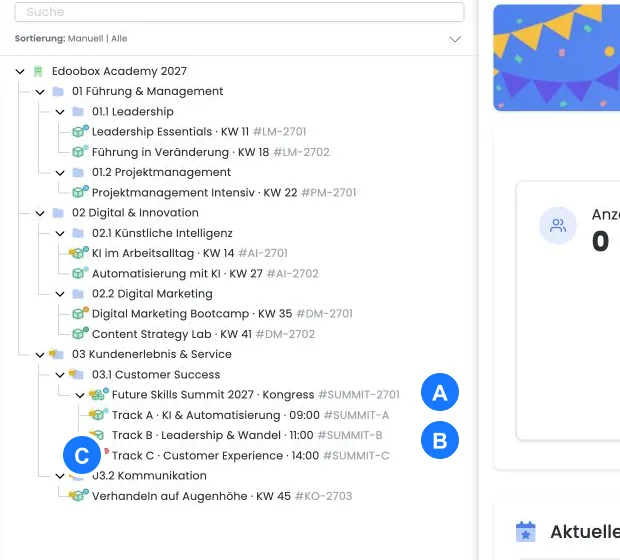
Requirements and limits
The global multi-offer setting must be active.
Creation requires admin permission at a sufficient level.
The permitted sub-offer count depends on account configuration; if no special value is set, the limit is 50.
Sub-offers cannot themselves be multi-offers.
The main offer and every sub-offer need a name in the currently used offer language.
Create the main offer
Select the required category in the offer tree.
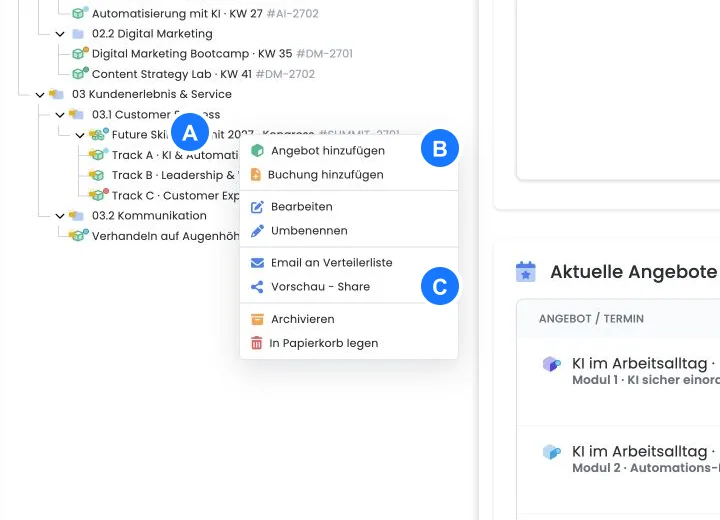
Create a new offer and enable This offer is a multi-offer.
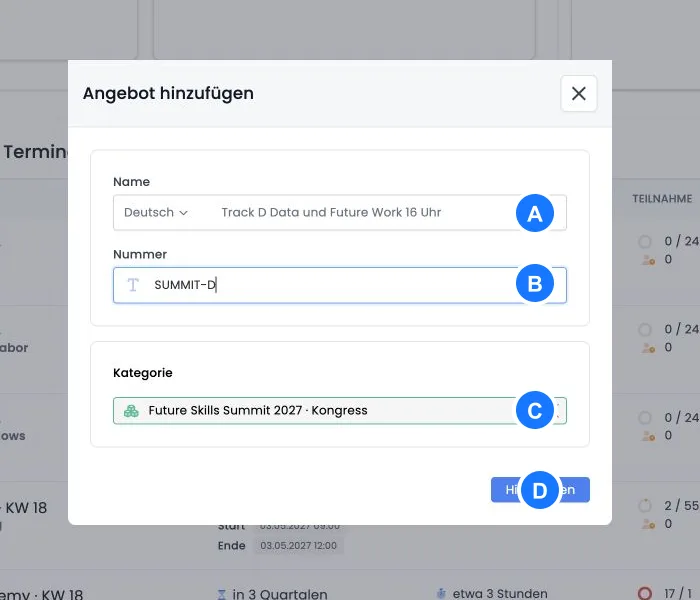
Maintain the name, number, shared texts, participant form and basic booking information.
Save the main offer and create the required sub-offers beneath it.
The “Multi-offer” option appears only when the feature is enabled globally. Creating an offer directly inside a multi-offer automatically makes it a sub-offer in edoobox and prevents further nesting.
Maintain sub-offers completely
Every sub-offer needs:
a unique name and offer number if needed;
sessions with a room or online information;
minimum and maximum participant counts;
at least one understandable price category;
a published or otherwise bookable status;
a brief description if content, audience or requirements differ.
Draft and cancelled sub-offers do not appear as normal selections. Deleted, binned or past entries according to visibility timing are not regularly offered either.
Shared settings and sub-offers' own questions
Configure the shared booking framework on the main offer, particularly group registration, MustPay, currency, VAT, image, tags and ticketing. Some of these switches are hidden on sub-offers. Free session selection and the classic waiting list are not available as normal individual-offer functions within this multi-offer structure.
Additional questions can now also be assigned to a sub-offer. Open the sub-offer and select Additional questions. Workshop A can ask about experience with specific software while Workshop B needs different preparation, for example. Create complete question groups and check mandatory questions per selected sub-offer. Groups can be added, removed and sorted.
Additional services remain unavailable in sub-offers. Maintain shared extras on the main offer. Sub-offers still require their own sessions, capacities and price categories. Choose the cancellation group in the parent booking context; the selection field is hidden in sub-offers.
Test fully booked sub-offers and define a fallback process. A waiting list cannot be enabled on either the main offer or each sub-offer as it can for a normal individual offer.
Distinguish total places, workshop places and account limits
The main offer's maximum participant count and each sub-offer's capacity are separate values. Each sub-offer also has its own price categories with possible price limits. Available capacity in Workshop A creates neither a place in Workshop B nor another total place in the main offer.
| Level | What you check |
|---|---|
| Main offer | Total participant count, bookability, status and registration period of the shared programme. |
| Sub-offer | Its own maximum participant count, sessions, status and available places for the specific workshop. |
| Price category in the sub-offer | Remaining quantity, reservations, active status, sales period and any required personal subscription. |
| edoobox account configuration | Permitted features and number of sub-offers or price categories. An exhausted account limit is not a sold-out workshop capacity. |
- First define the programme's actual overall limit and each workshop's actual capacity.
- Open the main offer and sub-offers in turn and maintain their maximum participant counts.
- Check price categories with their own quotas in every sub-offer.
- Use individual and group registrations to check selection per person, a full workshop and the last overall place. Account for reservations still in progress.
- Then compare the main offer's participant list with the selected workshops' lists and attendance.
Example: 80 congress guests and two smaller workshops
A congress allows 80 people overall. Workshop A has 12 places and Workshop B 20. Once A is full, new people can no longer select it normally even if overall congress places remain. Depending on the programme, someone may choose several workshops and therefore appear in multiple workshop lists. Do not add these lists as the count of distinct congress guests. Conversely, available workshop places do not replace a missing overall place in the main offer.
Identical sessions or the same room in two sub-offers do not create shared capacity. Explicitly check parallel course deliveries and selection rules. Planning the same course delivery explains suitable offer structures.
Add further workshops to the same participation
Main capacity counts active participation, not merely distinct names or participant profiles. If the same person later completes a new, separate multi-offer booking, another main participation may result. Multiple registrations by the same person are not automatically combined into one congress place.
- Before adding a booking, find the existing booking and open the specific active main participation.
- Check the required workshops and their places, prices, scheduling conflicts and any subscription requirements.
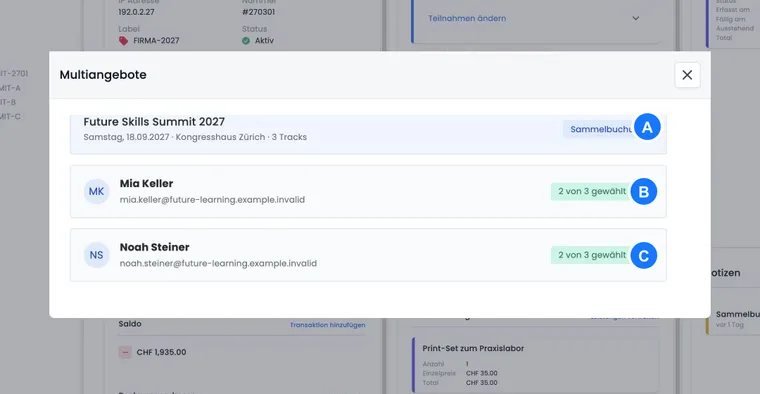
- In booking details, under Multi-offers → Manage offers, use the assignment to existing participation described below if the additional workshop belongs to this congress place.
- After the change, compare the main participation and sub-offers. Check the new total, invoice and confirmation.
Example: an additional workshop after the initial registration
A person has booked a conference place with workshop A. Later, they also want to attend workshop B. The administration adds B to the same existing main participation and checks the surcharge. A new, separate registration for B could count another main place. Reports therefore deliberately distinguish participation rows from the number of distinct profiles.
Book a multi-offer as an administrator and assign sub-offers
- Open the required main offer and start the administrative Add booking action there. Select the existing person and the appropriate main price. For multiple people, check the active participations first.
- Open the resulting booking details and go to Multi-offers under Booked items.
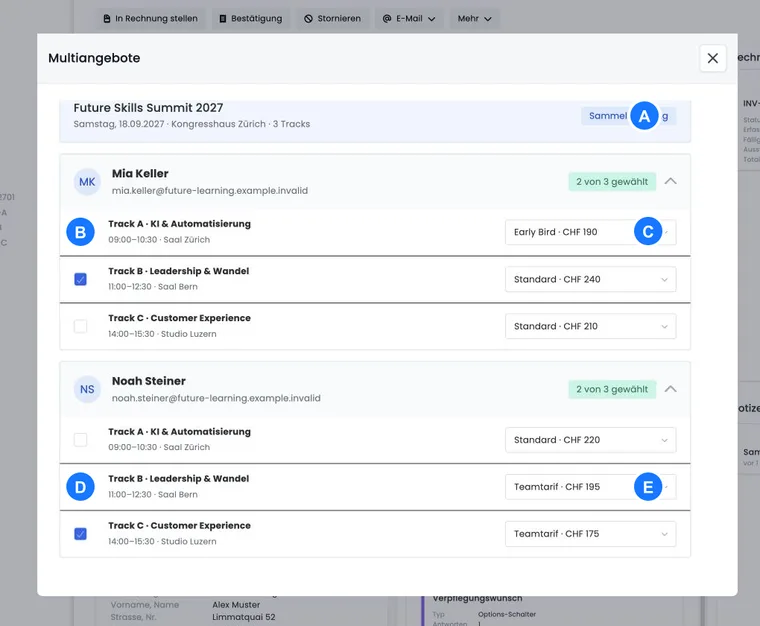
- Select Manage offers. Open the person concerned. If they appear more than once in the same booking, select the correct participation row.
- Activate the required sub-offers and select the appropriate price for each. Individual changes are processed immediately. Wait for each result before continuing.
- For each person, check the final workshop selection, dates, available places, subscription requirements and answers to sub-offer questions.
- Check the booking total, invoice and required message. Administrative assignment alone does not confirm that an email was sent.
If an administrative booking starts directly from a sub-offer, edoobox assigns the process to the main offer and adds that sub-offer. Still check the main price, workshop price and any other required selections afterwards. The administrative selection does not replace a practical capacity check; do not treat it as a guaranteed automatic safeguard against overbooking.
Selection during booking
The multi-offer step is activated automatically when the main offer is configured as a multi-offer. The person booking sees the available sub-offers with their name, number, date, location, capacity and price categories.
For group registrations, the selection is saved for each person. edoobox attempts to reserve a place for every combination of person, sub-offer and price category. If the selected price category is no longer available, the selection must be corrected.
Sub-offers follow the account-wide offer sorting order: by date or manually in the offer tree.
Template in the Design Manager
Open the body template for the multi-offer step and place the designated selection widget. A text block can explain selection rules, compulsory modules or timing information, but must not replace the actual selection.
Check long workshop names, overlapping times, fully booked price categories and the mobile display. The summary must show which sub-offers and prices were selected for each person.
Display full workshops: the multi-offers table in the offer details and the actual selection in the booking step serve different purposes. In the detailed overview, included prices may remain visible as Fully booked. The booking selection, however, considers available prices and hides workshops that can no longer be selected in a normal new booking; a person’s existing selection or reservation may remain visible. There is no general switch to retain all full workshops in this selection.
The Expand multi-offers by default setting only controls whether selection sections are initially expanded. It does not change place availability checks or the selection of full workshops. If needed, add the informational overview to the offer details page and check both views with an available and a full workshop.
Test matrix before publication
an individual with one and several sub-offers;
a group registration with different selections for each person;
the last available place in a price category;
a fully booked, closed and cancelled sub-offer;
overlapping dates and clear conflict messages;
price changes after navigating back;
booking confirmation, invoice, participant export and attendance for each sub-offer.
Example: conference with parallel workshops
The main offer contains shared admission and the participant form. Six workshops are sub-offers with their own times and capacities. The selection page includes the room and time in the name to prevent accidental bookings at overlapping times.
Example: a family books different modules
A group registration contains two adults and one child. Each person selects different sub-offers and suitable price categories. edoobox reserves places for each person; the summary is checked row by row before completion.
Example: the last place is no longer available
During booking, the last place in a workshop is reserved by another booking process. The affected selection cannot be accepted. The person selects an alternative sub-offer instead of completing the main booking with an unseen capacity error.
Check the plugin and subscription conditions in advance
Functions and scope may depend on the account configuration and activated plugins. Check the Plugin Manager before planning a new conference programme. The Multi-offer option in the creation dialog indicates whether this offer type is available in the account.
For workshop prices tied to subscriptions, check the conditions of each price category. A person must have the entitlement required for their specific selection. Test a group booking with different workshop selections and subscription situations for each person.