
Multi-sessions in edoobox
Multi-Sessions keeps multiple admin logins available in the same browser. Switch between different edoobox accounts or admin profiles without re-entering every credential each time.
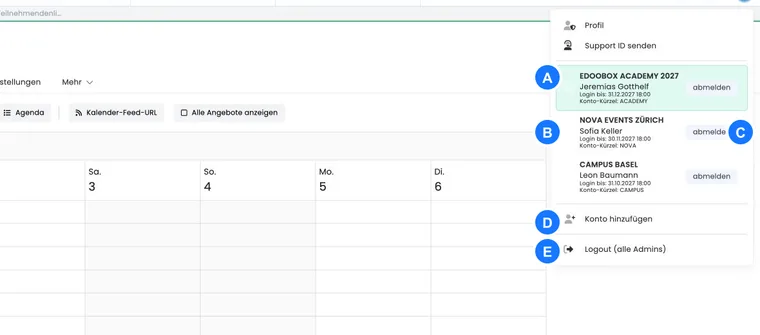
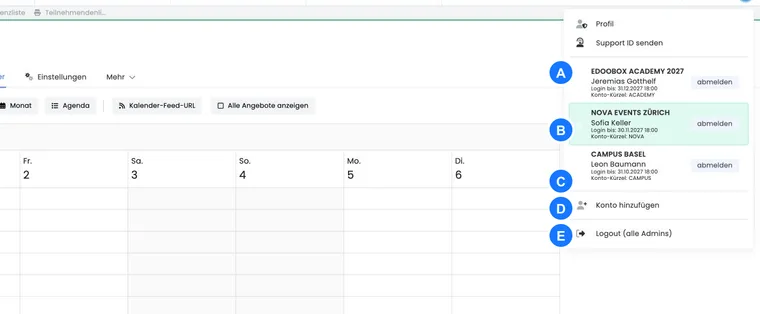
Each session retains its own admin, account, expiry date and permissions. Before changing offers, bookings, settings or payments, always check which account is currently marked.
When Multi-Sessions is useful
An agency manages several independent edoobox accounts.
An association manages different organisations or locations.
A support person temporarily needs access to a second authorised admin profile.
An admin tests different permissions with separate demonstration profiles.
Multi-Sessions does not connect accounts. Data, subscriptions, roles and settings remain separate. The feature only simplifies switching between valid logins in the current browser.
Add another account or admin profile
Open the profile menu at the top right.
Select Add account.
Sign in using the additional admin profile's credentials.
Complete two-factor or SSO sign-in if required.
After successful login, the session appears in the profile menu once multiple valid admin logins exist.
Alongside the admin name, the session may show the organisation name, account abbreviation and date until which login is valid, depending on available data.
Add account signs in to another account already set up. It does not register a new organisation. The workflow for another organisation using the same admin email is explained in Another organisation with the same admin email.
Switch between sessions
Select the required admin in the profile menu. edoobox sets that login as the current context, renews the session and opens the target account's starting view. Notifications and the real-time connection also switch to the selected account.
Check before every write action: Check the account name or abbreviation before sending emails, changing settings, cancelling bookings or processing payments. Similar offer names in two accounts are not reliable identifiers.
If the selected session has expired or is no longer valid, edoobox returns to sign-in. Other valid sessions may remain intact.
Sign out one or all sessions
Individual session: Use the separate sign-out action beside that admin. A non-current session is removed without ending current work.
Current session: Signing out the current session individually opens the edoobox login page. Other saved sessions generally remain available.
Log out all admins: Ends the entire local login context and opens the login page.
Work securely on shared devices
Use Multi-Sessions only in a personal, protected browser.
On training, reception or shared devices, select Log out all admins at the end.
Do not add another person's session if doing so would require sharing their credentials or two-factor means.
Maintain permissions per admin profile; Multi-Sessions does not extend them.
If a device is lost, block affected admin access and sessions through the designated security process.
If an account is missing or switching fails
Check that the second sign-in completed fully.
Check expiry date, two-factor sign-in and SSO status.
Check that the admin is still active and authorised in the target account.
Sign out only the affected session and add it again.
Use full logout only when all local sessions should deliberately end.
Example: an agency switches between two customer accounts
An administrator has valid access to “Academy North” and “Academy South”. Before sending an offer email, she checks the account abbreviation and organisation name. Afterwards, she switches to the second account through the profile menu without deleting the first session.
Example: sign in again to an expired session
When switching to a rarely used account, its login has expired. edoobox opens sign-in. The administrator completes login and two-factor verification again; her other valid session need not end.
Example: fully sign out a training device
Two demonstration admins were added for internal training. At the end, the instructor uses Log out all admins rather than only individual logout and then checks that the profile menu is inaccessible without signing in again.