
Additional questions: understand question groups
Question groups combine input fields or answer options that can appear in the booking process. They help collect additional information, such as preferences, prior knowledge, allergies, material requirements or questions for the provider.
This guide explains the columns and checks in the question group overview. The complete functional process is described in Additional questions and services.
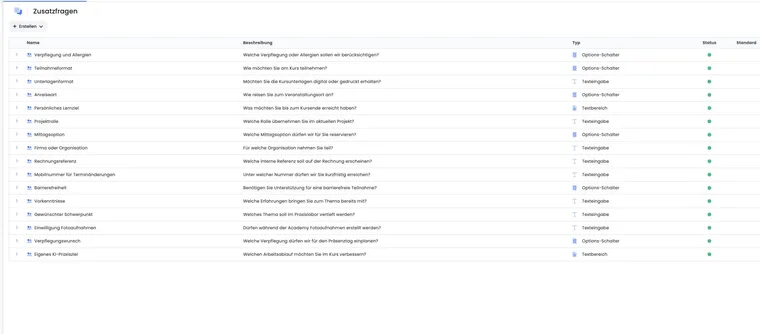
Where question group columns appear
Question groups appear as a table in the additional questions overview. Use the creation menu to add new question groups or input fields.
Each table row represents a question group. Expanding it shows the group's input fields below. Input fields can be sorted within the group.
Name and description
The name should clearly identify the question group. The description helps admins and may appear as explanatory text in the booking process.
A title and description are required when creating a group. Use an informative description, such as “Preparation questions” or “Dietary requirements and intolerances”. The description may serve as help text for participants and should therefore be understandable outside the organisation as well.
When editing, you can change the title, description, answer format, default use and active status. Check changes particularly carefully if the question group is already used in ongoing offers.
Type and answer formats
The type shows the question group's answer format. Typical formats are radio buttons, text input and text area.
Radio buttons: Suitable for predefined answers.
Text input: Suitable for short free-text answers.
Text area: Suitable for longer comments or questions.
Choose the format so that participants can answer the question quickly and unambiguously.
Status and default use
The status shows whether a question group is active. Inactive groups are not displayed during registration but can be prepared or retained for historical purposes. Also check the status of individual input fields within the group.
A question group marked as Default is added automatically to new offers. Existing offers are not updated retroactively. Without the default marker, the group remains available and is assigned specifically to the desired offer. Check the assignment after copying or replacing question groups as well.
Input fields within a question group
The actual questions are input fields beneath the question group. They have a label, group assignment, active status and order. The answer format is selected for the group. Each production question group needs at least one active input field or answer option; otherwise, participants have no meaningful input option.
After creating a question group, check its input fields straight away. For radio buttons, create the selectable answers as individual input fields, such as “Vegetarian”, “Vegan” and “No preference”. Arrange input fields in the logical order for answering the form. Mandatory questions should be clearly worded and should not request unnecessary sensitive data.
Assign question groups to offers
A question group only affects the booking process when assigned to an offer and when the template contains the corresponding form widget. Correct groups without input fields before assigning them, as they can confuse or block booking completion. Assigned question groups can be removed from an offer or reordered. Therefore check offer assignment, status and form display together.
Manage question groups and additional services in the appropriate section of the offer details. Further details are in Offer details.
Distinction from participant data fields
Additional questions collect answer-based information for a specific booking or offer. Participant data fields, by contrast, belong to the person profile and are often reused.
Use additional questions for offer-specific questions and data fields for lasting personal information.
Example: collect allergy information for a cookery course
A cookery course needs allergy information. The organiser creates a “Diet” question group, adds an “Allergies or intolerances” field in a group using the Text area answer format, and assigns the group only to cookery course offers.
The same question group in multiple sub-offers
A group can be assigned to multiple offers. In a multi-offer, answers must therefore be read together with the main offer or sub-offer. The same group name does not mean an answer automatically applies to every selected sub-offer. Follow Additional questions in multi-offers when using groups in several workshops.