
Add-on services: Add-on service group columns
Additional service groups bundle optional services later assigned to offers and selected during booking in addition to the offer price. Typical examples include materials, catering, rental equipment, extra modules or optional service packages.
This guide explains columns and checkpoints in the additional service group overview so you can identify completeness of groups, services, prices and assignments before publication.
Where columns appear
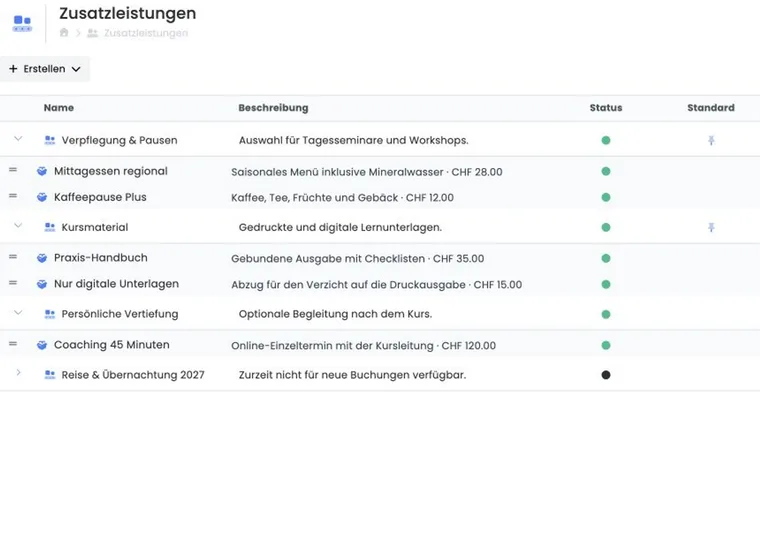
Columns appear in the global additional services overview. One table row represents a service group. Expanding it makes edoobox show associated individual services beneath it.
The creation menu creates a new service group or service. A service makes sense only once at least one group exists for assignment. If a group has no services, first add at least one entry.
Name and description
The name should briefly and clearly explain which services belong together. Groups have a group icon; individual services have their own service icon. Clicking a group or service opens editing.
Description helps admins recognise the group’s purpose. It is especially helpful when several teams maintain services or similar-sounding groups exist. In multilingual accounts, visible names and descriptions should be translated.
Status and Default marker
Status shows whether a group or service is active. Green means active, red inactive. Inactive entries should not be published carelessly, but may help for prepared or seasonal services.
A service group marked as Default is added automatically to new offers. Without this marker, the group remains available and is assigned specifically to the desired offer. The default marker does not automatically book a service or make an optional selection mandatory.
Example: Default group for course materials
If almost every new offer should provide printed course materials as an optional extra, create a service group containing that service and enable Default. New offers receive the group automatically; participants still choose the quantity themselves. Check and update existing offers individually.
Services and order within a group
Individual services appear below a service group. Each has name, description, amount, application type, status and order.
Order determines how services appear during booking. Sort logically for participants. Frequently booked or important options should not be hidden among rarely used services.
Sort services within the same group. Avoid accidental cross-group moves by checking the expanded group again afterwards.
Amount, currency, VAT and application type
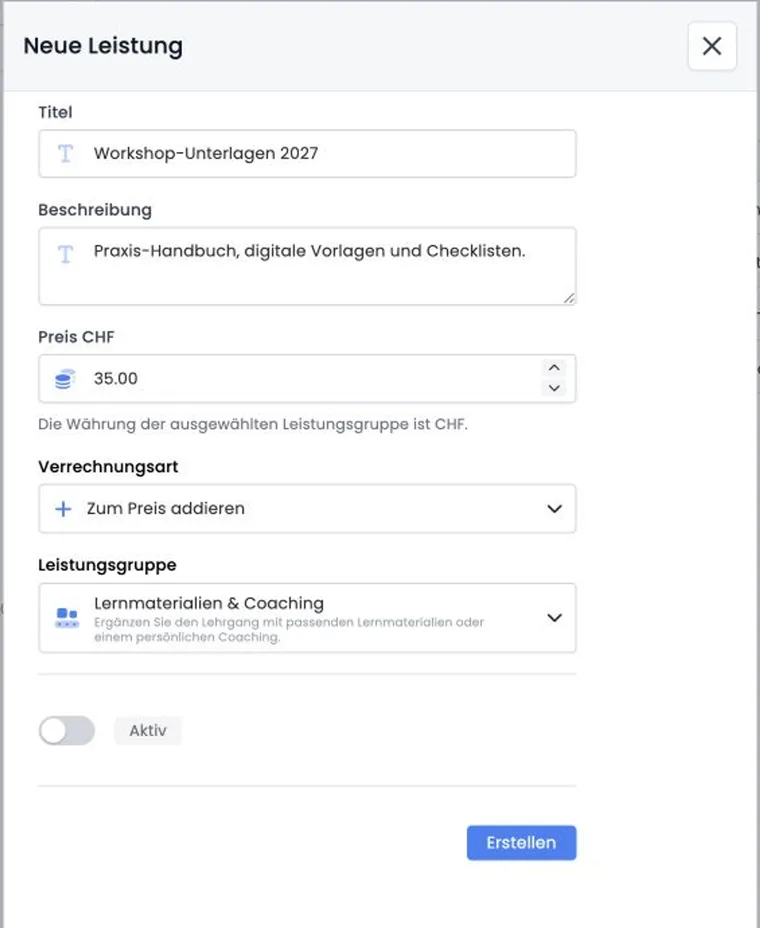
A service has a non-negative amount (0 is also possible) and a calculation method: add to the price or subtract from the price. This lets you offer selectable surcharges or deductions. A selected deduction changes the booking amount; it is not a separate credit note or a refund of a payment already received.
Currency is selected on the service group; the country/currency mapping selected there also limits selectable VAT rates. If prices, currencies or tax rates do not match offer currency, incorrect booking amounts or unclear invoices may result later.
Therefore always check additional services together with Price categories and Global VAT settings.
Example: Optional deduction for own materials
The seminar price includes printed course notes. For the optional choice Without printed course notes, enter CHF 15 and Subtract from price. Assign the group only to offers with these notes. The service is then selectable for their bookings; it is not a credit stored exclusively for one specific person.
For an optional room, materials or individual price agreement, check the appropriate structure beforehand. Global service price and an individual booking’s quantity are different settings.
Create and edit additional service groups
Create the group first, then individual services. For group creation, enter title, description, currency, VAT, Default and status. Initial values often include current country, Active status and no VAT.
Immediately after creation, add at least one service. Give each service a clear name, price, status and, if needed, description. If services are visible in several languages, maintain texts in every active language.
Before deleting or disabling a group, check whether it remains assigned to offers or expected in bookings.
Assign additional service groups to an offer
A maintained service group affects booking only when assigned to a suitable offer and design or form displays selection. Check assignment in offer details and test booking with a trial booking.
In offer details, selection works similarly to additional questions: available groups are selected, assigned groups can be removed or sorted, and expanded groups show sub-elements. Sorting determines booking order.
In the public form, check selectable quantities and resulting amounts. An internal note does not automatically make a service mandatory or preselected.
Distinction from prices, payments and additional questions
Price categories define an offer’s base prices. Additional services are optional or supplementary items organised through service groups. Payment methods and incoming payments are represented separately through payment systems and invoicing processes.
Question groups belong to additional questions and record answers. Additional service groups belong to additional services and change price through individual services. Both are similarly assigned in the offer but have different effects during booking.
Table tools and exports
The overview can be checked with table functions such as sorting, filtering or column adjustment. Visible columns, sorting, filters and exports depend on the respective table view and admin permissions.
For analyses, read Tables and export options and Table tools.
Example: Catering as an additional service
A seminar provider creates Catering and adds Vegetarian lunch and Lunch with meat. They then assign the group to the seminar offer, check price, VAT and currency, and test booking through to confirmation.